Working with database components
A database is an electronic storage place for data. Databases
are designed to ensure that data is valid and consistent and that
it can be accessed, modified, and shared.
A database management system (DBMS) governs the activities
of a database and enforces rules that ensure data integrity. A relational DBMS stores
and organizes data in tables.
How you work with databases
in PowerBuilder
You can use PowerBuilder to work with the following database
components:
- Tables and columns
- Keys
- Indexes
- Database views
- Extended attributes
- Additional database components
Tables and columns
A database usually has many tables, each of which contains
rows and columns of data. Each row in a table has the same columns,
but a column’s value for a particular row could be empty
or NULL if the column’s definition allows
it.
Tables often have relationships with other tables. For example,
in the EAS Demo DB included with PowerBuilder,
the Department table has a Dept_id column,
and the Employee table also has a Dept_id column
that identifies the department in which the employee works. When
you work with the Department table and the Employee table,
the relationship between them is specified by a join of the two
tables.
Keys
Relational databases use keys to ensure database integrity.
Primary keys A primary key is a column or set of columns that uniquely identifies
each row in a table. For example, two employees may have the same first
and last names, but they have unique ID numbers. The Emp_id column
in the Employee table is the primary key column.
Foreign keys A foreign key is a column or set of columns that contains primary
key values from another table. For example, the Dept_id column
is the primary key column in the Department table
and a foreign key in the Employee table.
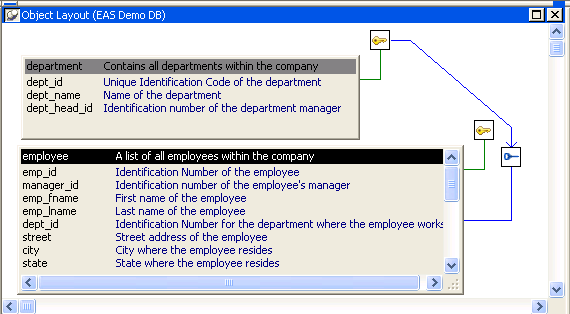
Key icons In PowerBuilder, columns defined as keys are displayed with
key icons that use different shapes and colors for primary and foreign. PowerBuilder automatically
joins tables that have a primary/foreign key relationship,
with the join on the key columns.
In the following illustration there is a join on the dept_id column,
which is a primary key for the department table
and a foreign key for the employee table:
For more information, see “Working with keys”.
Indexes
An index is a column or set of columns you identify to improve
database performance when searching for data specified by the index.
You index a column that contains information you will need frequently.
Primary and foreign keys are special examples of indexes.
You specify a column or set of columns with unique values
as a unique index, represented by an icon with a single key.
You specify a column or set of columns that has values that
are not unique as a duplicate index, represented by an icon with
two file cabinets.
For more information, see “Working with indexes”.
Database views
If you often select data from the same tables and columns,
you can create a database view of the tables. You give the database
view a name, and each time you refer to it the associated SELECT command
executes to find the data.
Database views are listed in the Objects view of the Database painter and
can be displayed in the Object Layout view, but a database view
does not physically exist in the database in the same way that a
table does. Only its definition is stored in the database, and the
view is re-created whenever the definition is used.
Database administrators often create database views for security
purposes. For example, a database view of an Employee table that
is available to users who are not in Human Resources might show
all columns except Salary.
For more information, see “Working with database views “.
Extended attributes
Extended attributes enable you to store information about
a table’s columns in special system tables. Unlike tables,
keys, indexes, and database views (which are DBMS-specific), extended
attributes are PowerBuilder-specific. The most powerful extended attributes
determine the edit style, display format, and validation rules for
the column.
For more information about extended attributes,
see “Specifying column extended
attributes”. For
more information about the extended attribute system tables, see Appendix A, “The Extended
Attribute System Tables”
Additional database components
Depending on the database to which you are connected and on
your user privileges, you may be able to view or work with a variety
of additional database components through PowerBuilder. These components
might include:
- Driver information
- Groups
- Metadata types
- Procedures and functions
- Users
- Logins
- Triggers
- Events
- Web services
For example, driver information is relevant to ODBC connections.
It lists all the ODBC options associated with the ODBC driver, allowing
you to determine how the ODBC interface will behave for a given
connection. Login information is listed for Adaptive Server Enterprise
database connections. Information about groups and users is listed
for several of the databases and allows you to add new users and
groups and maintain passwords for existing users.
You can drag most items in these folders to the Object Details
view to display their properties. You can also drag procedures,
functions, triggers, and events to the ISQL view.
Trigger information is listed for Adaptive Server Enterprise
and SQL Anywhere tables. A trigger is a special form of stored procedure
that is associated with a specific database table. Triggers fire
automatically whenever someone inserts, updates or deletes rows
of the associated table. Triggers can call procedures and fire other
triggers, but they have no parameters and cannot be invoked by a CALL statement.
You use triggers when referential integrity and other declarative
constraints are insufficient.
Events can be used in a SQL Anywhere database to automate
database administration tasks, such as sending a message when disk
space is low. Event handlers are activated when a provided trigger
condition is met. If any events are defined for a SQL Anywhere connection,
they display in the Events folder for the connection in the Objects
view.