Setting up Web targets
A Web target provides the physical and management structure
for the folders and files within it. When you work with a Web target,
you do so within the context of a workspace. You must set up the
Web target before you can begin developing content. After you set
up a Web target, you can add new content or content based on existing
files that you import.
To produce most Web targets, you must complete the following
tasks :
- Create a Web target
- Modify Web target properties, configuring the Web
target to meet your Web environment delivery requirements - Set up connection profiles and the folder structure
for your files - Import existing files you want to use
- Create new Web pages with the Web page wizards and
the HTML editor - Add HTML elements and controls, including design-time
controls, to your Web pages using drag-and-drop programming - Write scripts that take advantage of the event-driven
infrastructure provided by the Web Target object model - Test your pages to make sure that they appear and
work as planned - Deploy your Web application to a production environment
where client browsers can access your Web site
Creating
a Web target
You create a Web target using the Web Site wizard or the JSP
Target wizard. Creating a Web target defines the folder structure
for the target.
 To create
a Web target:
-
From an open workspace, select File>New
or
In the Workspace tab of the System Tree, right-click
the workspace name, and select New from the pop-up menu. -
On the Target page of the New dialog box:
Click this wizard To create this JSP Target A JSP Web site that you deploy to a JSP
1.2 component server such as Tomcat or EAServerWeb Site A Web site that gets deployed to a file
system or an FTP serverThe New Target wizard starts.
- Follow the instructions on the wizard pages.
Target Properties dialog box
After you create
a Web target, you can modify the target properties and add deployment
configurations from the Target Properties dialog box. You access the
Target Properties dialog box from the pop-up menu for a Web target
in the System Tree.
The Target Properties dialog box for a Web site target has
the following options for property selections:
| On this page | Set these options |
|---|---|
| Options | The path of the Web target’s Source folder and Build folder. |
| Deploy | The local and remote deployment configurations for your target. You can also set the deployment priority of the various deployment |
| Run | The start page for the target and the deployment configuration you want to use for running when you click the Run button from the PowerBar or select Run>Run Target from the PowerBuilder menu. |
Adding deployment configurations
After you
create a target, you can add deployment configurations and change settings
for the target from the property pages for the target. For information about
deploying a Web target, see Chapter 12, “Building and Deploying
Web Targets”
Local and target deployment configurations
Before you add a deployment configuration, you should decide
whether you want to create a test (local) configuration, a shared
or production (target) configuration, or both. You can deploy using
both types of configuration at the same time.
Local configurations are stored in your registry, whereas
target configurations are stored in the PBT file. PBT files with
target configurations can be shared in a source control system,
but users will have to make certain that any configuration paths,
database profiles, and target mappings have identical names on all
machines that use the source-controlled target configurations.
Multiple deployment configurations
You can add multiple deployment configurations to the list
of local or target configuration profiles. You can change the order
of the configurations in the list by using the wavy arrow keys above
the configuration list boxes. A check box next to each deployment
configuration in the list lets you select which of the configurations
you want to use the next time you deploy your Web target. When you
add a configuration, it is selected for deployment by default.
To add deployment configurations:
-
Right-click the Web target on the Workspace
tab of the System Tree and select Properties from the pop-up menu. -
Click the Deploy tab.
The Deploy page is one of three pages in the Properties dialog
box for a Web Site target and a JSP target.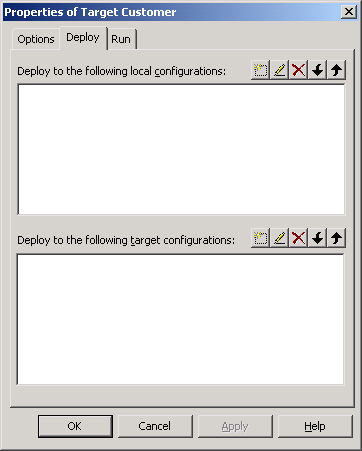
-
Click the Create New Configuration button for
either a local deployment configuration or a target deployment configuration.The New Deployment Configuration wizard starts.
-
Follow the instructions in the New Deployment
Configuration wizard.In the wizard, you provide the following information:
- A name for the deployment configuration
- The Web server to deploy to (Active Server Page
or Basic) - The access to the ASP site or Web server (static
file system or FTP) - FTP server name, deployment directory, and login
ID and password - HTTP server name and port
- Whether you are using the default object model or
no object model - How to handle failures (deploy all or nothing or
only successful files) - A folder name for a local copy of the deployed files
After you click Finish on the last wizard page, the new deployment configuration
displays in one of the list boxes on the Deploy page of the Target
Properties dialog box. You can use the toolbar above the list box
to edit, delete, or change the order of the configurations in the
list. -
Click the Run tab and select a start page for
your Web target.For ASP targets, you must give the complete URL, including
the server name, if you want to start your Web application from
the design-time environment. For JSP targets, you do not need the
complete URL. Choosing a URL (only for ASP targets) If you use the Choose URL dialog box (URL picker) that you
access from the ellipsis button next to the Start Page field, only
the file name portion of the URL that you select is added to the
field. You must then type in the protocol, domain, and prefix portion
of the URL (before the file name in the Start Page field) to be
able to start the application from your design-time environment. -
Select a deployment configuration that you want
to use for running.The deployment configurations you created for the current
Web target are available for selection from the Deploy Configuration
For Running drop-down list.
Importing files for an existing Web site
You can import folders
or multiple files into your Web target. If you want to use an existing
Web site as the starting point for development, you can import the
site into a Web target.
The site you import must be a file-based Web site. The folder
structure of the Web site becomes the folder structure in the Web
target. The Web target creates a map of the resources used by the
site and tracks the content, links, and components.
Once you have imported files or a complete Web site, you can
modify the content and organizational structure to suit your Web
application.
To import files or an existing Web site into a
Web target:
-
Right-click the Web target on the Workspace
tab of the System Tree. -
Select Import Files or Import Folder from the
pop-up menu. -
Select the files or the folder you want to import
and click OK or Open.
Defining connection profiles
If you plan to use database connections or EAServer connections, you must define
connection profiles for these types of connections:
| Profile type | Create for |
|---|---|
| Database connections | Database connections that your pages use directly, and connections to be used by Web DataWindow objects |
| Connections to EAServer | Components your application will access that are stored on the server |
You set up database connection profiles from the Tools>Database
Profile menu item. You can set up EAServer profiles
either from the Tools>EAServer Profile menu
item or by right-clicking anywhere on the Components tab of the
System Tree.
For information on setting up these profiles, see Connecting
to Your Database
.