Specifying application properties
You specify application properties in the Application painter’s
Properties view.
 To specify application properties:
-
In the Application painter, if the Properties
view is not open, select View>Properties from the menu
bar.With the exception of the AppName property, the properties
on the General and Toolbar tab pages can be modified in the Properties
view and in scripts.If you need help specifying properties in the Properties View,
right-click on the background of the Properties view and select
Help from the pop-up menu. -
Select the General or Toolbar tab page, or, on
the General tab page, click the Additional Properties button to
display the Application properties dialog box.The additional properties on the Application properties dialog
box can be modified only in this dialog box. They cannot be modified
in scripts. -
Specify the properties:
To specify this Use this tab page Display name General tab page Application has toolbar text and toolbar
tipsToolbar tab page Default font for static text as it appears
in windows, user objects, and DataWindow objectsAdditional Properties (Text Font) Default font for data retrieved in a
DataWindow objectAdditional Properties (Column Font) Default font for column headers in tabular
and grid DataWindow objectsAdditional Properties (Header Font) Default font for column labels in freeform DataWindow
objectsAdditional Properties (Label Font) Application icon Additional Properties (Icon) Global objects for the application Additional Properties (Variable Types)
These sections have information about how you specify the
following application properties in the Application painter:
Specifying default text properties
You probably want to establish a standard look for the text
in your application. There are four kinds of text whose properties
you can specify in the Application painter: text, header, column,
and label.
PowerBuilder provides default settings for the font, size, and
style for each of these and a default color for text and the background.
You can change these settings for an application in the Application
painter and can override the settings for a window, user object,
or DataWindow object.
 Properties set in the Database painter override application
properties If extended attributes have been set for a database column
in the Database painter or Table painter, those font specifications
override the fonts specified in the Application painter.
To change the text defaults for an application:
-
In the Properties view, click Additional
Properties and select one of the following:- Text Font tab
- Header Font tab
- Column Font tab
- Label Font tab
The tab you choose displays the current settings for the font,
size, style, and color. The text in the Sample box illustrates text
with the current settings. -
Review the settings and make any necessary changes:
- To change the font,
select a font from the Font list. - To change the size, select a size from the Size
list or type a valid size in the list. - To change the style, select a style (Regular, Italic,
Bold, or Bold Italic) from the Font styles list. - To change font effects, select one or more from
the Effects group box (Strikeout and Underline). - To change the text color, select a color from the
Text Color list. (You do not specify colors for data, headings,
and labels here; instead, you do that in the DataWindow painter.) - To change the background color, select a color from
the Background list.
Using custom colors When specifying a text color, you can choose a custom color.
You can define custom colors in several painters, including the
Window painter or DataWindow painter. - To change the font,
-
When you have made all the changes, click OK.
Specifying an icon
Users can minimize your application during execution. If you
specify an icon in the application painter, the icon will display
when the application is minimized.
To associate an icon with an application:
-
In the Properties view, click Additional
Properties and select the Icon tab. -
Specify a file containing an icon (an ICO file).
The button displays below the Browse button.
-
Click OK to associate the icon with the application.
Specifying default global objects
PowerBuilder provides five built-in global objects that are
predefined in all applications.
| Global object | Description |
|---|---|
| SQLCA | Transaction object, used to communicate with your database |
| SQLDA | DynamicDescriptionArea, used in dynamic SQL |
| SQLSA | DynamicStagingArea, used in dynamic SQL |
| Error | Used to report errors during execution |
| Message | Used to process messages that are not PowerBuilder-defined events and to pass parameters between windows |
You can create your own versions of these objects by creating
a standard class user object inherited from one of the built-in
global objects. You can add instance variables and functions to
enhance the behavior of the global objects.
For more information, see Chapter 14, ” Working with User Objects .”
After you do this, you can tell PowerBuilder that you want to
use your version of the object in your application as the default,
instead of the built-in version.
To specify the default global objects:
-
In the Properties view, click Additional
Properties and select the Variable Types tab.The Variable Types property page displays.
-
Specify the standard class user object you defined
in the corresponding field.For example, if you defined a user object named mytrans that
is inherited from the built-in Transaction object, type mytrans in
the box corresponding to SQLCA.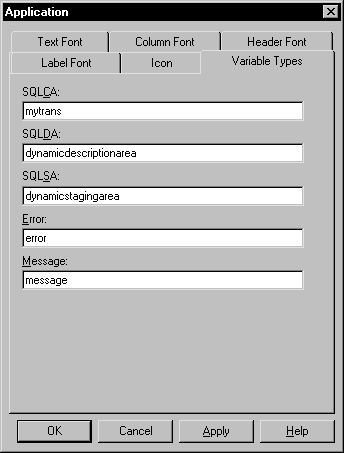
-
Click OK.
When you run your application, it will use the specified standard
class user objects as the default objects instead of the built-in
global objects.