Using a source control system with PowerBuilder
PowerBuilder
provides a direct connection to external SCC-compliant source control
systems. It no longer requires you to register PowerBuilder objects
in a separate work PBL before you can check them into or out of
the source control system.
For information on migrating PowerBuilder applications and
objects previously checked into source control through a registered
PBL, see “Migrating existing projects
under source control”.
Before you can perform any source control operations from
PowerBuilder, you must set up a source control connection profile
for your PowerBuilder workspace, either from the System Tree or
from the Library painter. Even if you use the PBNative check in/check
out utility, you must access source-controlled objects through an
SCC interface that you define in the Workspace Properties dialog
box.
The source control connection profile assigns a PowerBuilder
workspace to a source control project. Setting up a source control
project is usually the job of a project manager or administrator.
See “Project manager’s tasks”.
 Creating a new source control project Although you can create a project in certain source control
systems directly from PowerBuilder, it is usually best to create
the project from the administrative tool for your source control
system before you create the connection profile in PowerBuilder.
Setting up a connection profile
In
PowerBuilder you can set up a source control connection profile
at the workspace level only. Local and advanced connection options
can be defined differently on each machine for PowerBuilder workspaces
that contain the same targets.
Local connection options
Local connection options allow you to create a trace log to
record all source control activity for your current workspace session.
You can overwrite or preserve an existing log file for each session.
You can also make sure a comment is included for every file
checked into source control from your local machine. If you select
this connection option, the OK button on the Check In dialog box
is disabled until you type a comment for all the objects you are
checking in.
The following table lists the connection options you can make
for each local connection profile:
| Select this option | To do this |
|---|---|
| Log All Source Management Activity (not selected by default) |
Enable trace logging. By default the log file name is PBSCC90.LOG, which is saved in your workspace directory, but you can select a different path and file name. |
| Append To Log File (default selection when logging is enabled) |
Append source control activity information to named log file when logging is enabled. |
| Overwrite Log File (not selected by default) | Overwrite the named log file with source control activity of the current session when logging is enabled. |
| Require Comments On Check In (not selected by default; not available for PBNative source control) |
Disable the OK button on the Check In dialog box until you type a comment. |
| This Project Requires That I Sometimes Work Offline (not selected by default) |
Disable automatic connection to source control when you open the workspace. |
| Delete PowerBuilder Generated Object Files (not selected by default) |
Remove object files (such as SRDs) from the local directory after they are checked into source control. This may increase the time it takes for PowerBuilder to refresh source control status, but it minimizes the drive space used by temporary files. You cannot select this option for the Perforce, ClearCase, or Continuus source control systems. |
| Perform Diff On Status Update | Permit display of out-of-sync icons for local objects that are different from objects on the source control server. Selecting this also increases the time it takes to refresh source control status.You cannot select this option for Perforce. |
| Suppress prompts to overwrite read-only files |
Avoid message boxes warning that read-only files exist on your local project directory. |
| Status Refresh Rate (5 minutes by default) | Specifies the minimum time elapsed before PowerBuilder automatically requests information from the source control server to determine if objects are out of sync. Valid values are between 1 and 59 minutes. Status refresh rate is ignored when you are working offline. |
Advanced connection options
Advanced
connection options depend on the source control system you are using
to store your workspace objects. Different options exist for different source
control systems.
Applicability of advanced options Some advanced options might not be implemented or might be
rendered inoperable by the PowerBuilder SCC API interface. For example,
if an advanced option allows you to make local files writable after
an Undo Check Out operation, PowerBuilder still creates read-only
files when reverting an object to the current version in source
control. (PowerBuilder might even delete these files if you selected
the Delete PowerBuilder Generated Object Files option.)
 To set up a connection profile:
-
Right-click the Workspace object in the
System Tree (or in the Tree view of the Library painter) and select
Properties from the pop-up menu. -
Select the Source Control tab from the Workspace
Properties dialog box. -
Select the system you want to use from the Source
Control System drop-down list.Only source control systems that are defined in your registry (HKEY_LOCAL_MACHINESOFTWARESourceCodeControlProvider
InstalledSCCProviders)
appear in the drop-down list. -
Type in your user name for the source control
system.Some source control systems use a login name from your registry
rather than the user name that you enter here. For these systems
(such as Perforce or PVCS), you can leave this field blank. -
Click the ellipsis button next to the Project
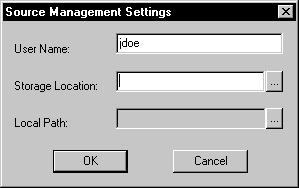
text box.A dialog box from your source control system displays. Typically
it allows you to select or create a source control project.The dialog box displayed for PBNative is shown below:
-
Fill in the information required by your source
control system and click OK.The Project field on the Source Control page of the Workspace
Properties dialog box is typically populated with the project name
from the source control system you selected. However, some source
control systems (such as Perforce or Vertical Sky) do not return
a project name. For these systems, you can leave this field blank. -
Type or select a path for the local root directory.
All the files that you check into and out of source control
must reside in this path or in a subdirectory of this path. -
(Option) Select the options you want for your
local workspace connection to the source control server. -
(Option) Click the Advanced button and make any
changes you want to have apply to advanced options defined for your
source control system.The Advanced button might be grayed if you are not first connected
to a source control server. If Advanced options are not supported
for your source control system, you see only a splash screen for
the system you selected and an OK button that you can click to return
to the Workspace Properties dialog box. -
Click Apply or click OK.
Viewing the status of source-controlled objects
After a PowerBuilder
workspace is assigned to a source control project through a connection
profile, icons in the PowerBuilder System Tree display the source control
status of all objects in the workspace. The same icons are also
displayed for objects in the Library painter if the workspace to
which they belong is the current workspace for PowerBuilder.
Source control icons
The icons and their meanings are described in Table 3-3 and Table 3-4.
| Icon | Source control status of object displaying icon |
|---|---|

|
The object resides only locally and is not under source control. |

|
The object is under source control and is not checked out by anyone. The object on the local machine is in sync with the object on the server unless the icon for indeterminate status also appears next to the same object. |

|
The object is checked out by the current user. |

|
The object is checked out by another user. |

|
The current status of an object under source control has not been determined. You are likely to see this icon only if the Perform Diff On Status Update check box is not selected and if diffs are not performed for your source control system based on version number. This icon can appear only in conjunction with the icon for a registered object (green dot icon) or for an object checked out by another user (red x icon). |

|
The object on the local machine is registered to source control, but is out of sync with the object on the server. This icon can also appear with the icon for an object checked out by another user. The Perform Diff On Status Update check box must be selected for this icon to display. |
Compound icons with a red check mark can display only if you
add a PB.INI setting to permit multiple user checkouts. These icons
are described in the following table:
| Icon | Source control status of object displaying icon |
|---|---|

|
The object is under source control and is checked out nonexclusively by another user. PowerBuilder allows a concurrent checkout by the current user. |

|
The object is checked out by both the current user and another user. |

|
The object is checked out nonexclusively by another user and the version in the current user’s local path is out of sync. |
For more information on allowing multiple user checkouts,
see “Checking objects out from
source control”.
Pop-up menus
Pop-up menus for each object in the workspace change dynamically
to reflect the source control status of the object. For example,
if the object is included in a source-controlled workspace but has
not been registered to source control, the Add To Source Control
menu item is visible and enabled in the object’s pop-up
menu. However, other source control menu items such as Check In
and Show Differences are not visible until the object is added to
source control.
Library painter Entry menu
Additional status functionality is available from the Entry
menu of the Library painter. Depending on the source control system
you are using, you can see the owner of an object and the name of
the user who has the object checked out. For most source control
systems, you can see the list of revisions, including any branch
revisions, as well as version labels for each revision.
Library painter selections When a painter is open, menu commands apply to the current
object or objects in the painter, not the current object in the
System Tree. This can get confusing with the Library painter in
particular, since Library painter views list objects only (much
like the System Tree), and do not provide a more detailed visual interface
for viewing current selections, as other painters do.
To view the status of source-controlled objects
-
In a Library painter view, select the object
(or objects) whose status you want to determine. -
Select Entry>Source Control>Source
Control Manager Properties.A dialog box from your source control system displays. Typically
it indicates if the selected file is checked in, or the name of
the user who has the file checked out. It should also display the
version number of the selected object. Displaying the version number in the Library painter You can display the version number of all files registered
in source control directly in the Library painter. You add a Version
Number column to the Library painter List view by making sure the
SCC Version Number option is selected in the Options dialog box
for the Library painter.For more information, see “Controlling columns that
display in the List view”.
Working in offline mode
Viewing status information offline
You can work offline and still see status information from
the last time you were connected to source control. However, you
cannot perform any source control operations while you are offline,
and you cannot save changes to source-controlled objects that you
did not check out from source control before you went offline.
To be able to work offline, you should select the option on
the Source Control page of the Workspace Properties dialog box that
indicates you sometimes work offline. If you select this option,
a dialog box displays each time you open the workspace. The dialog
box prompts you to select whether you want to work online or offline.
For more information about setting source control options
for your workspace, see “Setting up a connection
profile”.
About the PBC file
If you opt to work offline, PowerBuilder looks for (and imports)
a PBC file in the local root directory. The PBC file is a text file
that contains status information from the last time a workspace
was connected to source control. PowerBuilder creates a PBC file
only from a workspace that is connected to source control. Status
information is added to the PBC file from expanded object nodes
(in the System Tree or in a Library painter view) at the time you exit
the workspace.
If a PBC file already exists for a workspace that is connected
to source control, PowerBuilder merges status information from the
current workspace session to status information already contained
in the PBC file. Newer status information for an object replaces
older status information for the same object, but older status information
is not overwritten for objects in nodes that were not expanded during
a subsequent workspace session.
Backing up the PBC file
You can back up the
PBC file with current checkout and version information by selecting
the Backup SCC Status Cache menu item from the Library painter Entry>Source
Control menu, or from the pop-up menu on the current workspace item
in the System Tree. The Library painter menu item is only enabled
when the current workspace file is selected.
The Backup SCC Status Cache operation copies the entire contents
of the refresh status cache to the PBC file in the local project
path whether the status cache is dirty or valid. To assure a valid
status cache, you can perform a Refresh Status operation on the
entire workspace before backing up the SCC status cache.
For information about refreshing the status cache, see “Refreshing the status of
objects”.
Fine-tuning performance for batched source control
requests
PowerBuilder uses
an array of object file names that it passes to a source control
system in each of its SCC API request. The SCC specification does
not mention an upper limit to the number of files that can be passed
in each request, but the default implementation in PowerBuilder
limits SCC server requests to batches of 25 objects.
A PB.INI file setting allows you to override the 25 file limit
on file names sent to the source control server in a batched request.
You can make this change in the Library section of the PB.INI file
by adding the following instruction:
|
1 |
SccMaxArraySize=<i>nn</i> |
where nn is
the number of files you want PowerBuilder to include in its SCC API
batch calls. Like other settings in the PB.INI file, the SccMaxArraySize parameter
is not case sensitive.
Files available for source control
The following schema shows a directory structure for files
in the local PowerBuilder workspace and on the source control server.
Directories and files in the local root path that can be copied
to the source control server from PowerBuilder are displayed in
bold print. Asterisks indicate a variable name for a file and italic
print indicates a variable name for a file or folder.
server
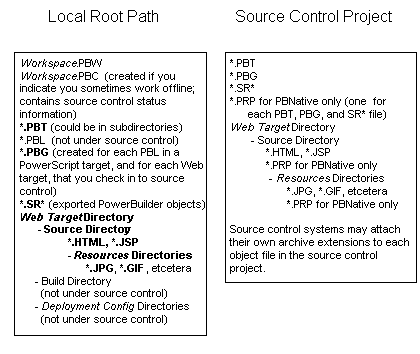
Typically, the source control server files are stored in a
database but preserve the file system structure. Files in a Web
target Build directory and in any deployment
configuration directories can be regenerated automatically by building
and deploying the files in the Source directory.
Temporary files in local root path When you add or check in a PowerScript object to source control, PowerBuilder
first exports the object as a temporary file (*.SR*)
to your local target directory. For some source control systems,
you might choose to delete temporary files from the local root path.