Working with nested reports
When you use nested reports either in composite reports or
in other base reports, several enhancements and options are available.
An easy way to see what you can do is to select the nested report
and look at the Properties view for it. The following screen shows
the Properties view for a related nested report:
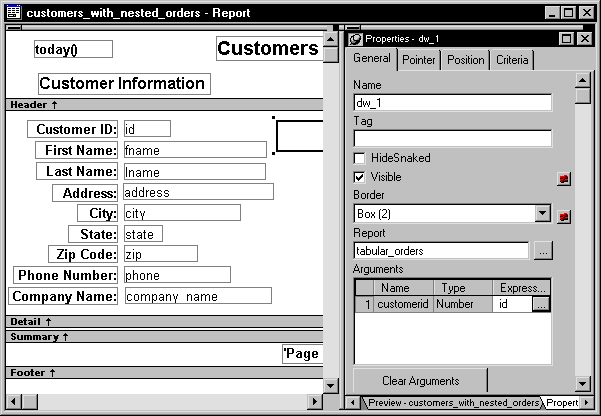
Many of the options in the Properties view are described in Chapter 18, “Enhancing DataWindow Objects .” For example,
using borders on nested reports is like using borders on any control.
This section describes activities that apply only to nested
reports or that have special meaning for nested reports. It covers:
- “Adjusting nested report
width and height” - “Changing a nested report
from one report to another” - “Modifying the definition
of a nested report” - “Adding another nested report
to a composite report” - “Supplying retrieval arguments
to relate a nested report to its base report” - “Specifying criteria to relate
a nested report to its base report” - “Using options for nested
reports”
Adjusting nested report width and height
When you preview a report with nested reports, the width of
the nested report may be unacceptable. This can happen, for example,
if you change the design of the nested report or if you use newspaper
columns in a nested report. The width of the nested
report is not adjusted to fit its contents at runtime; if the report
is too narrow, some columns may be truncated. For example, if the
size of the nested report is set to 6 inches wide in the parent
report, columns in the nested report that exceed that width are
not displayed in the parent report.
 To adjust report width:
-
In the Design view, position the pointer
near a vertical edge of the nested report and press the left mouse
button. -
Drag the edge to widen the nested report.
-
Check the new width in the Preview view.
When you Print preview a DataWindow that contains a nested
N-Up report with newspaper columns across the page, you might find
that blank pages display (and print) when the nested report in the
detail band fills the page. This is because any white space at the
bottom of the band is printed to a second page. You can usually
solve this problem by dragging up the detail band to eliminate the
white space between the nested report and the band, or even to overlap
the bottom of the representation of the nested report.
Changing a nested report from one report to another
You can change the nested report that is used. For example,
you may work on several versions of a nested report and need to
update the version of the nested report that the composite or base
report uses.
To change the nested report to a different report:
-
Select the nested report in the Design
view. -
In the Properties view, General property page,
click the button next to the Report box. -
Select the report you want to use and click OK.
The name of the report that displays in the box in the Design
view changes to the new one.
Modifying the definition of a nested report
You can modify the definition of the nested report. You can
do this directly from the composite report or base report that contains
the nested report.
To modify the definition of a nested report from
the composite report or base report:
-
Position the pointer on the nested report
whose definition you want to modify and display the pop-up menu. -
Select Modify Report from the pop-up menu.
The nested report opens and displays in the painter. Both
the composite or base report and the nested report are open. -
Modify the report.
-
Select File>Close from the menu bar.
You are prompted to save your changes.
-
Click OK.
You return to the composite report or to the base report that
includes the nested report.
Adding another nested report to a composite report
After you have created a composite report, you may want to
add another report. The following procedure describes how. For information
on adding a nested report to a report that is not a
composite report, see “Placing a related nested
report in another report” or “Placing an unrelated nested
report in another report”.
To add another nested report to a composite report:
-
Open the composite report.
-
Select Insert>Control>Report
from the menu bar. -
Click in the Design view where you want to place
the report.The Select Report dialog box displays listing defined reports (DataWindow
objects) in the current target’s library search path. -
Select the report you want and click OK.
A box representing the report displays in the Design view.
Supplying retrieval arguments to relate a nested report to its base report
The most efficient way to relate a nested report to its base
report is to use retrieval arguments. If your nested report has
arguments defined, you use the procedure described in this section
to supply the retrieval argument value from the base report to the
nested report. (The procedure described is part of the whole process
covered in “Placing a related nested
report in another report”.)
Why retrieval arguments are efficient
Some DBMSs have the ability to bind input variables in the WHERE clause
of the SELECT statement. When you use retrieval
arguments, a DBMS with this capability sets
up placeholders in the WHERE clause and compiles
the SELECT statement once. PowerBuilder retains
this compiled form of the SELECT statement for
use in subsequent retrieval requests.
Requirements for reusing the compiled SELECT statement
To enable PowerBuilder to retain and reuse the compiled SELECT statement:
- The database interface must
support binding of input variables. - You must enable binding support by setting the DisableBind
DBParm to 0, which is the default. - You must enable caching in the database profile.
Set the SQLCache DBParm parameter
to the number of levels of nesting plus 5.
For more information, see the description
of the SQLCache and DisableBind
DBParm parameters in the online Help.
 Nested reports in composite reports If the base report is a composite report, you need to define
retrieval arguments for the composite report before you can supply
them to the nested report.
In the Properties view for the composite report, select the
General page. Then define the retrieval arguments that the nested
report needs, taking care to specify the correct type.
To supply a retrieval argument value from the
base report to the nested report:
-
Make sure that the nested report has been
set up to take one or more retrieval arguments. -
Select the nested report and then select the General
page of the Properties view.The Arguments box lists arguments defined for the nested report
and provides a way for you to specify how information from the base
report will supply the value of the argument to the nested report.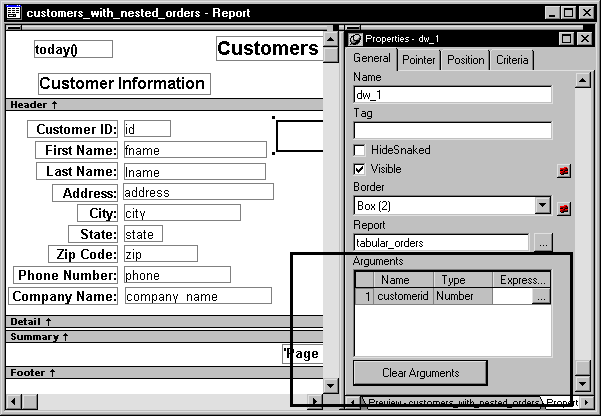
-
Supply the base report column that will supply
the argument’s value. To do this, click the button in the
Expression column.The Modify Expression dialog box displays. In this dialog
box you can easily select one of the columns or develop an expression.
In the example, the column named id from the
base report will supply the value for the argument :customerid in
the nested report.When you run the report now, you are not prompted for retrieval
argument values for the nested report. The base report supplies
the retrieval argument values automatically.
Specifying criteria to relate a nested report to its base report
If you do not have arguments defined for the nested report
and if database efficiency is not an issue, you can place a nested
report in another report and specify criteria to pass values to
the related nested report.
How the DBMS processes SQL if
you use the specify criteria technique
If you use the specify criteria technique, the DBMS repeatedly
recompiles the SELECT statement and then executes
it. The recompilation is necessary for each possible variation of
the WHERE clause.
To specify criteria to relate a nested report
to its base report:
-
Select the nested report and then select
the Criteria page in the Properties view.The Criteria property page provides a way for you to specify
how information from the base report will supply the retrieval criteria
to the nested report. -
Click the button next to the criteria box.
The Specify Retrieval Criteria dialog box displays.
-
Enter the retrieval criteria and click OK.
The rules for specifying criteria are the same as for specifying
criteria in the Quick Select data source. Multiple criteria in one
line are ANDed together. Criteria entered on
separate lines are ORed together.In this example, the customer ID (the id column)
is the retrieval criterion being supplied to the nested report.
Notice that the id column is preceded by a
colon (:), which is required: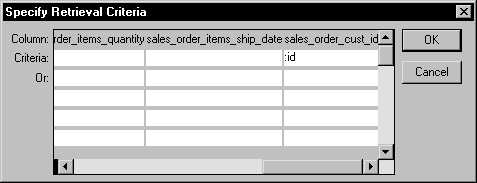
When you run the report now, PowerBuilder retrieves rows in
the nested report based on the criteria you have specified. In the
example, the customer ID column in the base report determines which
rows from the sales_order table are
included for each customer.
Using options for nested reports
Using the Autosize Height option
Autosize Height should be on for all nested reports except
graphs. This option ensures that the height of the nested report
can change to accommodate the rows that are returned.
This option is on by default for all nested reports except
graphs. Usually there is no reason to change it. If you do want
to force a nested report to have a fixed height, you can turn this
option off.
Note that the detail band also has an Autosize Height option.
The option is on by default and must be on for the Autosize Height
option for the nested report to work properly.
Bands other than the detail band do not have an Autosize Height
option. If you place a nested report in a band other than the detail
band, you must size the band itself to hold the report.
To change the Autosize Height option in a nested
report:
-
In the Design view, select the nested report.
-
In the Properties view, select the Position properties
page. -
Select/clear the Autosize Height check
box.
Handling large rows To avoid multiple blank pages or other anomalies in printed
reports, never create a DataWindow with a data row greater than
the size of the target page. To handle large text-string columns,
break the large string into a series of small strings. The smaller
strings are used to populate individual data rows within a nested
report instead of using a single AutoSize Height text column.
Using the Slide option
PowerBuilder determines the appropriate Slide options when positioning
the nested report(s) and assigns default values. Usually you should
not change the default values:
- The Slide Left option is on by default for grid
and crosstab style reports and off by default for all others. Having
Slide Left on for grid and crosstab ensures that these reports break
horizontally on whole columns and not in the middle of a column. - The Slide Up All Above/Directly Above options
ensure that the nested report uses just as much vertical space as
it needs. One of these options is on by default for all nested reports.
For more information, see“Sliding controls to remove
blank space in a DataWindow object”.
Using the New Page option (composite only)
The New Page option forces a new page for a nested report
used in a composite report. By default, this
option is off.
To specify that a nested report in a composite
report should begin on a new page:
-
In the Design view, select the nested report.
-
In the Properties view, select the General page.
-
Select the New Page check box.
A checkmark displays indicating the option is selected.
Using the Trail Footer option (composite only)
The Trail Footer option controls the placement of the footer
for the last page of a nested report in a composite report.
By default, this option is on. The footer appears directly under
the contents of the nested report and not at the bottom of the page.
To specify that the footer should appear at the
bottom of the page:
-
In the Design view, select the nested report.
-
In the Properties view, select the General page.
-
Clear the Trail Footer check box.
The check mark next to the option disappears, indicating the
option is no longer selected. The footer appears at the bottom of
the page on all pages of the nested report, including the last page.
Note that if another nested report begins on the same page, the
footer from the earlier report might be misleading or confusing.