Placing a nested report in another report
When you place a nested report in another report, the two
reports can be independent of each other or they can be related
in the database sense by sharing some common data such as a customer
number or a department number. If the reports are related, you need
to do some extra things to both the base report and the related
nested report.
Usually when you place a report within a report rather than
create a composite report, you want to relate the reports. Those
instructions are first.
Placing a related nested report in another report
Typically, a related nested report provides the details for
a master report. For example, a master report might provide information
about customers. A related nested report placed in the master report
could provide information about all the orders that belong to each
customer.
 To place a related nested report in another report:
-
Create the nested report (DataWindow object) that
you plan to place in the base report. -
Define a retrieval argument for the nested report.
For example, suppose the nested report lists orders and you
want to list orders for a particular customer. To define a retrieval
argument you would:- Select Design>Data
Source to go to the Select painter. - Select Design>Retrieval Arguments from
the menu bar in the Select painter. - Define a retrieval argument in the Specify Retrieval
Arguments dialog box. In the example, customerID is
the name assigned to the retrieval argument.
- Select Design>Data
-
Specify the retrieval argument in a WHERE clause
for the SELECT statement.The WHERE clause in this example tells the DBMS to retrieve
rows where the value in the column cust_id equals
the value of the argument :customerid: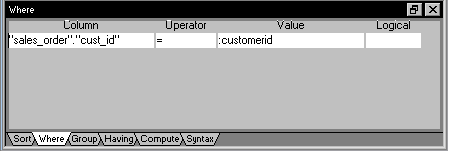
At this point, when you run the report to retrieve data, you
are prompted to enter a value for :customerid.
Later in these steps you will specify that the base report supply
the values for :customerid instead of prompting
for values. -
Open or create the report you want to have as
the base report.In the example, the base report is one that lists customers
and has a place for the order history of each customer: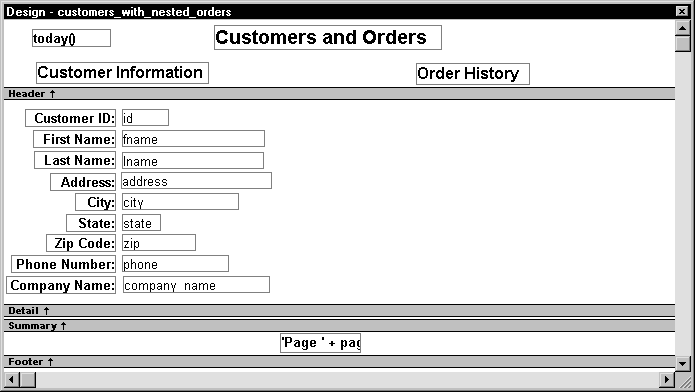
-
Select Insert>Control>Report
from the menu bar. -
Click in the Design view where you want to place
the report.The Select Report dialog box displays listing defined reports (DataWindow
objects) in the current target’s library search path. -
Select the report you want and click OK.
A box representing the report displays in the Design view.
-
With the report still selected, select the General
page of the Properties view.The Arguments box lists arguments defined for the nested report
and provides a way for you to specify how information from the base
report will be used to supply the values of arguments to the nested
report.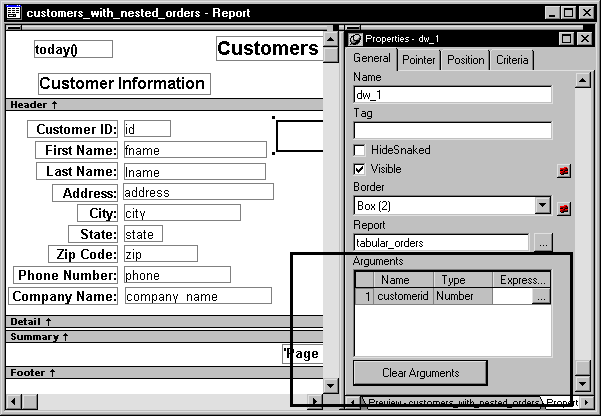
-
Supply the base report column or the expression
that will supply the argument’s value. To do this, click
the button in the Expression column.The Modify Expression dialog box displays. In this dialog
box you can easily select one of the columns or develop an expression.
In the example, the column named id from the
base report will supply the value for the argument :customerid in
the nested report: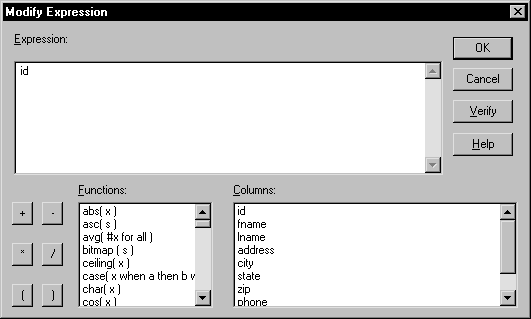
-
Select File>Save from the menu bar and
assign a name to the report. -
In the Preview view, you can see what your report
looks like: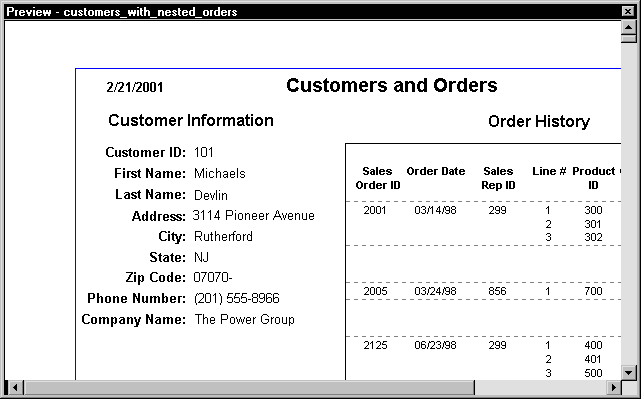
Placing an unrelated nested report in another report
When you place an unrelated nested report in a base report,
the entire nested report appears with each row
of the base report.
To place an unrelated nested report in another
report:
-
Create or open the report you want to be
the base report. -
Select Insert>Control>Report
from the menu bar. -
Click in the Design view where you want to place
the report.The Select Report dialog box displays listing defined reports (DataWindow
objects) in the current target’s library search path. -
Select the report you want to nest in the base
report and click OK.A box representing the nested report displays in the Design
view. -
Select File>Save from the menu bar and
if the base report is newly created, assign a name to it.