View API docs in Swagger UI
The documentation for PowerServer Management APIs is exposed
using Swagger
UI. Each API is described with the operations (GET, POST, etc.)
and the operation parameters; and developers can directly test the API
from Swagger UI.
To view the API documentation in Swagger UI, run the ServerAPIs project from the SnapDevelop IDE (by
clicking Run in the toolbar).

The Swagger UI for the API documentation will be launched
automatically in the Web browser. However, the Swagger UI may not be
successfully loaded until the ServerAPIs project completes all the startup
processes. You may see Swagger UI refresh a few times before the API
documentation is successfully loaded; or you may need to refresh the
browser manually to load the API documentation.
The URL for accessing Swagger UI in PowerServer is:
http://{host}:{port}/PowerServer/index.html, for example,
http://localhost:5091/PowerServer/index.html.
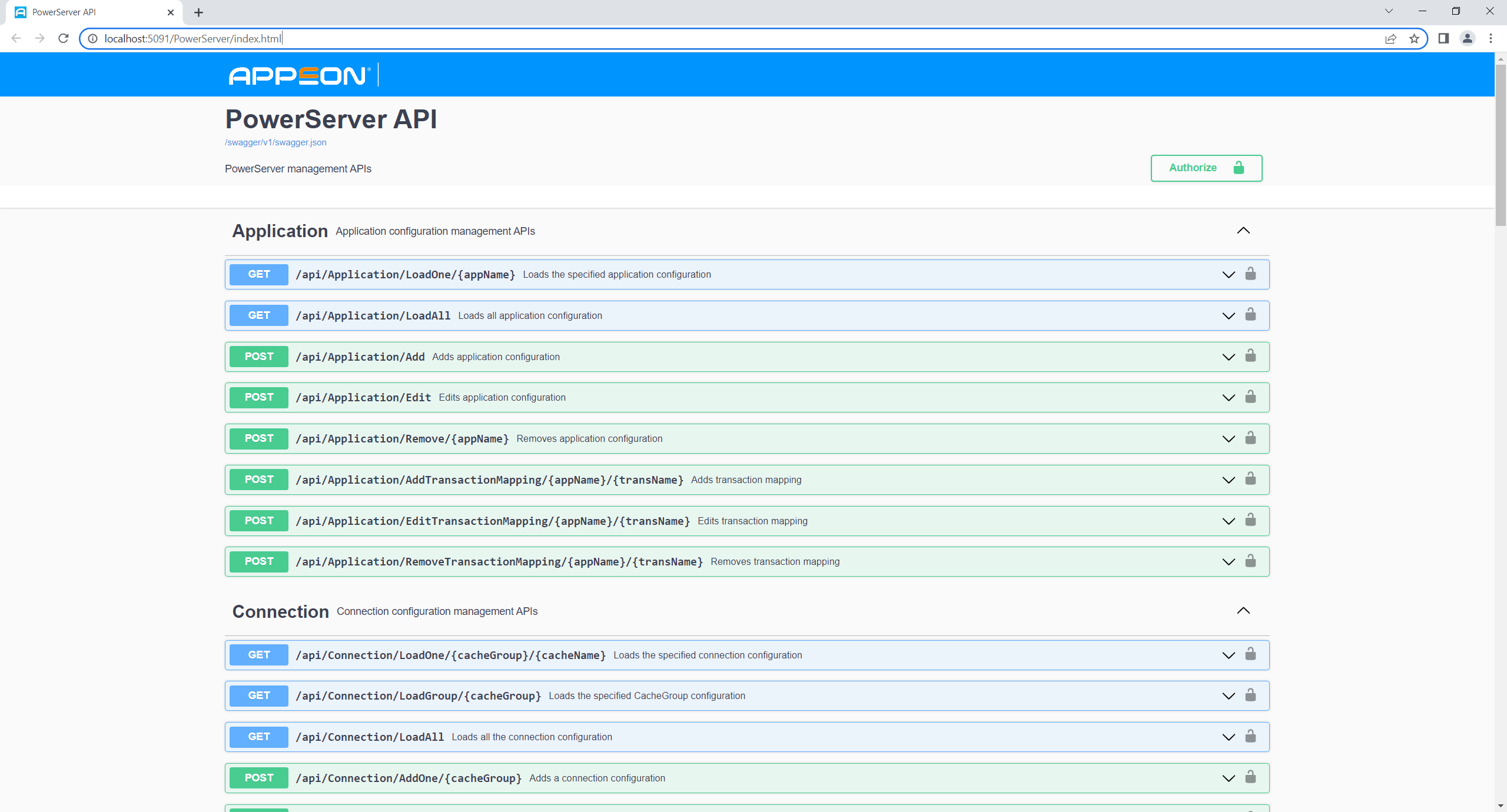
By expanding the API, you can view the details of the API and
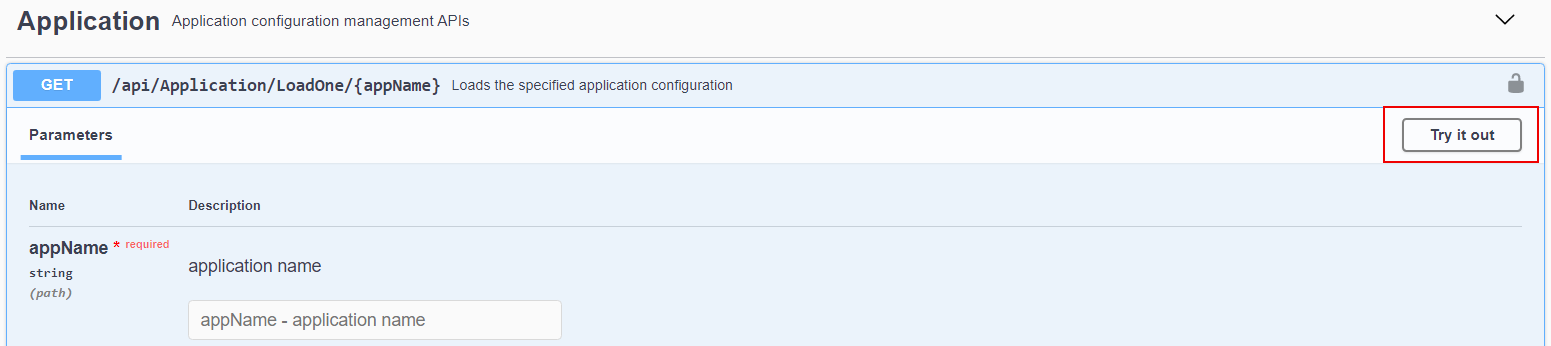
test the API (by clicking the Try it
out button on the top right corner).
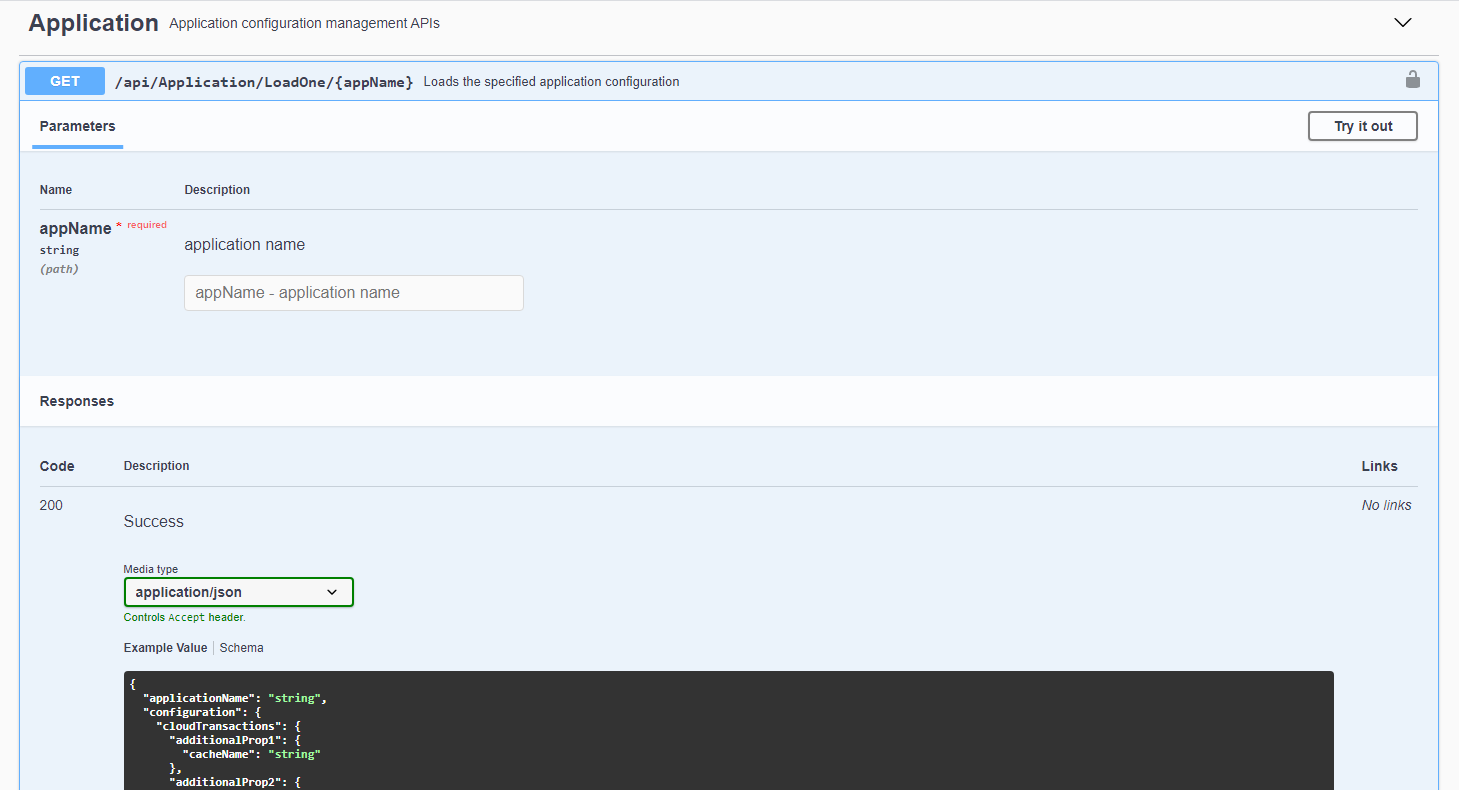
For example, expand /api/Application/LoadOne/{appName}, and then
click Try it out.
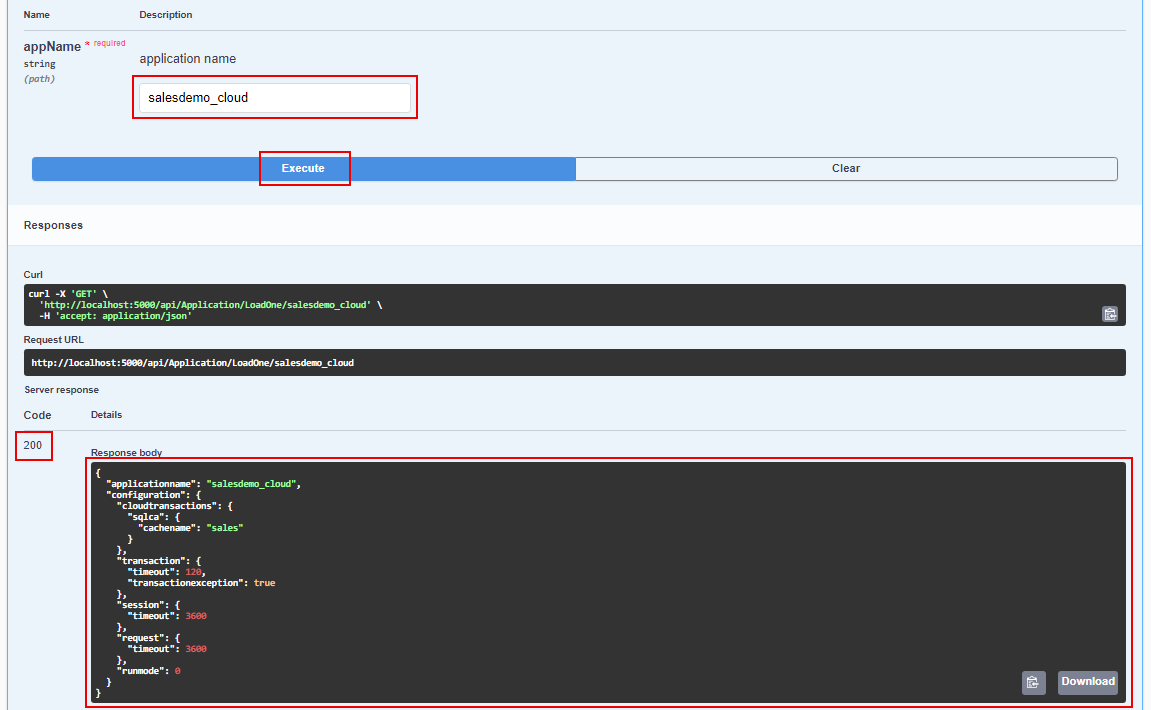
Input the application name (for example, “salesdemo_cloud”) as
the value of appName, and then click Execute. If execution is successful, the status
code 200 and the response body (that contains the application
settings) will be displayed.