Recording the scripts
Step 1: Return to HTTP(S) Test Script
Recorder, and click Start.

This will start the JMeter proxy server which is used to
intercept the browser requests.
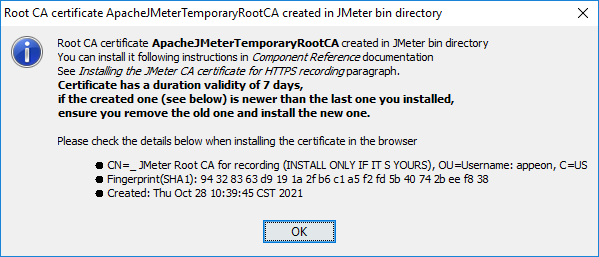
Step 2: Click OK when
prompted to install the certificate as shown below.
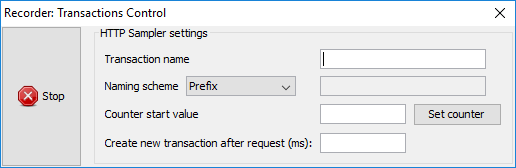
Step 3: Keep the “Recorder: Transactions
Control” window open during recording.
Step 4: Now run the Sales Demo installable cloud app in the
Web browser. (Make sure PowerServer Web APIs started before JMeter
started. See Running PowerServer Web
APIs and then JMeter recorder and Fiddler for why.)
Step 5: Click a few buttons such as Address, Customer etc. in
the window and then exit from the application. These HTTP requests
will be automatically captured by the script recorder.
Step 6: Close the Web browser and return to the JMeter
window.
Step 7: Click the Stop button
in the “Recorder: Transactions
Control” window to stop the recording.
After you finished recording the scripts, you can turn off the
Windows system proxy or change it back to whatever it was
before.