Package the installable cloud app
When deploying the PowerServer project as an installable cloud
app, you can directly deploy the installable cloud app to the server
(for how to connect to the server, refer to Configure a server for
deployment); you can also choose to package the installable cloud
app as an executable installer or a zipped file, and then install or
copy the installable cloud app to the server(s).
To package the installable cloud app:
-
In the PowerServer project painter, select the Deploy page > Basic tab.
-
Select External as the target
run mode, and then select Folder as
the target server. -
Specify to generate the package as an Executable installer or a Zipped file.
-
If you select Zipped
file, an appname.zip file is
generated in the specified path. You can copy the zip file to
the server and then decompress it to the web root. -
If you select Executable
installer, an appname.exe file
is generated in the specified path. You can copy the executable
file to the server and then run it to install the application to
the web root.
-
-
Specify how to package the PowerServer Web APIs.
-
Framework-dependent or
Self-contained — A
Self-Contained package will not only include the app assembly
files and its dependencies, but also include the .NET Core
runtime and libraries. Users can run it on a machine that has no
.NET Core runtime installed. A Framework-Dependent package will
only include the app assembly files and its dependencies. Users
have to install the .NET Core runtime in order to run the
app. -
Portable, Windows 64-bit, Linux 64-bit, or Windows 32-bit — The target platform
that the Web APIs is published for. If you know the architecture
of the target server, you can select the corresponding platform;
if you are not sure of the server architecture, you can select
Portable. But if you select
Portable, you can only select
Framework-dependent.Note
Make sure the platform of Web APIs matches with that of
the server. Take IIS for example, if you select Windows 32-bit, make sure IIS is 32-bit
(set “Enable 32-Bit Applications” to True); if you select
Windows 64-bit, make sure IIS
is 64-bit (set “Enable 32-Bit Applications” to False). For
more, refer to this
section. -
Web API site URL — If
you know where the Web APIs will be running, you can specify the
URL here; if you are not sure where the Web APIs will be
running, you can leave this field empty and specify the URL
later in the generated package > [appname] > apprun.json.
-
-
Specify the folder and file name where the package will be
generated.You can select to delete all existing files in the zip or exe
file before packaging (by selecting the Delete
all existing files in the zip/exe before packaging
option).If you de-select the Delete all existing
files in the zip/exe before packaging option, and if
there are files already present in the folder before packaging, they
will be included in the resulting zip/exe file, in addition to any
new files that are packaged.Note
If you package more than one application in the same zip/exe
file, the web.config file will not be generated in the first-level
directory. If the web.config
file does not exist in the first-level directory, you can copy one
from the “[appname]” sub-folder.
-
Save the project settings and then click the Build & Deploy PowerServer Project button
( ) or Deploy PowerServer
Project ( ) button in the toolbar to generate the
package.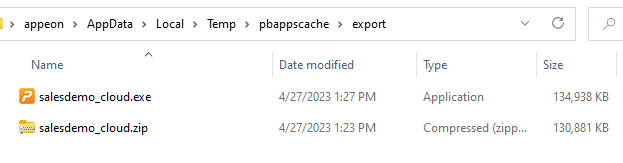
To create a docker image of PowerServer Web APIs:
-
Follow instructions in this section Publishing Web APIs to
Docker.
To upload the application via FTP:
-
Follow instructions in this section Uploading the
application via FTP client.