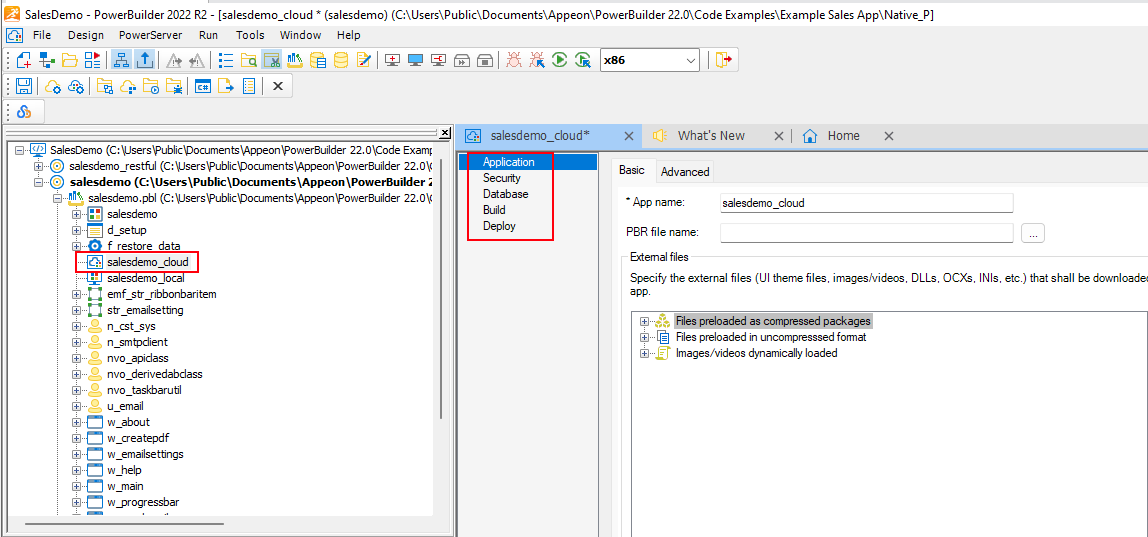
Opening the sample PowerServer project
Open the sample PowerServer project in the painter.
-
Load the SalesDemo workspace in the PowerBuilder IDE by
selecting Windows Start |
Appeon PowerBuilder 2022 R2,
and then right-clicking Example Sales
App and selecting More | Run as
administrator. -
Locate the salesdemo_cloud project file in salesdemo.pbl, and double click to open
it in the painter.The project file contains multiple pages: Application,
Security, Database, Build, and Deploy; and each page (except
Security) has two tabs: Basic and Advanced. Most settings in
these pages are pre-configured and can stay as-is. You only need
to follow the instructions in the subsequent steps to adjust a
few settings based on your environment.