Opening the HTML editor and setting options
The following procedures detail using the HTML editor to prepare
HTML files.
HTML tags and their attributes can be dragged and dropped
from the Language tab of the System Tree onto a page in the HTML
editor. The tags are organized in alphabetically or by category.
Opening the HTML editor
You can open the HTML editor with a new file that you create
with a Web page wizard, or you can open the editor with an existing
file–regardless of whether it’s in your current
Web target.
Creating a new document
PowerBuilder has several wizards that
help you create new Web pages. Use one of the following wizards
to create a new Web page:
| Web page wizard | Use this to |
|---|---|
| Quick Web Page | Create an HTML page without any content (HEAD and BODY elements are visible in Source view as soon as you begin to add content to the page) |
| Web Page | Create an HTML page with a filename and optional content, such as a title, an associated style sheet, a background image or color selection, a header based on the title, and a footer with the page creation date |
| 4GL Web Page | Create a 4GL Web page with error and trace options, parameter definitions, and EAServer component selections in addition to the standard content options of the Web Page wizard |
| Web DataWindow Page | Creates an HTML page with a Web DataWindow. You define the DataWindow source and connection information in wizard screens |
 To start the editor with a new document:
-
Select File>New.
Click
the Web tab in the New dialog box. - Double-click a Web page wizard icon.
- Follow the instructions in the wizard.
-
When the HTML editor opens, begin editing in Page
view.or
Click the Source tab to edit in Source view.
Starting the editor with an existing document
PowerBuilder can automatically open text, style sheets, and
scripts. The file’s treatment is based on its extension:
- Text files with TXT extensions are opened for editing
in the PowerBuilder File editor. - Text files with ASP, HTM, HTML, JSP, STM, or SSC
extensions are opened for editing in the HTML editor. - Style sheet files are opened in the standalone Style
Sheet editor. - Script files are opened in the standalone Script
editor. - Image files are opened in a browsing window for
viewing only.
 Dragging files onto an open page in the HTML editor Text files, style sheets, or script files can also be referenced
as hyperlinked documents. If you drag and drop a file from the System
Tree (or from an external file management system) onto an open page
in the HTML editor, the dragged file is treated as a hyperlink reference–and
the Hyperlink Properties dialog box displays.
To open an existing Web target file:
-
Double-click the file in the Workspace
tab of the System Tree
To open a file that is not part of a target:
-
Select File>Open from the menu
bar, select a file type in the Files Of Type textbox, and browse
to find the file in the Open dialog box.
Saving your work and closing the editor
To save changes to a file:
-
Select File>Save.
For a new file, File>Save displays the Save As dialog
box so you can name the file.
To create another copy of the file:
- Select File>Save As.
If you try to close the editor without saving, the editor
asks if you want to save your changes.
Giving your page a title
Use the Page Properties dialog box to add a title and to set
inline styles and parameters for your HTML page.
4GL page properties If you select the Enable 4GL Web Server Side Event Model checkbox
on the Page tab of the Page Properties dialog box, you enable additional
dialog box tabs. These tabs allow you to define server-scriptable
properties for your page. For information on 4GL Web pages, see Chapter 8, “Developing 4GL Web Pages”.
To give your page a title:
-
Right-click anywhere in a document in Page
view and choose Page Properties from the popup menu. -
Type a title for your page in the Title textbox
on the Page tab of the Page Properties dialog box.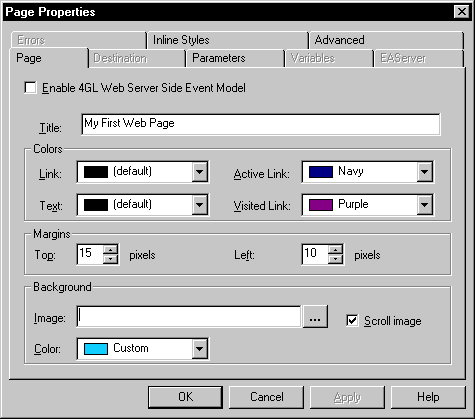
Configuring the editor
You can specify
the font size, text colors, and how the tab key behaves.
To configure the editor:
-
With a page open in the HTML editor, select
Design>Options from the menu bar. -
On the Editors tab, select a view in the Windows
listbox and change settings as appropriate. -
On the Colors/Fonts tab, select a view
in the Windows listbox. The Source view and Script editor have color
and font settings. Make settings as appropriate.
Formatting HTML source display
Source view allows you to format your HTML source code for
readability. This feature enables you to specify your own HTML source
formatting rules. It overrides the default formatting that the editor
applies when you edit a file in Page view or use a tool or menu
item to generate code in Source view.
Why use HTML source formatting
This feature is important if you use Page view to develop
or modify your HTML files. Page view edits your HTML source code
behind the scenes, then formats that code according to its own rules
for indenting, new lines, and so on. Although this default formatting
is generally adequate, it might differ from the coding style you
want.
Source formatting options enable you to override the default
formatting generated from Page view with your own code formatting
rules.
Invoking HTML source formatting
If you select the Format Source option (on the Editors tab
of the Options Properties dialog box), PowerBuilder automatically
performs HTML source formatting in these cases:
- When
you switch to Source view from other HTML editor views after making
changes - When you perform operations in Source view that
generate code
Whether or not you check the Format Source option, you can
invoke HTML source formatting manually, at any time, by selecting:
- The Format Source command on the Source view popup
menu
Preserving your own source formatting
If you prefer to
format your HTML source code manually and keep it in that format,
use Source view instead of Page view for all your editing, and do
not select the Format Source command from the Source view popup
menu.
To change the Source view display formatting:
-
Select Design>Options.
The Options Properties dialog box opens to the Editors page.
-
In the Windows list, highlight Source View.
Select the Format Source checkbox.
Type or select other options in the Editors panel.
-
Select an HTML tag or Script tag from the Tags
list.Select a radio button for the type of formatting you
want for that tag.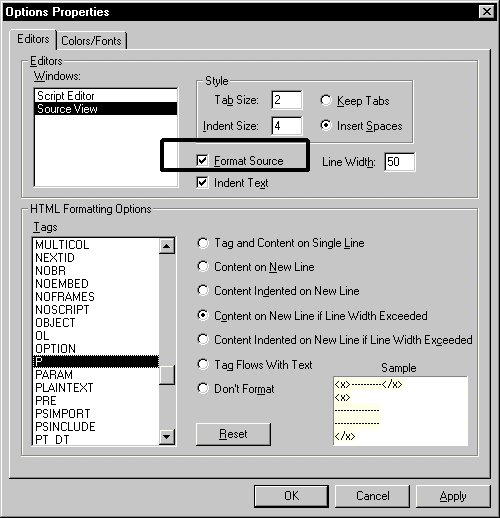
-
Repeat the previous step for as many types of
tags as you want to format.Click Apply.
-
Select the Colors/Fonts tab.
In the Window list, highlight Source View.
-
Select a display element in the Types list.
Modify the display element colors and fonts as desired.
-
Repeat the previous step for as many display element
types as you want to format.Click OK.