Modifying the data pipeline definition
After you create a pipeline definition, you can modify it
in a variety of ways. This depends on what pipeline operation you
select, the destination DBMS, and what you are trying to accomplish
by executing the pipeline.
Items you can modify in the workspace
At the top of the workspace These items apply to the destination table:

| Item | Description | Default | How to edit |
|---|---|---|---|
| Table | Name of the destination table | If source and destination are different, name of first table specified in the source data or name of the stored procedure; if the same, _copy is appended |
For Create or Replace, enter a nameFor Refresh, Append, or Update, select a name from the dropdown listbox |
| Options | Pipeline operation: Create, Replace, Refresh, Append, or Update |
Create – Add Table | Select an option from the dropdown listbox |
| Commit | Number of rows piped to the destination database before PowerBuilder commits the rows to the database |
100 rows | Select a number, All , or None from the dropdown listbox |
| Key | Key name for the table in the destination database |
If the source is only one table, the table name is followed by _x |
For Create or Replace, enter a name. Not editable for other pipeline operations |
| Max Errors | Number of errors allowed before the pipeline stops |
100 errors | Select a number or No Limit from the dropdown listbox |
| Extended Attributes | For Create and Replace, a checkbox that specifies whether or not the extended attributes of the selected source columns are piped to the extended attribute system tables of the destination database. Does not display for Refresh, Append, or Update |
Not checked | Click the checkbox |
At the bottom left of the workspace These items show the source column names and data types. They
are not editable, because you specified them as the data source:
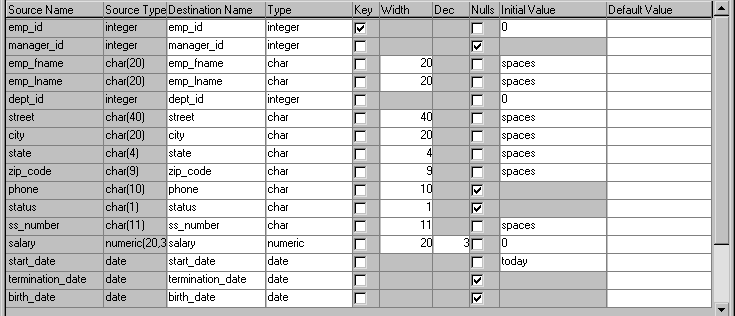
At the bottom right of the workspace These items apply to the destination table’s columns
and key. They are mostly editable only for the Create and Replace
pipeline operations:
| Item | Description | Default | How to edit |
|---|---|---|---|
| Destination Name | Column name | Source column name | Enter a name |
| Type | Column data type | If the DBMS is unchanged, source column data type. If the DBMS is different, a best-guess data type |
Select a type from the dropdown listbox |
| Key | Whether the column is a key column (check means yes) |
Source table’s key columns (if the source is only one table and all key columns were selected) |
Select or clear checkboxes |
| Width | Column width | Source column width | Enter a number |
| Dec | Decimal places for the column | Source column decimal places | Enter a number |
| Nulls | Whether NULL is allowed for the column (check means yes) |
Source column value | Select or clear checkboxes |
| Initial Value | Column initial value | Source column initial value (if no initial value, character columns default to spaces and numeric columns default to 0) |
Select an initial value from the dropdown listbox |
| Default Value | Column default value | Source column default value that is assigned in the database |
Select a default value from the dropdown listbox or enter a default value. Keyword values depend on destination DBMS |
Choosing a pipeline operation
When PowerBuilder pipes data, what happens in the destination
database depends on which pipeline operation you choose in the Options
dropdown listbox:
| When you choose this pipeline operation | This happens in the destination database |
|---|---|
| Create – Add Table | A new table is created and rows selected from the source tables are insertedIf a table with the specified name already exists in the destination database, a message displays and you must select another option or change the table name |
| Replace – Drop/Add Table | An existing table with the specified table name is dropped, a new table is created, and rows selected from the source tables are insertedIf no table exists with the specified name, a table is created |
| Refresh – Delete/Insert Rows | All rows of data in an existing table are deleted, and rows selected from the source tables are inserted |
| Append – Insert Rows | All rows of data in an existing table are preserved, and new rows selected from the source tables are inserted |
| Update – Update/Insert Rows | Rows in an existing table that match the key criteria values in the rows selected from the source tables are updated, and rows that don’t match the key criteria values are inserted |
Dependency of modifications on pipeline operation
The modifications you can make in the workspace depend on
the pipeline operation you have chosen.
When using
Create – Add Table or Replace
– Drop/Add Table
When you select the Create option (the default) or the Replace
option, you can change these items:
| You can | Comment |
|---|---|
| Change the destination table definition | Follow the rules of the destination DBMS |
| Have both a key name and key columns or neither |
Specify key columns by selecting one or more checkboxes to define a unique identifier for rows |
| Allow or disallow NULL for a column | If NULL is allowed (checkbox selected), no initial value is allowedIf NULL is not allowed, an initial value is required. The words spaces (a string filled with spaces) and today (today’s date) are initial value keywords |
| Modify the Commit and Max Errors values | — |
| Specify an initial value and a default value |
— |
If you have specified key columns and a key name and if the
destination DBMS supports primary keys, the Data Pipeline painter
creates a primary key for the destination table. If the destination
DBMS does not support primary keys, a unique index is created.
 For Oracle databases PowerBuilder generates a unique index for Oracle databases.
If you try to use the Create option, but a table with the
specified name already exists in the destination database, PowerBuilder tells
you and you must select another option or change the table name.
When you use the Replace option, PowerBuilder warns you that
you are deleting a table, and you can choose another option if needed.
When using Refresh – Delete/Insert Rows
or Append – Insert Rows
For the Refresh and Append options, the destination table
must already exist. You can:
- Select
an existing table from the Table dropdown listbox - Modify the Commit and Max Errors values
- Change the initial value for a column
When using Update – Update/Insert Rows
For the Update option, the destination table must already
exist. You can:
- Select an
existing table from the Table dropdown listbox - Modify the Commit and Max Errors values
- Change the Key columns in the destination table’s
key (primary key or unique index, depending on what the DBMS supports),
but key columns must be selected; the key determines the UPDATE
statement’s WHERE clause - Change the initial value for a column
Bind variables and the Update option If the destination database supports bind variables, the Update
option takes advantage of them to optimize pipeline execution.
When execution stops
Execution of a pipeline can stop for any of these reasons:
- You click the Cancel button
During the execution of a pipeline, the Execute button in
the PainterBar changes to the Cancel button. - The error limit is reached
If there are rows that cannot be piped to the destination
table for some reason, those error rows display once execution stops.
You can correct error rows or return to the workspace to change
the pipeline definition and then execute it again.
For information, see “Correcting pipeline errors “.
Whether rows are committed
When rows are piped to the destination table, they are first
inserted and then either committed or rolled back. Whether rows
are committed depends on:
- The Commit and Max Errors values
- When errors occur during execution
- Whether you click the Cancel button or PowerBuilder stops
execution
When you stop execution
| If the Commit value is | Then when you click Cancel |
|---|---|
| A number n | Each row that was piped is committed |
| All or None |
Each row that was piped is rolled back |
For example, if you click the Cancel button when the 24th
row is piped and if the Commit value is 20, then:
- 20 rows are piped and committed
- 3 rows are piped and committed
- Piping stops
If the Commit value were All
or None
,
23 rows would be rolled back.
When PowerBuilder stops execution
| If the Commit value is | And the Max Errors value is | Then when PowerBuilder stops execution because the error limit is reached |
|---|---|---|
| A number n | No limit or a number m |
Rows are piped and committed n rows at a time until the Max Errors value is reached |
| All or None |
No limit | Each row that pipes without error is committed |
| All or None |
A number n | If the number of errors is less than n , all rows are committedIf the number of errors is equal to n , each row that was piped is rolled back. No changes are made |
For example, if an error occurs when the 24th row is piped
and the Commit value is 10 and the Max Errors value is 1, then:
- 10 rows are piped and committed
- 10 rows are piped and committed
- 3 rows are piped and committed
- Piping stops
If the Commit value were All
or None
,
23 rows would be rolled back.
About transactions
A transaction is a logical unit of work done by a DBMS, within
which either all the work in the unit must be completed or none
of the work in the unit must be completed. If the destination DBMS
does not support transactions or is not in the scope of a transaction,
each row that is inserted or updated is committed.
About the All and None commit values
In the Data Pipeline painter, the Commit values All
and None
have
the same meaning.
The None
commit value is most useful
for the application execution environment. For example, some PowerBuilder applications
require either all piped rows to be committed or no piped rows to
be committed if an error occurs. Specifying None allows the application
to control the committing and rolling back of piped rows by means
of explicit transaction processing, such as the issuing of commits
and rollbacks in pipeline scripts using COMMIT and ROLLBACK statements.
Piping blob data
Blob data is data that is a b
inary l
arge-ob
ject
such as a Microsoft Word document or an Excel spreadsheet. A data
pipeline can pipe columns containing blob data.
The name of the data type that supports blob data varies by
DBMS, for example:
| DBMS | Data types that support blob data |
|---|---|
| Sybase Adaptive Server Anywhere |
|
| Sybase Adaptive Server Enterprise |
|
| Microsoft SQL Server |
|
| Oracle |
|
| Informix |
|
For information about the data type that supports
blob data in your DBMS, see your DBMS documentation.
Adding blob columns to a pipeline definition
When you select data to pipe, you cannot select a blob column
as part of the data source because blobs cannot be handled in a
SELECT statement. After the pipeline definition is created, you
add blob columns, one at a time, to the definition.
 To add a blob column to a pipeline definition:
-
Select Design>Database Blob from
the menu bar. If the Database Blob menu item is disabled The Database Blob menu item is disabled if the pipeline definition
does not contain a unique key for at least one source table, or
if the pipeline operation is Refresh, Append, or Update and the
destination table has no blob columns.The Database Binary/Text Large Object property sheet
displays.The Table box has a dropdown list of tables in the pipeline
source that have a primary key and contain blob columns. -
In the Table box, select the table that contains
the blob column you want to add to the pipeline definition.For example, in the EAS Demo DB, the ole table contains a blob
column named Object with the large binary data type. -
In the Large Binary/Text Column box,
select a column that has a blob data type. -
In the Destination Column box, change the name
of the destination column for the blob if you want.If you want to add the column and see changes you make without
closing the dialog box, click Apply after each change. -
When you have specified the blob source and destination
as needed, click OK.
To edit the source or destination name of the
blob column in the pipeline definition:
-
Display the blob column’s popup
menu and select Properties.
To delete a blob column from the pipeline definition:
-
Display the blob column’s popup
menu and select Clear.
Executing a pipeline with blob columns
After you have completed the pipeline definition by adding
one or more blob columns, you can execute the pipeline. When you
do, rows are piped a block at a time, depending on the Commit value.
For a given block, Row 1 is inserted, then Row 1 is updated with
Blob 1, then Row 1 is updated with Blob 2, and so on. Then Row 2
is inserted, and so on until the block is complete.
If a row is not successfully piped, the blob is not piped.
Blob errors display, but the blob itself does not display. When
you correct a row in error and execute the pipeline, the pipeline
pipes the blob.
Changing the destination and source databases
Changing the destination
When you create a pipeline, you can change the destination
database. If you want to pipe the same data to more than one destination,
you can change the destination database again and re-execute.
To change the destination database:
-
Click the Destination button in the PainterBar.
or
Select File>Destination Connect from the menu
bar.
Changing the source
Normally you would not change the source database, because
your pipeline definition is dependent on it, but if you need to
(perhaps because you are no longer connected to that source) you
can.
To change the source database:
-
Select File>Source Connect from
the menu bar.
Source changes when active profile changes When you open a pipeline in the Data Pipeline painter, the
source database becomes the active connection. If you change the
active connection in the Database painter when the Data Pipeline
painter is open, the source database in the Data Pipeline painter
changes to the new active connection automatically.
Working with database profiles
At any time in the Data Pipeline painter, you can edit an
existing database profile or create a new one.
To edit or create a database profile:
-
Click the Database Profile button in the
PainterBar and then click the Edit button or the New button.For information about how to edit or define
a database profile, see Connecting to Your Database
.