Building a new menu
This section describes how to build menus from scratch. You
will use this technique to create menus that aren’t based
on existing menus. For how to create a new menu using inheritance,
see “Using inheritance
to build a menu “.
You build a new menu by creating a new object that is a menu
and then working on it in the Menu painter. The Menu painter is
also where you work on existing menus. For how to open an existing
menu, see “Opening existing objects”.
Creating a new menu
 To create a new menu:
-
Click the New button in the PowerBar.
The New dialog box opens.
- On the PB Object tab page, select Menu.
-
Click OK.
The Menu painter opens. Because you are creating a new menu
and haven’t added menu items yet, the views have no content.
 About the WYSIWYG Menu view and Tree Menu view Because the WYSIWYG Menu view and the Tree Menu view are equivalent, you
can use either view to add and modify menu items. The procedures
that follow include pictures that show both views but the WYSIWYG
Menu view is being used.
Working with menu items
A menu consists of at least one menu item on the menu bar
and menu items in a dropdown menu. You can add menu items in three
places:
- To the menu bar
- To a dropdown menu
- To a cascading menu
Inserting menu items
The first thing you do with a new menu is add a menu item
to the menu bar.
To
insert the first menu item in a new menu:
-
Select Insert>Submenu Item from
the menu bar.or
Select Insert Submenu Item from the popup menu.
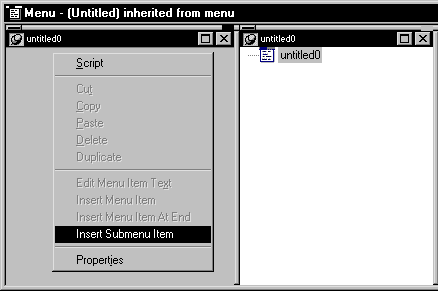
PowerBuilder displays an empty box.

-
Type the text you want for the menu item and then
press ENTER. Another way to insert additional
menu items In the previous step, before
you press
enter you can quickly insert the next menu item by pressing TAB
and then typing the text. You can press TAB and type text repeatedly
to create all the items in the menu bar or you can use the steps
in the next two procedures.
To insert the second menu item in a new menu:
-
If the first menu item is not selected,
select it. -
Select Insert>Menu Item At End from the
menu bar.or
Select Insert Menu Item At End from the popup menu.
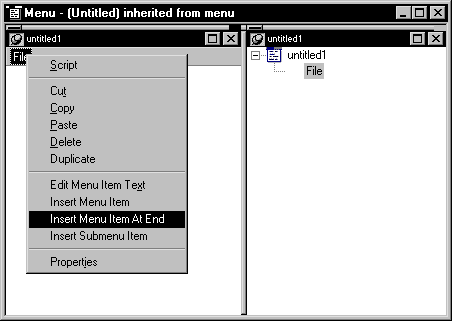
PowerBuilder displays an empty box.
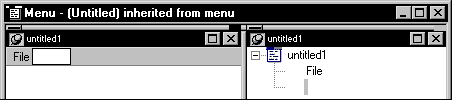
-
Type the text you want for the second menu item
and then press ENTER.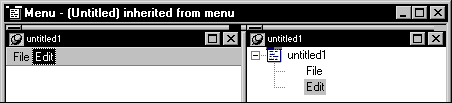
Notice that as you work, the changes you make display in both
the WYSIWYG and Tree Menu views.
To insert additional menu items on the menu bar:
-
Select the menu item that you want to insert
the new menu item before. -
Select Insert>Menu Item from the menu
bar.or
Select Insert Menu Item from the popup menu.
To insert a menu item at the end With any menu item selected, you can select Insert>Menu
Item At End from the menu bar or Insert Menu Item At End from the
popup menu to add a menu item to the end of the menu. -
Type the text you want for the menu item and then
press enter.Here’s a menu with two items added after File and
Edit.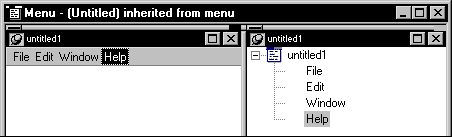
Duplicating menu items You can quickly duplicate a menu item at any level of a menu
by selecting the menu item and pressing CTRL+T. For information,
see “Duplicating menu items”.
To insert submenu items on a menu item (to create
a dropdown menu):
-
Select the menu item (in the menu bar)
that you want the new submenu item to drop down from. -
Select Insert>Submenu Item from the menu
bar.or
Select Insert Submenu Item from the popup menu.
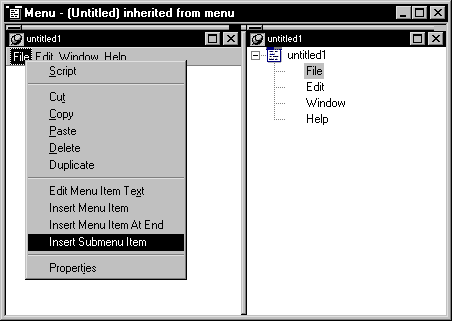
PowerBuilder displays an empty box.
-
Type the text you want for the menu item and then
press enter. Another way to insert additional submenu items Just as you could for menu bar items, before
you
press enter you can press TAB and then type the text for the next
submenu item. -
Select Insert>Menu Item At End from the
menu bar.or
Select Insert Menu Item At End from the popup menu.
Here’s a menu that has five submenu items added.
Each item was added by selecting Insert Menu Item At End from the
popup.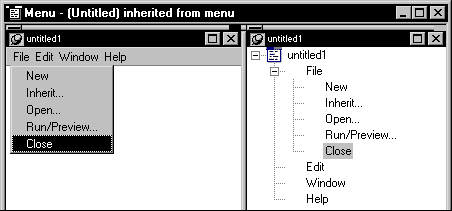
To insert submenu items before existing submenu
items:
-
Select the submenu item that you want to
insert the new submenu item before. -
Select Insert>Menu Item from the menu
bar.or
Select Insert Menu Item from the popup menu.
An empty box displays above the item you selected on the dropdown menu.
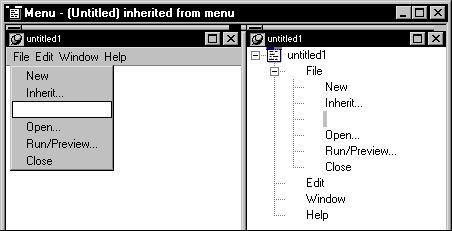 Why you used the Insert Menu Item option Since you are now working in a new menu (the dropdown menu),
not the main menu on the menu bar, you now use the Insert Menu Item
option. -
Type the text you want for the menu item and then
press enter.
To insert submenu items on a submenu item (to
create a cascading menu):
-
Select the submenu item (in the dropdown
menu) that you want the new submenu item to cascade from. -
Select Insert>Submenu Item from the menu
bar.or
Select Insert Submenu Item from the popup menu.
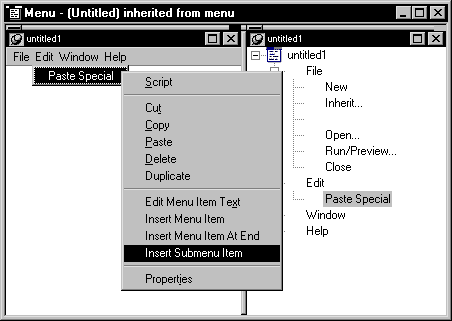
PowerBuilder displays an empty box.
-
Type the text you want for the menu item and then
press enter.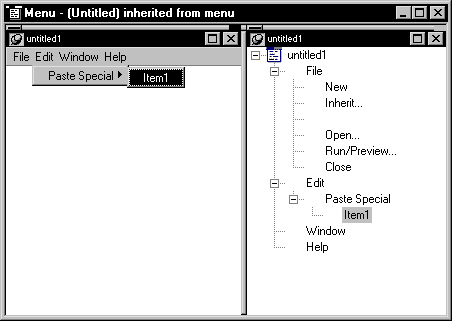 Another way to insert additional submenu items Before
you press enter you can press
TAB and then typing the text for the next submenu item. -
Repeat step 1 and step 2 for each submenu item,
each time selecting the same submenu item from the dropdown menu.Here’s a menu item on a dropdown menu that has four
submenu items added to create a cascading menu. Each item was added
by selecting the Paste Special menu item and then selecting Insert
Submenu Item from the popup menu.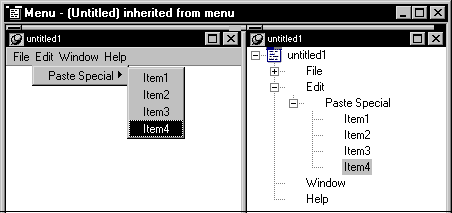
-
To cascade again from the cascading menu item,
select a cascading menu item, select Insert Submenu Item from the
popup menu, type the text you want, and then press enter.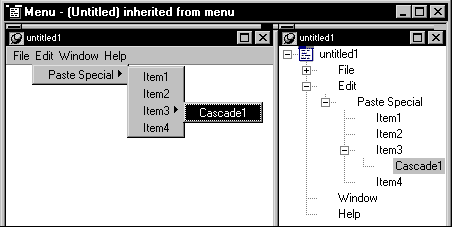
Creating separation
lines in menus
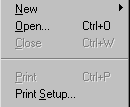
You should separate groups of related menu items with lines.
To create a line between items on a menu:
-
Insert a new menu item where you want the
separation line. -
Type a single dash (-) as the menu item text and
press ENTER.A separation line displays.
Duplicating menu items
You may find that you save time creating new menu items if
you duplicate existing menu items. A duplicate menu item has the
same properties and script as the original menu item. This means
that at times, you may be able to slightly modify a long script
to make it work for your duplicate menu item.
To duplicate a menu item or a submenu item:
-
Select the menu item or the submenu item
to duplicate. -
Select Duplicate from the popup menu.
or
Press CTRL+T.
The duplicate item displays in the same level of the menu
following the item you selected. The name of the duplicate menu
item is unique. - Change the text of the duplicate menu item.
-
Modify the properties and script associated with
the duplicate item as needed.
Changing menu item text
You will often need to change the text of a menu item, and
if you duplicate a menu item, you will need to change the text of
the duplicate item.
To change the text of a menu item:
-
Select the item and then click it again.
or
Select the item and then select Edit Menu Item Text
from the popup menu. - Type the new text for the menu item.
Another way to change the text Select the item and in the Properties view, type new text
in the Text property edit box on the General tab page.
Selecting menu items
You may want to select more than one menu item to move them,
delete them, or change the properties common to the menu items.
To select individual menu items:
-
Press CTRL and then select each item you
want.
To select a range of menu items at the same level
in the menu:
-
Select the first item, press SHIFT, and
then select the last item.
Navigating in the menu
As you work in a menu, you can move to another menu item simply
by selecting it or you can use the keyboard.
To navigate in menu items on the menu bar or on
dropdown or cascading menus:
-
Press the RIGHT ARROW and LEFT ARROW keys
and the DOWN ARROW and UP ARROW keys.
Moving menu items
The easiest way to change the order of items in the menu bar
or in a dropdown or cascading menu is to drag the item you want
to move and drop it where you want it to be. You can drag items
at the same level in a menu structure or to another level. For example,
you can drag an item in the menu bar to a dropdown menu or an item
in a cascading menu to the menu bar.
WYSIWYG Menu and Tree Menu views You can use drag and drop within each view. You can also drag
from one view and drop in the other.
To move a menu item or submenu item using drag
and drop:
- Select the item.
-
Press and hold the left mouse button and drag
the item to a new location.A feedback line appears at the new location that indicates
where to drop it. -
Release the mouse button to drop the menu item.
The menu item displays in the new location.
Dragging to copy To copy a menu item by dragging it, press and hold the CTRL
key while you drag and drop the item. A copied menu item has the
same properties and scripts as the original menu item.
You can also copy or move a menu item by selecting the item
and using the Cut, Copy, and Paste items on the Edit menu or the
popup menu.
Deleting menu items
To delete a menu item:
- Select the menu item you want to delete.
-
Click the Delete button in the PainterBar.
or
Select Edit>Delete from the menu bar.
The item you selected is deleted.
How menu items are named
When you add a menu item, PowerBuilder gives it a default name,
which displays in the Name box in the Properties view.
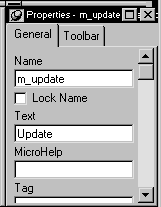
This is the name by which you refer to a menu item in a script
(for example, it corresponds to cb_name for
a CommandButton).
About the default menu item names
The default name is a concatenation of the text specified
for the default prefix in the Options property sheet (initially
the default prefix is m_) and the valid PowerBuilder characters
and symbols in the text you typed for the menu item. To see the
default prefix, select Design>Options from the menu bar.
If there are no valid characters or symbols in the text you
typed for the menu item, PowerBuilder creates a unique name prefix_n,
where n is the lowest number that can be combined
with the prefix to create a unique name.
The complete menu item name (prefix and suffix) can be up
to 40 characters. If the prefix and suffix exceed this size, PowerBuilder uses
only the first 40 characters (without displaying a warning message).
Duplicate menu item names
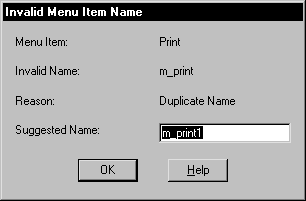
If you add a menu item to the menu and the name that PowerBuilder tries
to assign has already been used in the menu, PowerBuilder displays
a window and suggests a unique name for the menu item.
Menu item names are locked by default
After you add a menu item, the name PowerBuilder assigns to
the menu item is locked. Even if you later change the text
that displays for the menu item, PowerBuilder will not rename the
menu item. This is so you can change the text that displays in a
menu without having to revise all your scripts that reference the
menu item (remember, you reference a menu item through the name
that PowerBuilder assigns to it).
You may want to change the text that displays for a menu item
and have PowerBuilder rename the menu item based on the new text.
To have PowerBuilder rename a menu item:
-
In the Properties view on the General property
page, click the Lock Name checkbox to deselect it. - Change the text that displays for the menu item.
Saving the menu
You can save the menu you are working on at any time. When
you save a menu, PowerBuilder saves the compiled menu items and scripts
in the library you specify.
To save a menu:
-
Select File>Save from the menu
bar.If you have previously saved the menu, PowerBuilder saves the
new version in the same library and returns you to the Menu painter.If you have not previously saved the menu, PowerBuilder displays
the Save Menu dialog box. - Name the menu in the Menus box (see “Naming the menu”).
-
Write comments to describe the menu.
These comments display in the Select Menu dialog box and in
the Library painter. It is a good idea to use comments so you and
others can easily remember the purpose of the menu later. -
Specify the library in which to save the menu
and click OK.
Naming the menu
The menu name can be any valid PowerBuilder identifier up to
40 characters.
For information about PowerBuilder identifiers,
see the PowerScript Reference
.
A recommendation When you name menus, you should use a two-part name: a standard
prefix that identifies the object as a menu (such as m_)
and a suffix that helps you identify the particular menu.
For example, you might name a menu used in a sales application
m_sales.