About the Menu painter
Views in the Menu painter
The Menu painter has several views where you specify menu
items and how they look and behave. For details about the views,
how you use them, and how they are related, see “Views in painters that edit
objects”.
Menu painter workspace
This Menu painter layout shows the Tree Menu view in the top
left and the WYSIWYG Menu view in the top middle:
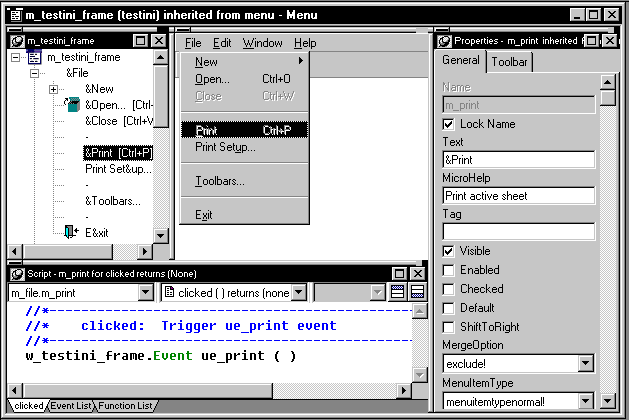
These two views are where you specify menu items that display
in the menu bar and under items in the menu bar:
| This view | Displays |
|---|---|
| Tree Menu | All the menu items at the same time when the tree is fully expanded. To fully expand the tree (or collapse the expanded tree), press CTRL+SHIFT+* |
| WYSIWYG Menu | The menu as you will see it and use it in your application (with the exception of invisible menu items that do display) |
The Tree Menu view and the WYSIWYG Menu view are equivalent.
You can use either view to insert new menu items (on the menu bar
or on dropdown or cascading menus) or modify existing menu items.
The menus in both views change when you make a change in either
view.
The Properties view is where you can specify how menu items
display and the appearance and behavior of menu items. The Script
view is where you write scripts for menu item events.