Get a workspace from Git
When PowerBuilder IDE opens without loading any workspace, you
can get a PowerBuilder workspace from the source control system and
open the workspace in the PowerBuilder IDE directly.
To get a PowerBuilder workspace from the Git source control
system:
-
Right-click “No Workspace” in the System Tree and select
Connect to Workspace from the pop-up menuor
Select Connect to Workspace from the File menu.
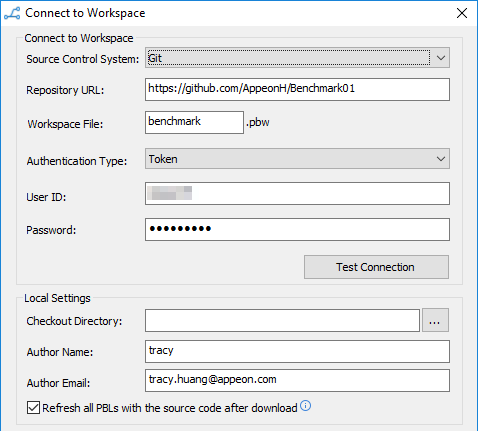
The Connect to Workspace dialog box displays. If the login
information has been input before, they will be filled in
automatically. -
Select Git from the Source Control System list.
Input the URL of the Git source control server and the name
of an existing repository on the server.Select an authentication type: basic or token.
Type in your user name and password (or token) for the Git
source control system.Type or select a path for the local root directory in the
“Checkout Directory” box. All the files that you add to or get
from source control must reside in this path or in a subdirectory
of this path.Input the author name and author email.
Select the “Refresh all PBLs with the source code after
download” option to refresh all PBLs after downloading the source
code from workspace if you are unsure whether the PBLs are updated
with the latest source code.If using proxy server
If using the proxy server, configure the proxy server IP
address and port number in the PB.ini file (by default, the INI
file is located in
C:Users[username]appdatalocalappeonpowerbuilder [version]
in Windows 8.1 or later). Copy the following section to the INI
file and set the appropriate value for the proxy server:[SourceControlProxy]
Url=192.0.0.88
Port=80
Username=
Password=
Timeout=10
-
Click Test Connection, and click OK when connection is
successful.PowerBuilder starts downloading the workspace from the Git
source control system, and after the workspace is successfully
downloaded, it will be loaded in the PowerBuilder IDE
automatically.Note
After you get a workspace which was added to Git using a
third-party tool such as TortoiseGit (not by PowerBuilder IDE),
the objects will be marked with this icon which means the objects are not yet under
source control in PowerBuilder IDE, so you should commit the
entire workspace from the PowerBuilder IDE to Git to add it
under source control.