Placing a graph in a DataWindow object
To place a graph in a DataWindow object
-
Open or create the DataWindow object that will contain the
graph. -
Select Insert>Control>Graph from the menu bar.
-
Click where you want the graph.
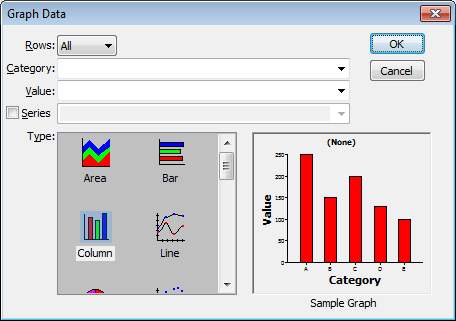
PowerBuilder displays the Graph Data dialog box:
-
Specify which columns contain the data and the type of graph
you want, and click OK.For more information, see Associating data with a graph.
The Design view now contains a representation of the
graph: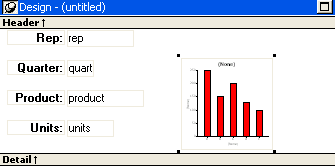
-
Specify the graph’s properties in the Properties
view.
Document get from Powerbuilder help
Thank you for watching.
Subscribe
Login
0 Comments
Oldest