Working with objects
In PowerBuilder, you can:
- Create new objects
- Create new objects using inheritance
- Open existing objects
- Run or preview objects
After you create or open an object, the object displays in
its painter and you work on it there.
Creating new objects
To create new
objects, you use the New button in the PowerBar.
 To create a new object:
-
Click the New button in the PowerBar.
or
Select File>New from the menu bar.
-
In the New dialog box, select the appropriate
tab page for the object you want to create.For information about the tab pages you can use for creating
new objects, see “Objects you can create”. This shows the Object tab page: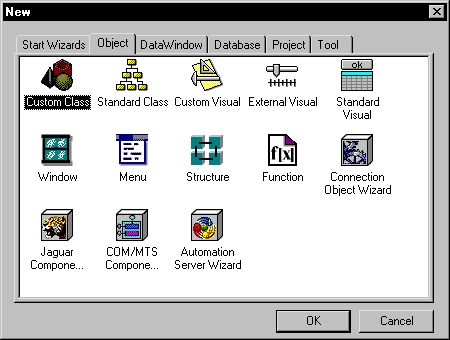
You use icons on the Object tab page for creating new user
objects, windows, menus, structures, and functions. -
Select an icon and click OK.
If you chose the Start tab page or the DataWindow tab page,
at this point you will use a wizard. For the Object or Database
tab page, you will use a wizard or the new object opens in the appropriate
painter. For the Project tab page, you will use a wizard or open
the Project painter.
Objects you can create
The
New dialog box has six tab pages, five of which you’ll
use for creating new objects:
| This tab page | Has icons for creating new |
|---|---|
| Start Wizards | Applications using Start wizards. For information see “Start wizards” and “Creating a new application” |
| Object | User objects, windows, menus, structures, and functions using the painter for that object and for creating deployable components and connection objects using Object wizards. For information, see the chapters specific to the object type |
| DataWindow | DataWindow objects in a specific presentation style using wizards. For information, see “DataWindow wizards” |
| Database | Queries using the Query painter and data pipelines using the Data Pipeline painter. For information on defining queries, see “Defining queries “. For information on using the Data Pipeline painter, see Chapter 24, “Working with Data Pipelines “ |
| Project | Project objects for building an executable application or generating a component using the Project painter and icons for Project wizards. For information, see Chapter 26, “Creating Executables and Components” and “Project wizards” |
Creating new objects usinginheritance
One
of the most powerful features of PowerBuilder is inheritance. With inheritance,
you can create a new window, user object, or menu (a descendent object)
from an existing object (the ancestor object).
To create a new object by inheriting it from an
existing object:
-
Click the Inherit button in the PowerBar.
or
Select File>Inherit from the menu bar.
-
In the Inherit From Object dialog box, select
the object type (menu, user object, or window) from the Object Type
dropdown listbox, then the library or libraries you want to look
in, and then the object you want to inherit the new object from.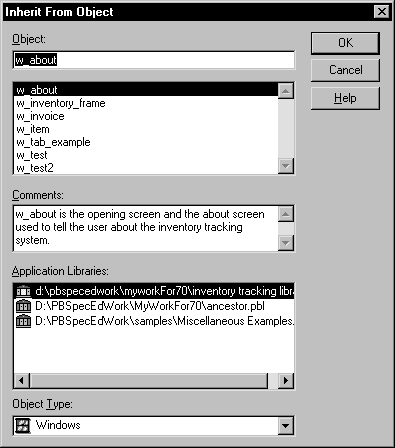
 Displaying objects from many libraries To find an object more easily, you can select more than one
library in the Application Libraries listbox. Use ctrl+click to
select additional libraries and shift+click to
select a range. -
Click OK.
The new object, which is a descendant of the object you chose
to inherit from, opens in the appropriate painter.
For more information about inheritance, see Chapter 10, “Understanding Inheritance “.
Opening existing objects
To open existing objects,
you use the Open button in the PowerBar.
To open existing objects:
-
Click the Open button in the PowerBar.
or
Select File>Open from the menu bar.
-
In
the Open dialog box, select the object type from the Object Type dropdown
listbox, the library or libraries you want to look in, and then
the object you want to open.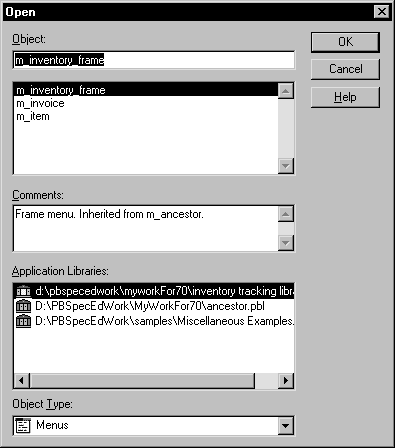 Displaying objects from many libraries To find an object more easily, you can select more than one
library in the Application Libraries listbox. Use ctrl+click to
select additional libraries and shift+click to
select a range. -
Click OK.
The object opens in the appropriate painter.
Accessing recently opened objects
You can quickly open
recently opened objects by selecting File>Recent Objects
from the menu bar. The Recent Objects list includes the eight most-recently-opened
objects, but you can include up to 36 objects on the list.
To modify the number of recent objects:
-
Select Window>System Options from
the menu bar. -
In the System Options dialog box (General tab
page), modify the number for the recent objects list.
Running or previewing objects
To run a window or preview a DataWindow object, use the Preview
button in the PowerBar.
To run or preview an object:
-
Click the Preview button in the PowerBar.
or
Select File>Preview from the menu bar.
-
In
the Run/Preview dialog box, select the object type from
the Object Type dropdown listbox, then the library or libraries
you want to look in, and then the object you want to run or preview.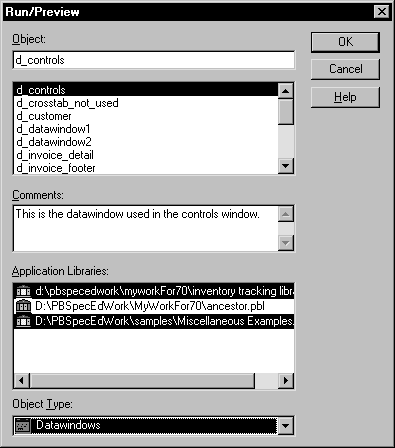 Displaying objects from many libraries To find an object more easily, you can select more than one
library in the Application Libraries listbox. Use ctrl+click to
select additional libraries and shift+click to
select a range. -
Click OK.
The object runs or is previewed.
For more specific information on running a window using the
PowerBar button, see “Running a window”. For information on using the DataWindow
painter’s Preview view, see Chapter 14, “Defining DataWindow Objects “.