Rotating controls in a DataWindow object
Controls that display text such as text controls, columns,
and computed fields can be rotated from the original baseline of
the text. The Escapement option on the Font property page for the
control lets you specify the amount of rotation, also known as escapement.
Several other properties of a rotated control affect its final
placement when the DataWindow object executes. The location of the control
in Design view, the amount of rotation specified for it, and the
location of the text within the control (for example centered text
vs. left-aligned text) all contribute to what you see in the DataWindow object Preview
view.
The following procedure includes design practices that help
ensure that you get what you want in the end. As you become more
experienced you may drop or alter some of the steps. The procedure
recommends setting a visible border on the control so you can see
where the control is located in the Preview view and making the
control movable in the Preview view, which often helpful.
 To rotate a control in a DataWindow object:
- Select the control in Design view.
-
Change its border to Box (General property page>Border>Box)
and make it movable (Position property page>Moveable checkbox). -
In Design view enlarge the area in which the control
is placed.For example, in a grid DataWindow object make the band deeper and move
the control down into the center of the band. -
Display the Modify expression dialog box for the Escapement
property (click the button next to the Escapement property on the
Font property page). -
Specify the amount of rotation you want as an integer
in tenths of a degree. (for example, 450 means 45 degrees of rotation;
0 means horizontal or no rotation).The origin of rotation is the center of the top border of
the box containing the text. It’s often helpful to use
left-aligned text (General property page>Alignment>Left)
because it makes it easier to position the control correctly. This
example shows text centered within the control.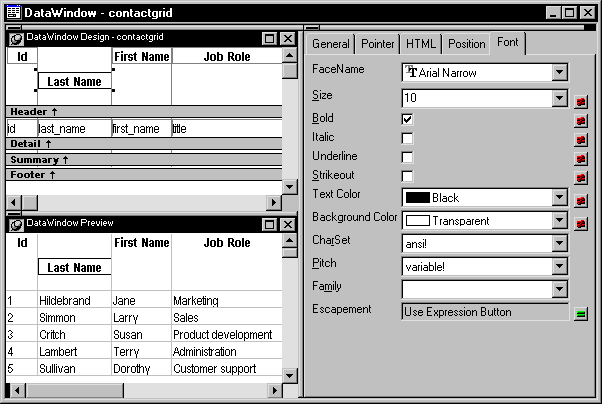
-
To display the current rotation in Preview, close the
Preview view and reopen it (View>Preview on the menu bar).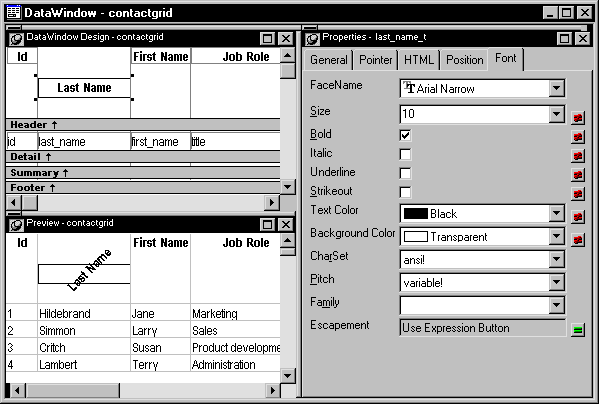
-
Drag and drop the control in the Preview view or Design
view until it ends up where you want it. -
In Design view, select the control that’s
being rotated, remove the temporary border, and deselect the Moveable
checkbox.
 If you are using a conditional expression for rotation If you are specifying different rotations depending on particular
conditions, you may need to add conditions to the x and y properties
for the control to move the control conditionally to match the various
amounts of rotation. An alternative to moving the control around
is to have multiple controls positioned exactly as you want them
taking into account the different amounts of rotation. Then you
can add a condition to the visible property of each control to ensure that
the correctly rotated control shows.