Using the Web Forms Mail Profile Manager
Using the Mail Profile Manager
If you set the
PBMailManager global property to true on the Configuration tab for
a Web Forms application, application users can open the Mail Profile Manager
at any time from that application. Although you can choose to render the
Mail Manager icon at design time, the IIS server administrator can
change your selection after deployment by modifying the PBMailManager
global property in the application’s Web.Config file.
When you set the PBMailManager property to true, the Mail
Manager icon displays in every window of your application. If you
do not want the Mail Manager icon to display on a specific window
in your application, set the HasMailManager property for that window
to false.
You can also code an application event to open the Mail Profile
Manager by calling the OpenMailManager function.
For information on the HasMailManager property, see HasMailManager.
For information on the OpenMailManager function, see OpenMailManager.
The Mail Manager icon displays in the upper right corner of
the Web Forms page, just to the left of the File Manager icon, when
that icon is also rendered. The Mail Profile Manager opens in the
current browser window after a user clicks the Mail Manager icon.
 Automatic display of the Mail Profile Manager The Mail Profile Manager displays automatically if a user
triggers a MailSend call from a Web Forms application
before a mail profile has been defined or if a default mail profile
has not been set.
Figure 5-6 shows
the Mail Profile Manager for a Web Forms application.
Web Forms applications
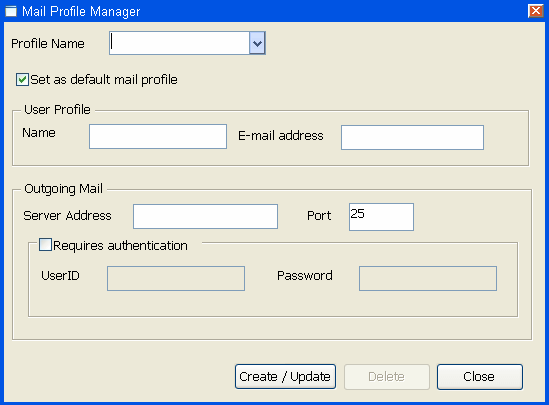
The Mail Profile Manager is divided into sections for user
profile information and outgoing mail parameters. Information that
the application user enters in the Mail Profile Manager can be saved
in a profile that is available to the Web Forms application.
Table 5-1 lists
and describes the fields in the Web Forms Mail Profile Manager.
| Section | Field | Description |
|---|---|---|
| — | Profile Name | Name of the mail profile. |
| Set as Default Mail Profile | Select to make the current mail profile the default profile for a Web Forms application. |
|
| User Profile | Name | Display name for the user. |
| E-mail address | E-mail address the Web Forms user wants to use. |
|
| Outgoing Mail | Server address | Address for the outgoing mail server, such as smtp.sybase.com. |
| Port | The default outgoing mail port is 25. | |
| Requires authentication | Select this check box if the outgoing mail server requires authentication. |
|
| User ID | Alias used to log in to the e-mail server. | |
| Password | Password for the user ID. The password a user enters is encoded using an MD5 algorithm. |
Creating, updating, and deleting mail profiles
Users can always enter new mail profile names in the Profile
Name drop-down list. After entering all the Mail Profile Manager
fields for a given profile, the application user must click Create/Update
to save the entries to a profile file in the applicationName_rootMailsessionsessionID virtual
file directory. The profile is saved in an XML file with an encoded
version of the user password. Unless the user has logged in as a
permanent user, all mail profiles are deleted after the user terminates
an application session.
Permanent user accounts If the application user is logged in as a permanent user,
the XML mail profile file is saved in the applicationName_rootMailuseruserName directory.
For information about the permanent user functionality, see Chapter 4, “User Management and Registry Operations
in Web Forms.”
An application user can display an existing mail profile by
selecting it in the Profile Name drop-down list. The user can then
edit the fields of the selected profile and save those changes by
clicking Create/Update, or can remove the profile by clicking
Delete. The Delete button is enabled only after an existing mail
profile is selected in the Profile Name drop-down list.
Modifications required for Web Forms applications
Before you issue a MailSend call, you must
create a MailSession object. This requirement is the same in Web
Forms and standard client-server applications. However, in standard
applications, you must also issue MailLogon and MailLogoff calls
for the MailSession object. This is not necessary for Web Forms
applications, and these calls are ignored by the PowerBuilder to
.NET compiler if you include them in a Web Forms application.
For a standard
PowerBuilder client-server application, you can use a MailSend call
without arguments to open a new message window in the client’s
default mail application. Because you cannot do this from a Web
Forms application, you can use a MailSend call
only if you include a mailmessage argument.
You populate a MailMessage object the same way for a Web Forms
application as you do for a standard client-server application.
The properties of the MailMessage object include the text, subject
line, and recipient information for the message that the application
user sends. Some of the properties of a MailMessage object are ignored
in a Web Forms application. For a list of unsupported properties,
see Table 8-4.
Unsupported mail functions The MailAddress, MailDeleteMessage, MailGetMessages, MailHandle, MailLogon, MailLogoff, MailReadMessage, MailRecipientDetails, MailResolveRecipient,
and MailSaveMessage functions are not supported
in Web Forms applications. Although these functions are ignored
by the PowerBuilder to .NET compiler, they do not produce application
errors and do not interfere with supported mail functionality in
Web Forms applications.