Highlighting information
Every control in a DataWindow object has a set of properties that determines
what the control looks like and where it is located. For example,
the values in a column of data display in a particular font and color,
in a particular location, with or without a border, and so on.
Modifying properties when designing
You define the appearance and behavior of controls in DataWindow objects
in the DataWindow painter. As you do that, you are specifying the controls’ properties.
For example, when you place a border around a column, you are setting
that column’s Border property.
In most cases, the appearance and behavior of controls is
fixed; you do not want them to change at runtime. When you make
headings bold when designing them, you want them to be bold at all
times.
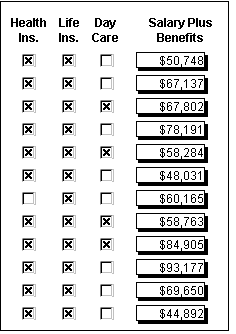
In the following DataWindow object, the Salary Plus Benefits column
has a Shadow box border around every data value in the column. To
display the border, you set the border property for the column:
Modifying properties at runtime
In some cases, however, you might want some properties of
controls in DataWindow objects to be driven by the data, which is not known
when you are defining the DataWindow object in the painter. For these
situations you can define property conditional expressions, which
are expressions that are evaluated at runtime.
You can use these expressions to conditionally and dynamically
modify the appearance and behavior of your DataWindow object at runtime.
The results of the expressions set the values of properties of controls
in the DataWindow object.
In the following DataWindow object, the Salary Plus Benefits column
has a Shadow box border highlighting each data value that is greater
than $60,000:
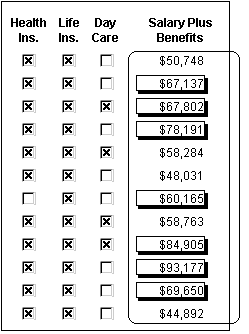
To control the display of the border, you define a property
conditional expression for the column’s Border property.
When users run the DataWindow object, PowerBuilder changes the border
of individual data values based on the condition (value greater
than $60,000).
Defining an expression
The following illustration shows the Salary_Plus_Benefits column
selected in the Design view. To the right of the Design view, the
Properties view shows properties for the column, including the Border
property. Next to the Border property is a button for accessing
the dialog box where you enter the expression. The button displays
an equals sign with a slash through it when no expression has been
entered, and an equals sign without a slash when it has.
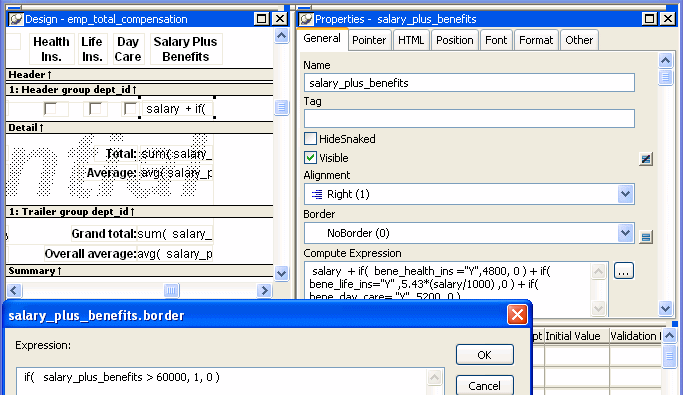
In this example the Border property is set to NoBorder in
the Properties view. However, the expression defined for the property
overrides that setting at runtime.
A closer look at the expression
The expression you enter almost always begins with If.
Then you specify three things: the condition, what happens if it
is true, and what happens if it is false. Parentheses surround the
three things and commas separate them:
|
1 |
If( <i>expression, </i><i>true, false</i> ) |
The following expression is used in the example. Because the
expression is for the Border property, the values for true and false
indicate particular borders. The value 1 means Shadow box border
and the value 0 means no border:
|
1 |
If(salary_plus_benefits > 60000, 1, 0) |
When users run the DataWindow object, PowerBuilder checks the
value in the computed column called salary_plus_benefits to
see if it is greater than 60,000. If it is (true), PowerBuilder displays
the value with the Shadow box border. If not (false), PowerBuilder displays
the value with no border.
About specifying properties
Usually you specify a number to indicate what you want for
a particular property. For example, the following list shows all
of the borders you can specify and the numbers you use. If you want
the border property to be Shadow box, you specify 1 in
the If statement, for either true or false.
- 0—None
- 1—Shadow
box - 2—Box
- 3—Resize
- 4—Underline
- 5—3D
Lowered - 6—3D
Raised
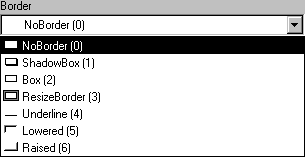
In the Properties view, the list of choices for setting a
property includes the values that correspond to choices in parentheses.
This makes it easier to define an expression for a property; you
do not need to look up the values. For example, if you want to specify
the ResizeBorder in your expression, you use the number 3, as shown
in the drop-down list.
For details on the values of properties that
can be set using expressions, see “Supplying property values”.
For complete information about what the valid
values are for all properties associated with a DataWindow object,
see the discussion of DataWindow object properties in the DataWindow Reference
or
online Help.
About modifying properties programmatically
You can also programmatically modify the properties of controls
in a DataWindow object at runtime. For more information, see the DataWindow Reference
and
the DataWindow Programmer’s Guide
.