View the
DataWindow in the DataWindow painter
Now you view the DataWindow in the DataWindow painter using the
Design and Preview views.
-
Click the Return button in the PainterBar
or
Select File>Return To DataWindow Painter from the menu
bar.The DataWindow wizard asks you to select the borders and
colors for the new DataWindow object. -
Select Raised from the Border drop-down list box for
columns.Click Next.
You have added raised borders to the DataWindow columns, but
not to the labels. The DataWindow wizard summarizes your
selections. -
Click Finish.
Because you selected the Retrieve On Preview check box and
because the Preview view is part of the default layout scheme for
the DataWindow painter, the Specify Retrieval Arguments dialog box
appears.This dialog box prompts you for an argument value. When you
put this DataWindow object into the tutorial application, you write
a script that passes the required argument to the DataWindow object
automatically.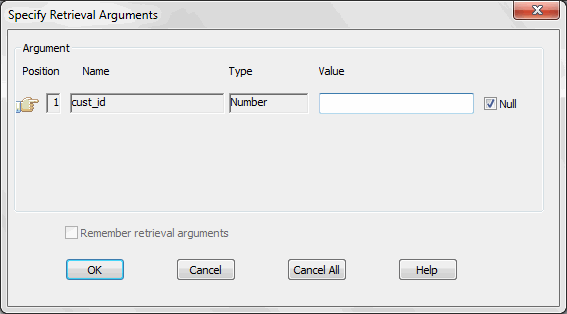
-
Type a customer ID (such as 101, 102, or 103) in the Value
field.Click OK.
The DataWindow painter opens. The Design view displays the new
DataWindow object.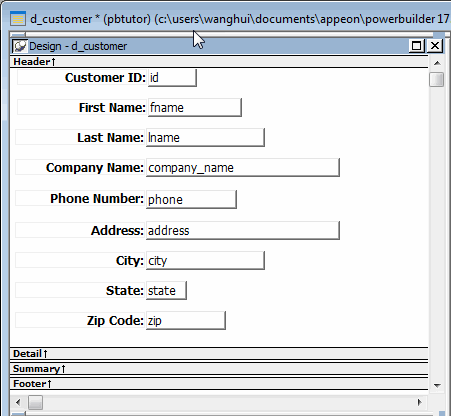
Changing font sizes
If you cannot see all letters in a label, press Ctrl+A to select
all the items in the DataWindow, then select a smaller font size in
the StyleBar.
The DataWindow Preview view retrieves the requested customer
data.
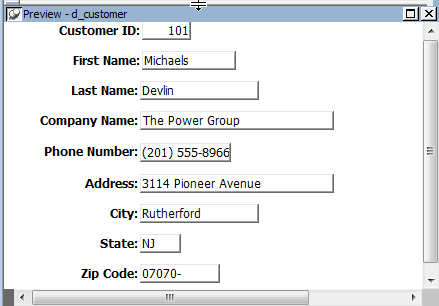
Retrieving other records
If you want to preview the record for another customer, you can
right-click inside the DataWindow Preview view, select Retrieve from
the pop-up menu, then specify a different customer ID in the Specify
Retrieval Arguments dialog box.