View/Edit the connection settings
After you add the workspace to Git using the Add to Source Control menu or get the workspace
from Git using the Connect to
Workspace menu, you can view and edit the Git connection
settings in the Properties of
Workspace dialog box; you can also remove and restore the
connection between the workspace and the source control server.
To view/edit the connection settings of the Git source
control system:
-
Right-click the workspace in the System Tree and select
Properties from the pop-up
menu. -
Select the Source Control
tab in the Properties of
Workspace dialog box. -
Select Git from the
Source Control System
list.Git is available from the list when the current workspace is
under the Git source control, for example, after the workspace is
uploaded to Git using the Add to Source
Control menu (see the section called “Add a workspace to Git”), or after
the workspace is downloaded from Git using the Connect to Workspace menu (see the section called “Get a workspace from Git”), or when PowerBuilder IDE detects that a .git
sub-folder exists.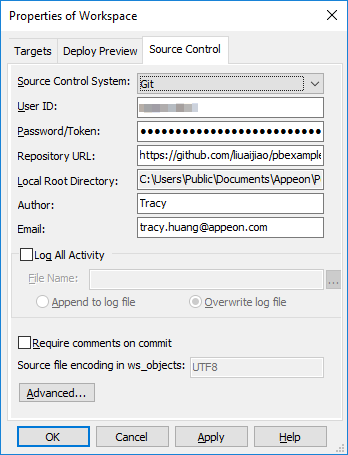
-
View or change the connection settings for the selected
source control system. Note that User ID and Password are used by
all workspaces, but the other settings are not.User ID and Password/Token: User credentials for logging into
the source control system. These settings can be changed
here.Repository URL: A URL that
points to the repository on the source control server. This
setting can be changed here.Local Root Directory: A
local path where all the files that you add to or get from source
control must reside. This setting is read-only and cannot be
changed here.Author and Email: Author information that will be used
when committing objects. These settings can be changed
here. -
Click OK.
To remove/restore the connection settings from the Git source
control system:
-
If you select None from the
Source Control System list and
click OK, PowerBuilder will
remove the connection between the workspace and the source control
server. -
If you move the workspace to a new location and then select
Git from the Source Control System list and click
OK, PowerBuilder will restore
connections between the workspace and the source control
server.Besides that, if a workspace is under source control using a
third-party tool such as TortoiseGit, you can open the workspace
(make sure the .git sub-folder exists) and then select Git from the Source
Control System list to establish connections between
the workspace and the source control server in the PowerBuilder
IDE. Notice that the objects are marked with this icon
 which means the objects are not yet under
source control in PowerBuilder IDE, so you should commit the
entire workspace to add it under source control, and so the
“ws_objects” folder is successfully created and uploaded to Git.
The “ws_objects” folder is essential for correctly identifying the
status of the PowerBuilder objects during the source control
management process.