Using the To-Do List
The To-Do List displays a list of development tasks you need to
do. You can create tasks for any target in the workspace or for the
workspace itself. A drop-down list at the top of the To-Do List lets
you choose which tasks to display. To open the To-Do List, click the
To-Do List button in the PowerBar or select Tools>To-Do List from
the menu bar.
To-Do List entries
The entries on the To-Do list are created:
-
Automatically by most PowerBuilder wizards to guide you
through the continued development of objects of different types
that you will need to build the application or component specified
by the wizard -
At any time by you when you are working in a painter and
want a link to a task that you want to remember to complete
Some To-Do List entries created by wizards are hot-linked to get
you quickly to the painter (and the specific object you need) or to a
wizard. You can also create an entry yourself that links to the
PowerBuilder painter where you are working so you can return to the
object or script (event/function and line) you were working on when
you made the entry. When you move the pointer over entries on the
To-Do list, the pointer changes to a hand when it is over a linked
entry.
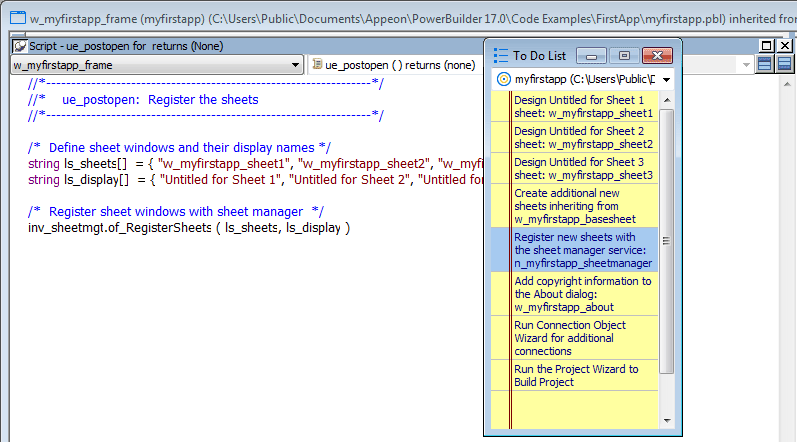
For example, if you generate an MDI application with the
Template Application wizard, one of the linked entries on the To-Do
List reminds you to register new sheets with the sheet manager
service, which is a nonvisual user object created by the wizard.
Double-clicking this entry automatically opens the Window painter and
the Script view where you register new sheets.
Exporting and importing
lists
You can export or import a To-Do List by selecting Export or
Import from the pop-up menu. Doing this is useful if you want to move
from one computer to another or you need to work with To-Do Lists as
part of some other system such as a project management system.
Linked entries
If you import a list from another workspace or target, or from
a previous version of PowerBuilder, linked entries will display in
the list but the links will not be active.
Working with entries on the To-Do
List
The following table tells you how to work with entries on the
To-Do List.
|
To |
Do this |
|---|---|
|
See linked entries |
Move the pointer over the entries. A hand |
|
Use a linked entry to get to a painter or |
Double-click the linked entry or select it and |
|
Add an entry with no link |
Select Add from the pop-up menu. |
|
Add a linked entry to a painter that edits |
With the painter open, select Add Linked from the |
|
Add an entry for a specific target |
If the To-Do List is open, select the target from If the To-Do List is closed, select a |
|
Add an entry for the workspace |
Select Current Workspace from the drop-down list |
|
Change the list that displays |
Select a specific target or Current Workspace |
|
Change an entry’s position on the |
Drag the entry to the position you |
|
Edit or delete an entry |
Select Edit or Delete from the pop-up |
|
Delete checked entries or all |
Select Delete Checked or Delete All from the |
|
Check or uncheck an entry |
Click in the margin to the left of the entry or |
|
Export a To-Do List |
Select Export from the pop-up menu, name the |
|
Import a To-Do List |
Select Import from the pop-up menu, navigate to |