Using the RibbonBar Builder
You can directly adjust the scripts in the XML editor to design
your own RibbonBar control and preview the UI on the fly. Every change
you make to the XML script is immediately reflected in the Preview pane. The RibbonBar Builder allows you
to:
-
Create or open the XML or JSON scripts of a RibbonBar
controlTo create a new XML file, click New
File.To open an existing XML file, click Open File.
To open the default XML template of RibbonBar, click
Open Template.To import XML scripts from a JSON file and display the XML
scripts in the XML editor, click Import from
JSON. -
Save the current RibbonBar as an XML or JSON file, or as a
PowerBuilder string.To save the XML scripts to an XML file, click the Save File or Save
As button.To save the XML scripts to a JSON file, click the Export to JSON button.
To save the XML scripts to a PowerBuilder string, click the
Copy as a PB String
button. -
Search or replace text for the ribbon bar controls in the
XML editorClick the Search button
from the toolbar or directly press Ctrl+F to display the search
box. You can search for or replace text in the search box. -
Set property values in the XML editor
Select to modify the property value, or input “=” after a
property, the editor aromatically displays a list of values for
the property. -
Insert images
Method 1: Place the cursor in the value of the PictureName property, or double click to
select the value of the PictureName property, and then click the
Select Image button from the
toolbar.Method 2: In the Select
Image dialog, select to use a custom image or a
built-in image. The selected image name will be inserted into the
value of the PictureName
property. -
Edit the ribbon bar controls
To insert a control, right click where you want to insert
the control in the XML editor; the editor will display a list of
controls that can be inserted in the current position. As shown in
the following figure, if you right click after
<RibbonItems>, you will be prompted to select from the
following options: ApplicationButton, Categories, and
TabButtons.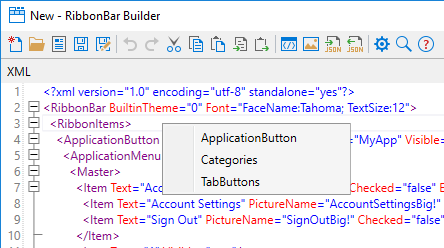
You can also copy/paste the corresponding XML node to reuse
the XML scripts for a control.To remove a control, simply remove the corresponding XML
node. -
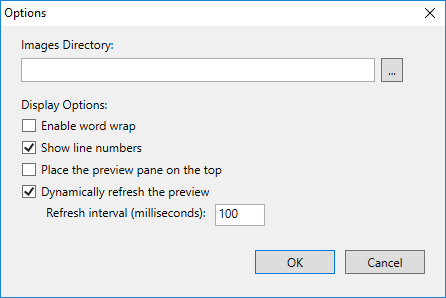
Customize the RibbonBar Builder
The Option button on the
toolbar provides a number of settings for you to customize the
RibbonBar Builder.-
Images Directory — This directory will be ignored if a
built-in image is selected. For a custom image, you can
specify a relative path of the custom image in the XML scripts
according to the directory specified here; or specify an
absolute path if the custom image is in a different
directory. -
Enable word wrap — Whether to break a long line into
multiple lines based on the XML editor view area. -
Show line numbers — Whether to show line numbers on the
left hand side of the XML editor. -
Place the preview pane on the top — Whether to place
the preview pane on the top of the XML editor. -
Dynamically refresh the preview — Whether to
dynamically refresh the preview pane to reflect the changes
made to the RibbonBar control. If this option is not selected,
a refresh icon will appear on the top right corner of the
preview pane and you can click this icon (or press Ctrl + R)
to refresh the preview pane manually. -
Refresh interval — When “Dynamically refresh the
preview” option is selected, you can determine how frequently
should the preview pane be refreshed after a change is
made.
-
The XML editor also provides auto-completion to help you write
XML elements, properties, and property values easily.
-
When you input “<“, the editor automatically displays a
list of possible elements -
When you enter a space in an element, the editor
automatically displays a list of properties for the current
element. -
When you input “=” after a property, the editor aromatically
displays a list of values for the property.
The scripts will be validated against XML 1.0 Specification
immediately after input. The syntax error, if any, will be displayed
in Error List pane at the bottom of
the RibbonBar Builder.