Using the General property page
Use the General property page to specify the following window
information:
-
Window type
-
Title bar text
-
Menu name
-
Color
-
Transparency
-
Animation
Specifying the window’s
type
The first thing you should do is specify the type of window
you are creating.
To specify the window’s type
-
In the Properties view for the window, select the General
tab. -
Scroll down the property page and select the appropriate
window type from the WindowType drop-down list.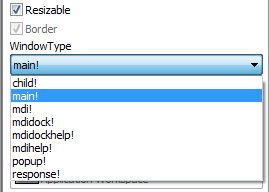
Depending on the type of window, PowerBuilder enables or
disables certain check boxes that specify other properties of
the window. For example, if you are creating a main window, the
Title Bar check box is disabled. Main windows always have title
bars, so you cannot clear the Title Bar check box.
Specifying other basic window
properties
By selecting and clearing check boxes on the General property
page, you can specify whether the window is resizable or
minimizable, is enabled, has a border, and so on.
Note the following:
-
A main window must have a title bar
-
A child window cannot have a menu
-
A response window cannot have a menu, Minimize box, or
Maximize box
Associating a menu with the
window
Many of your windows will have a menu associated with
them.
To associate a menu with the window
-
Do one of the following:
-
Enter the name of the menu in the Menu Name text box
on the General property page -
Click the Browse button and select the menu from the
Select Object dialog box, which displays a list of all menus
available to the application
-
-
Click the Preview button in the PainterBar to see the
menu.
For information about preview, see Viewing your work.
Changing the menu
You can change a menu associated with a window during
execution using the ChangeMenu function. For more information, see
the section called “ChangeMenu” in PowerScript Reference.
Choosing a window
color
You can change the background color of your window.
To specify the color of a window
-
Do one of the following:
-
Specify the color of the window from the BackColor
drop-down list on the General property page -
If the window is an MDI window, specify a color in the
MDI Client Color drop-down list
-
Changing default window
colors
For main, child, pop-up, and response windows, the default
color is ButtonFace if you are defining a 3D window, and white if
you are not. If you or the user specified different display colors
in the Windows Control Panel, a 3D window will display in the color
that is set for the window background.
You can change the default for windows that are not 3D in the
Application painter Properties view. To do so, click the Additional
Properties button on the General page and modify the Background
color on the Text Font tab page. New windows that are not 3D will
have the new color you specified.
For more about using colors in windows, including how to
define your own custom colors, see Working
with Controls.
Choosing the window
icon
If the window can be minimized, you can specify an icon to
represent the minimized window. If you do not choose an icon,
PowerBuilder uses the application icon for the minimized
window.
To choose the window icon
-
Click the window’s background so the Properties view
displays window properties. -
Select the General tab.
-
Choose the icon from the Icon drop-down list or use the
Browse (…) button to select an icon (.ICO) file.The icon you chose displays in the Icon list.
Changing the icon at runtime
You can change the window icon at runtime by assigning in
code the name of the icon file to the window’s Icon property,
window.Icon.
Specifying the window’s
transparency
You can specify a value between 1 and 100% for the
Transparency property of a window. This property is useful if you
want a non-modal dialog box to remain visible but become
semi-transparent when it loses focus.
Opening and closing windows with an
animated effect
You can use a special effect when a window opens or closes.
Effects include fading in or out, opening from the center, and
sliding or rolling from the top, bottom, left, or right. You specify
animation effects with the OpenAnimation, CloseAnimation, and
AnimationTime properties. Set the AnimationTime property to between
1 and 5000 milliseconds to specify how long the animation effect
takes to complete.
For example, if your application displays a splash screen
while the application’s main window is initializing, you can set the
splash screen’s CloseAnimation property to have the window fade out
rather than just disappearing when the application is initialized or
after a timeout by setting the CloseAnimation property to
FadeAnimation!.