Using sheets
In an MDI frame window, users can open windows (sheets) to perform
activities. For example, in an electronic mail application, an MDI frame
might have sheets that users open to create and send messages and read and
reply to messages. All sheets can be open at the same time and the user
can move among the sheets, performing different activities in each
sheet.
About menus and sheets
A sheet can have its own menu but is not required to. When a sheet
without a menu is opened, it uses the frame’s menu.
Opening sheets
To open a sheet in the client area of an MDI frame, use the
OpenSheet function in a script for an event in a menu item, an event in
another sheet, or an event in any object in the frame.
For more information about OpenSheet, see the section called “OpenSheet” in PowerScript Reference.
Opening instances of windows
Typically in an MDI application, you allow users to open more than
one instance of a particular window type. For example, in an order entry
application, users can probably look at several different orders at the
same time. Each of these orders displays in a separate window
(sheet).
Listing open sheets
When you open a sheet in the client area, you can display the title
of the window (sheet) in a list at the end of a drop-down menu. This menu
lists two open sheets:
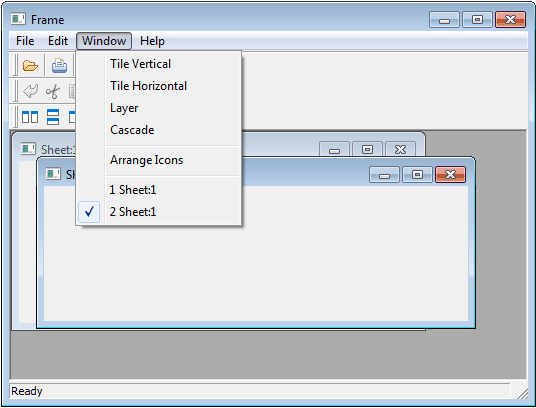
To list open sheets in a drop-down menu:
-
Specify the number of the menu bar item in which you want the
open sheets listed when you call the OpenSheet function. Typically you
list the open sheets in the Windows menu. In a menu bar with four
items in the order File, Edit, Windows, and Help, you specify the
Windows menu with the number 3.If more than nine sheets are open at one time, only nine sheets
are listed in the menu and More Windows displays in the tenth
position. To display the rest of the sheets in the list, click More
Windows.
Arranging sheets
After you open sheets in an MDI frame, you can change the way they
are arranged in the frame with the ArrangeSheets function.
To allow arrangement of sheets
To allow the user to arrange the sheets, create a menu item
(typically on a menu bar item named Window) and use the
ArrangeSheets function to arrange the sheets when the user selects a
menu item.
Maximizing sheets
If sheets opened in an MDI window have a control menu, users can
maximize the sheets. When the active sheet is maximized:
-
If another sheet becomes the active sheet, that sheet is
maximized (the sheet inherits the state of the previous sheet). -
If a new sheet is opened, the current sheet is restored to its
previous size and the new sheet is opened in its original size.
Closing sheets
Active sheet
To close the active window (sheet), users can press ctrl+f4. You can
write a script for a menu item that closes the parent window of the menu
(make sure the menu is associated with the sheet, not the frame.) For
example:
|
1 |
Close(ParentWindow) |
All sheets
To close all sheets and exit the application, users can press
alt+f4. You can write a script to keep track of the open sheets in an
array and then use a loop structure to close them.