Using shared database profiles to connect
You select a shared database profile to connect to a database the
same way you select a profile stored in your registry. You can select
the shared profile in the Database Profiles dialog box or from the
File>Connect menu.
Database Profiles dialog
box
You can select and connect to a shared database profile in the
Database Profiles dialog box.
To select a shared database profile in the Database Profiles
dialog box:
-
Click the Database Profile button in the PowerBar or select
Tools>Database Profile from the menu bar.The Database Profiles dialog box displays, listing both shared
and local profiles. Shared profiles are denoted by a network icon
and the word (Shared).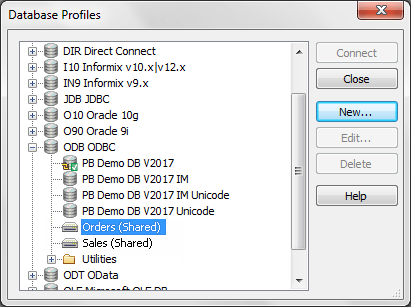
-
Select the name of the shared profile you want to access and
click Connect.PowerBuilder connects to the selected database and returns you
to the painter workspace.