Using an EJB Proxy project
To create a new EJB Client Proxy project, select either of the
following from the Projects page of the New dialog box:
EJB Client Proxy
icon
The EJB Client Proxy icon opens the Project painter for EJB
proxies so you can create a project, specify options, and build the
proxy library.
To create an EJB Client Proxy project in the Project
painter:
-
Double-click the EJB Client Proxy icon on the Projects page of
the New dialog box. -
To specify the EJB, select Edit>Select Objects and enter
the fully qualified name of the component’s remote interface in the
text box, for example com.sybase.jaguar.sample.svu.SVULogin or
portfolio.MarketMaker. -
Enter the path of the directory or JAR file that contains the
EJB’s stubs in the Classpath box and click OK.If the stub files are in a directory and the fully qualified
name of the EJB is packagename.beanname, enter the directory that
contains packagename. -
To specify the PBL where the proxy objects should be stored,
select Edit>Properties and browse to the location of a library in
the target’s library list.You can specify an optional prefix that is added to the
beginning of each generated proxy name. Adding a prefix makes it
easier to identify the proxies associated with a specific EJB and
can be used to avoid conflicts between class names and PowerBuilder
reserved words. The prefix is not added to the name of proxies that
are not specific to this EJB, such as the proxies for exceptions,
stream objects, and ejbhome, ejbobject, ejbmetadata, handle, and
homehandle. -
Close the dialog box and select File>Save to save the
project.
The new project lists the EJB component for which a proxy will be
generated and specifies the name of the output library that will contain
the generated proxy objects.
EJB Client Proxy Wizard
icon
The EJB Client Proxy Wizard helps you create the project.
To create an EJB Client Proxy project using the wizard:
-
Double-click the EJB Client Proxy Wizard icon on the Projects
page of the New dialog box and click Next on the first page of the
wizard. -
Select a library in which to store the project object and
click Next. -
Specify a name and optional description for the project and
click Next. -
As shown, enter the fully qualified name of the component’s
remote interface in the text box, for example
cocoPortfolio.Portfolio: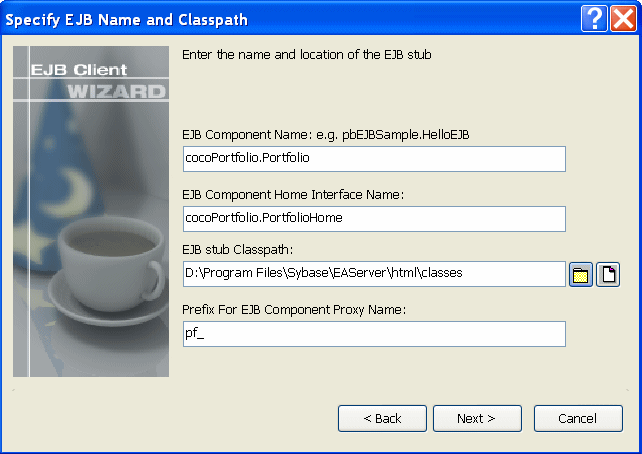
The component’s home interface name is entered automatically
using the standard naming convention, although the wizard lets you
modify this name if necessary. -
Browse to select the JAR file that contains the EJB’s stubs or
the directory that contains the stub package.If the stub files are in a directory and the fully qualified
name of the EJB is packagename.beanname, enter the directory that
contains packagename. -
Specify an optional prefix that is added to the beginning of
each generated proxy name and click Next.Adding a prefix makes it easier to identify the proxies
associated with a specific EJB and can be used to avoid conflicts
between class names and PowerBuilder reserved words. The prefix is
not added to the name of proxies that are not specific to this EJB,
such as the proxies for exceptions, supporting classes, and EJBHome,
EJBObject, EJBMetaData, Handle, and HomeHandle. -
Browse to select an existing library and click Next and
Finish.The proxy objects are generated and stored in this library,
which must be added to the target’s library list.
After the wizard has created the project, you can use the Project
painter to modify your project settings.
Building proxies
Whether you create the EJB Proxy project using the wizard or the
painter, the final step is to build the proxy objects. To do so, click
the Build icon on the painter bar or select Design>Deploy Project
from the menu bar.
Proxy generation requires javap.exe
PowerBuilder uses the javap.exe utility to generate proxy
objects. This executable must be in your system path. By default, EJB
client development uses the Oracle JDK 1.4 installed with
PowerBuilder. The path and classpath required by the Java VM are added
to the path and classpath used in the current session
automatically.
If you want to use a different JDK installation, select
Tools>System Options, then click Set JDK Location on the Java page
of the System Options dialog box. For WebSphere, the path to the IBM
JDK installation can be used instead.
In addition to the proxies for the home and remote interfaces of
the EJB, proxies are also generated for any Java classes referenced by
the EJB, for ancestor classes, for any exceptions that can be thrown by
the EJB and its supporting classes, and for the following
interfaces:
|
Object |
Description |
|---|---|
|
EJBHome |
Proxy for the javax.ejb.EJBHome interface, the base |
|
EJBMetaData |
Proxy for the javax.ejb.EJBMetaData interface. |
|
EJBObject |
Proxy for the javax.ejb.EJBObject interface, the |
|
Handle |
Proxy for the javax.ejb.Handle interface. Used to |
|
HomeHandle |
Proxy for the javax.ejb.HomeHandle interface. Used |
For more information about these interfaces, see the documentation
for the javax.ejb package at https://docs.oracle.com/javaee/6/api/javax/ejb/package-summary.html.
The project also generates a structure that stores the mapping of
Java classes to proxy names. This structure is used internally and
should not be modified.