Underline not displaying for PowerBuilder menu item
hotkeys
Symptom
The underlining of menu items to indicate there is shortcut key
doesn’t occur until the Alt key is pressed.
Environment
-
PowerBuilder
-
Microsoft Windows 7
Reproducing the Issue
1. Create a menu item and name it putting an “&” in front of
the letter you want to be the shortcut key. In the below picture the F
in File and S in Search are underlined.

2. Associate the menu with a window and run the application. The
F and S are not underlined.
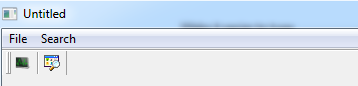
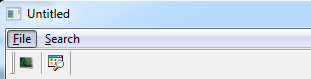
3. Press the Alt key and then the F and S will be
underlined.
Cause
The default for Windows 7 behavior is not to underline keyboard
and shortcut keys.
Solution
-
Go to the following location in the windows control
panel:Control PanelAppearance and PersonalizationEase of Access
CenterMake the keyboard easier to use. -
Then go to “Make it easier to use keyboard shortcuts” and
check the “Underline keyboard shortcuts and access keys”
checkbox.