Tools for Show LogEdit Conflicts
PowerBuilder IDE provides no utilities to view logs or edit
conflicts, but it allows you to specify the executable file of
TortoiseSVN and use it to view logs and edit conflicts.
To specify the executable file of TortoiseSVN:
-
Right-click the workspace in the System Tree and select
Properties from the pop-up menu. -
In the Properties of Workspace dialog box, select the Source
Control tab, and then click the Advanced button. -
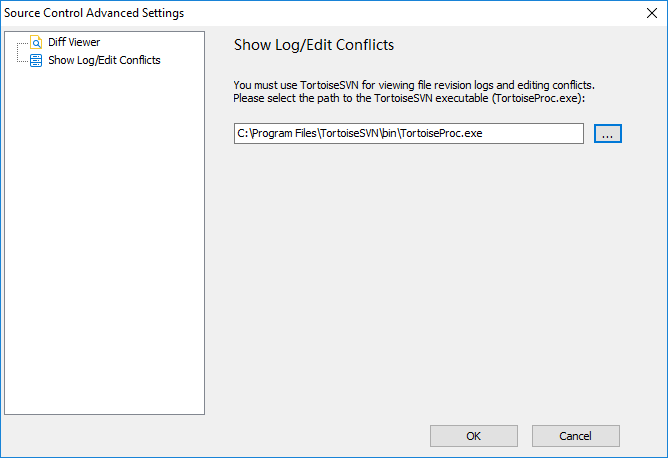
In the Source Control Advanced Settings dialog box, select
Show Log/Edit Conflicts in the left panel, and then specify the
executable program of TortoiseSVN. -
Click OK.
To show the revision log:
-
Right-click the workspace, target, library, or object in the
System Tree and select SVN Show Log from the pop-up menu.The TortoiseSVN tool displays the revision logs
directly.
To edit conflicts:
-
Right-click the object with the conflict sign
( ) in the System Tree and select SVN Edit
Conflicts from the pop-up menu.The TortoiseSVN tool displays the source control with the
conflicts. For more details, see Resolve conflicts.