The Export/Import Template view for XML
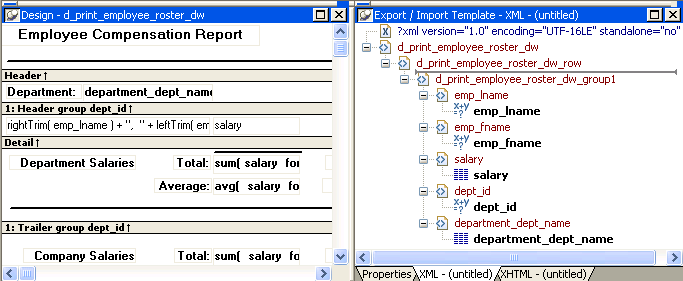
You define and edit templates for export and import in the
Export/Import Template view for XML in the DataWindow painter. The view
uses a tree view to represent the template.
When you create a new DataWindow object, PowerBuilder displays a
default template in the Export/Import Template view. You can edit only
one template at a time in the view, but you can create multiple
templates and save them with the DataWindow object. Each template is
uniquely associated with the DataWindow object open in the
painter.
The default template has one element for each column in the
DataWindow object.
Creating, opening, and saving
templates
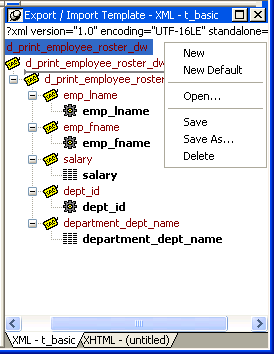
From the pop-up menu for the Export/Import Template view (with
nothing selected), you can create new templates with or without default
contents, open an existing template, save the current template, or
delete the current template. You can only open and edit templates that
are associated with the current DataWindow object.
Representing tree view
items
Each item in the template displays as a single tree view item with
an image and font color that denotes its type. The end tags of elements
and the markup delimiters used in an XML document do not display.
The following table shows the icons used in the Export/Import
Template view.
|
Icon |
Description |
|---|---|
|
|
XML declaration or document type |
|
|
Root or child element |
|
|
Group header element |
|
|
DataWindow column reference |
|
|
Static text control reference |
|
|
Computed field or DataWindow expression |
|
|
Literal text |
|
|
Comment |
|
|
Processing instruction |
|
|
CDATA section |
|
|
Nested report |


