Starting the database
Step 1: Download the database file (pbdemo2022_for_postgresql.zip) from https://github.com/Appeon/PowerBuilder-Project-Example-Database.
Step 2: Restore and run the database in the management tool for
PostgreSQL.
-
Select Windows Start menu |
PostgreSQL 12 | pgAdmin 4.pgAdmin 4 is a Web application. If pgAdmin 4 cannot run in
Internet Explorer (the default Web browser in Windows Server 2019),
you can install and try Google Chrome. -
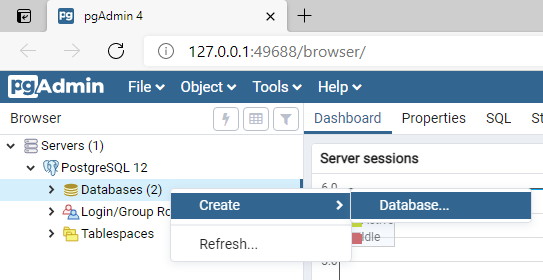
Expand Servers | PostgreSQL, right click Databases, and select Create | Database.
-
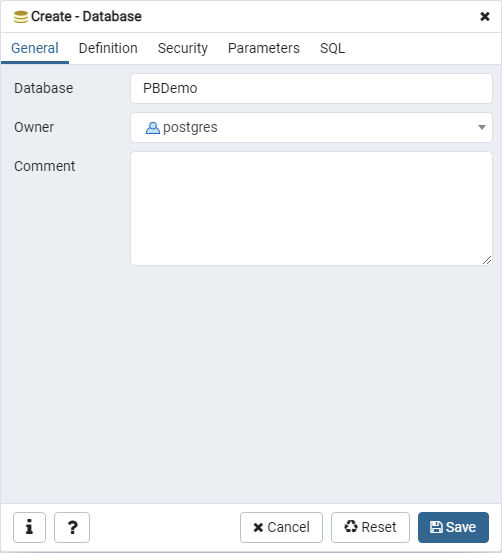
Input PBDemo in the Database field and click Save.
-
Right click PBDemo that was
just created, and select Restore.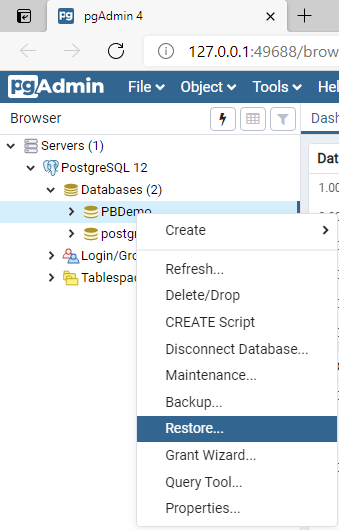
-
Select the pbpostgres2022.dmp
file and click Restore.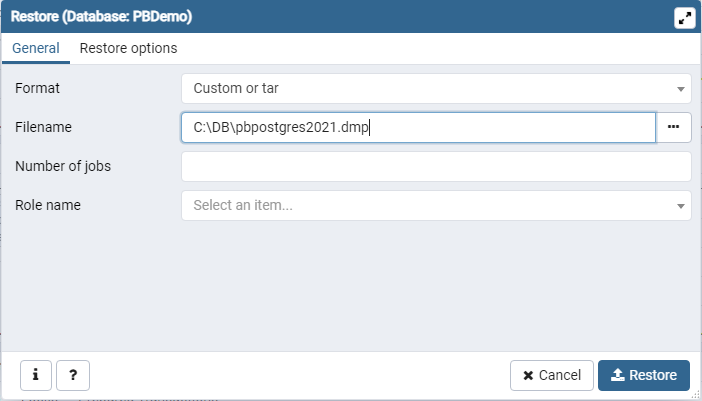
After the database file is restored, you will be able to view
the following schemas: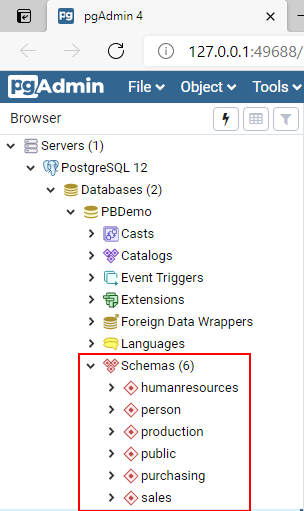
-
Open the pg_hba.conf file in
a text editor and add the following line. The pg_hba.conf file is located in
%PostgreSQL%12data. This enables the database server to allow
remote connections.1host all all 0.0.0.0/0 md5