Specifying the information
To define the crosstab, drag the column names from the Source
Data box in the Crosstab Definition dialog box (or Wizard page) into
the Columns, Rows, or Values box, as appropriate.
If you change your mind or want to edit the DataWindow object
later, select Design>Crosstab from the menu bar and drag the column
name out of the Columns, Row, or Values box and drop it. Then specify
a different column.
Dynamic crosstab
example
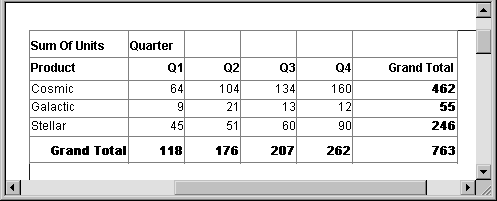
The process is illustrated using the following dynamic crosstab.
The columns in the database are Rep, Quarter, Product, and Units. The
crosstab shows the number of printers sold by Quarter:
Specifying the columns
You use the Columns box to specify one or more of the retrieved
columns to provide the columns in the crosstab. When users run the
crosstab, there is one column in the crosstab for each unique value of
the database column(s) you specify here.
To specify the crosstab’s columns
-
Drag the database column from the Source Data box into the
Columns box. -
Using the printer example, to create a crosstab where the
quarters form the columns, specify Quarter as the Columns value.
Because there are four values in the table for Quarter (Q1, Q2,
Q3, and Q4), there are four columns in the crosstab.
Specifying the rows
You use the Rows box to specify one or more of the retrieved
columns to provide the rows in the crosstab. When users run the
crosstab, there is one row in the crosstab for each unique value of
the database column(s) you specify here.
To specify the crosstab’s rows
-
Drag the database column from the Source Data box into the
Rows box.Using the printer example, to create a crosstab where the
printers form the rows, specify Product as the Rows value. Because
there are three products (Cosmic, Galactic, and Stellar), at
runtime there are three rows in the crosstab.Columns that use code tables
If you specify columns in the database that use code
tables, where data is stored with a data value but displayed
with more meaningful display values, the crosstab uses the
column’s display values, not the data values. For more
information about code tables, see Displaying and
Validating Data.
Specifying the values
Each cell in a crosstab holds a value. You specify that value in
the Values box. Typically you specify an aggregate function, such as
Sum or Avg, to summarize the data. At runtime, each cell has a
calculated value based on the function you provide here and the column
and row values for the particular cell.
To specify the crosstab’s values
-
Drag the database column from the Source Data box into the
Values box.PowerBuilder displays an aggregate function for the value.
If the column is numeric, PowerBuilder uses Sum. If the column is
not numeric, PowerBuilder uses Count.If you want to use an aggregate function other than the one
suggested by PowerBuilder, double-click the item in the Values box
and edit the expression. You can use any of the other aggregate
functions supported in the DataWindow painter, such as Max, Min,
and Avg.Using the printer example, you would drag the Units column
into the Values box and accept the expression sum(units for
crosstab).
Using
expressions
Instead of simply specifying database columns, you can use any
valid DataWindow expression to define the columns, rows, and values
used in the crosstab. You can use any non-object-level DataWindow
expression function in the expression.
For example, say a table contains a date column named SaleDate,
and you want a column in the crosstab for each month. You could enter
the following expression for the Columns definition:
|
1 |
Month(SaleDate) |
The Month function returns the integer value (1–12) for the
specified month. Using this expression, you get columns labeled 1
through 12 in the crosstab. Each database row for January sales is
evaluated in the column under 1, each database row for February sales
is evaluated in the column under 2, and so on.
To specify an expression for columns, rows, or values
-
In the Crosstab Definition dialog box (or wizard page),
double-click the item in the Columns, Rows, or Values box.The Modify Expression dialog box displays.
-
Specify the expression and click OK.