Specifying text properties for titles, labels, axes, and
legends
A graph can have four text elements:
-
Title
-
Labels for the axes
-
Text that shows the values along the axes
-
Legend
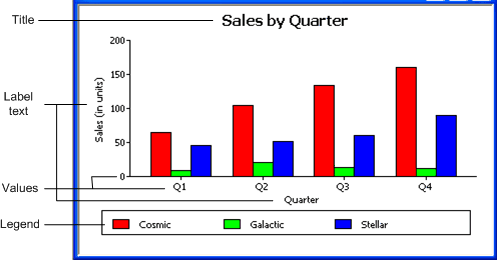
You can specify properties for each text element.
To specify text properties for the title, labels, axis
values, and legend of a graph
-
Select Properties from the graph’s pop-up menu and then
select the Text page in the Properties view. -
Select a text element from the list in the Text Object
drop-down list.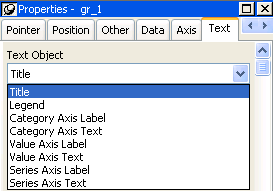
-
Specify the font and its characteristics.
Using Auto Size
With Auto Size in effect, PowerBuilder resizes the text
appropriately whenever the graph is resized. With Auto Size disabled,
you specify the font size of a text element explicitly.
To have PowerBuilder automatically size a text element in a
graph
-
On the Text properties page for the graph, select a text
element from the list in the Text Object drop-down list. -
Select the Autosize check box (this is the default).
To specify a font size for a text element in a graph
-
On the Text properties page for the graph, select a text
element from the list in the Text Object drop-down list. -
Clear the Autosize check box.
-
Select the Font size in the Size drop-down list.
Rotating text
For all the text elements, you can specify the number of degrees
by which you want to rotate the text.
To specify rotation for a text element in a graph
-
On the Text properties page for the graph, select a text
element from the list in the Text Object drop-down list. -
Specify the rotation you want in the Escapement box using
tenths of a degree (450 means 45 degrees).Changes you make here are shown in the model graph in the
Design view and in the Preview view.
Using display formats
To use a display format for a text element in a graph
-
On the Text properties page for the graph, select a text
element from the list in the Text Object drop-down list. -
Type a display format in the Format box or choose one from
the pop-up menu. To display the pop-up menu, click the button to
the right of the Format box.
Modifying display
expressions
You can specify an expression for the text that is used for each
graph element. The expression is evaluated at execution time.
To specify an expression for a text element in a
graph
-
On the Text properties page for the graph, select a text
element from the list in the Text Object drop-down list. -
Click the button next to the Display Expression box.
The Modify Expression dialog box displays.
-
Specify the expression.
You can paste functions, column names, and operators.
Included with column names in the Columns box are statistics about
the columns, such as counts and sums. -
Click OK to return to the graph’s Properties view.
Example
By default, when you generate a pie graph, PowerBuilder puts the
title at the top and labels each slice of the pie with the percentage
each slice represents of the whole. Percentages are accurate to two
decimal places.
The following graph has been enhanced as follows:
-
The current date displays in the title
-
The percentages are rounded to integers
-
The raw data for each slice is shown in addition to the
percentages
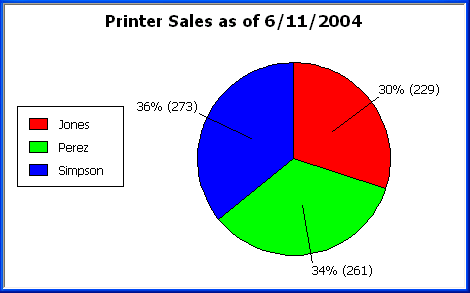
To accomplish this, the display expressions were modified for
the title and pie graph labels:
|
Element |
Original expression |
Modified expression |
|---|---|---|
|
Title |
title |
title + ” as of ” + date(today()) |
|
Pie graph labels |
if(seriescount > 1, series, |
if(seriescount > 1, series, |