Specifying selection, sorting, and grouping criteria
In the SELECT statement associated with a DataWindow object, you
can add selection, sorting, and grouping criteria that are added to
the SQL statement and processed by the DBMS as part of the
retrieval.
|
To do this |
Use this clause |
|---|---|
|
Limit the data that is retrieved from the |
WHERE |
|
Sort the retrieved data before it is brought into |
ORDER BY |
|
Group the retrieved data before it is brought |
GROUP BY |
|
Limit the groups specified in the GROUP BY |
HAVING |
Dynamically selecting, sorting, and grouping data
Selection, sorting, and grouping criteria that you define in
the SQL Select painter are added to the SQL statement and processed
by the DBMS as part of the retrieval. You can also define selection,
sorting, and grouping criteria that are created and processed
dynamically by PowerBuilder after data has been retrieved from the
DBMS.
For more information, see Filtering,
Sorting, and Grouping Rows.
Referencing retrieval
arguments
If you have defined retrieval arguments, you reference them in
the WHERE or HAVING clause. In SQL statements, variables (called host
variables) are always prefaced with a colon to distinguish them from
column names.
For example, if the DataWindow object is retrieving all rows
from the Department table where the dept_id matches a value provided
by the user at runtime, your WHERE clause will look something like
this:
|
1 |
WHERE dept_id = :Entered_id |
where Entered_id was defined previously as an argument in the
Specify Retrieval Arguments dialog box.
Referencing arrays
Use the IN operator and reference the retrieval argument in
the WHERE or HAVING clause.
For example, if you reference an array defined as deptarray,
the expression in the WHERE view might look like this:
|
1 |
"employee.de pt_id" IN (:deptarray) |
You need to supply the parentheses yourself.
Defining WHERE
criteria
You can limit the rows that are retrieved into the DataWindow
object by specifying selection criteria that correspond to the WHERE
clause in the SELECT statement.
For example, if you are retrieving information about employees,
you can limit the employees to those in Sales and Marketing, or to
those in Sales and Marketing who make more than $50,000.
To define WHERE criteria
-
Click the Where tab to make the Where view available (or
select View>Where if the Where view is not currently
displayed).Each row in the Where view is a place for entering an
expression that limits the retrieval of rows. -
Click in the first row under Column to display columns in a
drop-down list, or select Columns from the pop-up menu. -
Select the column you want to use in the left-hand side of
the expression.The equality (=) operator displays in the Operator
column.Using a function or retrieval argument in the
expressionTo use a function, select Functions from the pop-up menu
and click a listed function. These are the functions provided by
the DBMS.To use a retrieval argument, select Arguments from the
pop-up menu. You must have defined a retrieval argument
already. -
(Optional) Change the default equality operator.
-
Enter the operator you want, or click to display a list of
operators and select an operator. -
Under Value, specify the right-hand side of the expression.
You can:-
Type a value.
-
Paste a column, function, or retrieval argument (if
there is one) by selecting Columns, Functions, or Arguments
from the pop-up menu. -
Paste a value from the database by selecting Value from
the pop-up menu, then selecting a value from the list of
values retrieved from the database. (It may take some time to
display values if the column has many values in the
database.) -
Define a nested SELECT statement by selecting Select
from the pop-up menu. In the Nested Select dialog box, you can
define a nested SELECT statement. Click Return when you have
finished.
-
-
Continue to define additional WHERE expressions as
needed.For each additional expression, select a logical operator
(AND or OR) to connect the multiple boolean expressions into one
expression that PowerBuilder evaluates as true or false to limit
the rows that are retrieved. -
Define sorting (Sort view), grouping (Group view), and
limiting (Having view) criteria as appropriate. -
Click the Return button to return to the DataWindow
painter.
Defining ORDER BY
criteria
You can sort the rows that are retrieved into the DataWindow
object by specifying columns that correspond to the ORDER BY clause in
the SELECT statement.
For example, if you are retrieving information about employees,
you can sort on department, and then within each department, you can
sort on employee ID.
To define ORDER BY criteria
-
Click the Sort tab to make the Sort view available (or
select View>Sort if the Sort view is not currently
displayed).The columns you selected display in the order of selection.
You might need to scroll to see your selections. -
Drag the first column you want to sort on to the right side
of the Sort view.This specifies the column for the first level of sorting. By
default, the column is sorted in ascending order. To specify
descending order, clear the Ascending check box. -
Continue to specify additional columns for sorting in
ascending or descending order as needed.You can change the sorting order by dragging the selected
column names up or down. With the following sorting specification,
rows will be sorted first by department ID, then by employee
ID: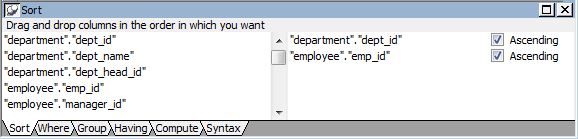
-
Define limiting (Where view), grouping (Group view), and
limiting groups (Having view) criteria as appropriate. -
Click the SQL Select button to return to the DataWindow
painter.
Defining GROUP BY
criteria
You can group the retrieved rows by specifying groups that
correspond to the GROUP BY clause in the SELECT statement. This
grouping happens before the data is retrieved into the DataWindow
object. Each group is retrieved as one row into the DataWindow
object.
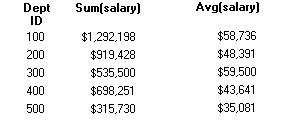
For example, if in the SELECT statement you group data from the
Employee table by department ID, you will get one row back from the
database for every department represented in the Employee table. You
can also specify computed columns, such as total and average salary,
for the grouped data. This is the corresponding SELECT
statement:
|
1 2 3 |
SELECT dept_id, sum(salary), avg(salary) FROM employee GROUP BY dept_id |
If you specify this with the Employee table in the PB Demo DB,
you get five rows back, one for each department.
For more about GROUP BY, see your DBMS documentation.
To define GROUP BY criteria
-
Click the Group tab to make the Group view available (or
select View>Group if the Group view is not currently
displayed).The columns in the tables you selected display in the left
side of the Group view. You might need to scroll to see your
selections. -
Drag the first column you want to group onto the right side
of the Group view.This specifies the column for grouping. Columns are grouped
in the order in which they are displayed in the right side of the
Group view. -
Continue to specify additional columns for grouping within
the first grouping column as needed.To change the grouping order, drag the column names in the
right side to the positions you want. -
Define sorting (Sort view), limiting (Where view), and
limiting groups (Having view) criteria as appropriate. -
Click the Return button to return to the DataWindow
painter.
Defining HAVING criteria
If you have defined groups, you can define HAVING criteria to
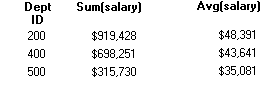
restrict the retrieved groups. For example, if you group employees by
department, you can restrict the retrieved groups to departments whose
employees have an average salary of less than $50,000. This
corresponds to:
|
1 2 3 4 |
SELECT dept_id, sum(salary), avg(salary) FROM employee GROUP BY dept_id HAVING avg(salary) < 50000 |
If you specify this with the Employee table in the PB Demo DB,
you will get three rows back, because there are three departments that
have average salaries less than $50,000.
To define HAVING criteria
-
Click the Having tab to make the Having view available (or
select View>Having if the Having view is not currently
displayed).Each row in the Having view is a place for entering an
expression that limits which groups are retrieved. For information
on how to define criteria in the Having view, see the procedure in
Defining WHERE criteria.