Specifying data for the OLE object
You set data specifications for an OLE object in a DataWindow
object on the Data property page in the Properties view. You can also
use the Data property page to modify the data specifications you made
in the wizard for a DataWindow object using the OLE presentation
style.
What the data is for
When an OLE object is part of a DataWindow object, you can
specify that some or all of the data the DataWindow object retrieves
be transferred to the OLE object too. You can specify expressions
instead of the actual columns so that the data is grouped, aggregated,
or processed in some way before being transferred.
The way the OLE object uses the data depends on the server. For
example, data transferred to Microsoft Excel is displayed as a
spreadsheet. Data transferred to Microsoft Graph populates its
datasheet, which becomes the data being graphed.
Some ActiveX controls do not display data, so you would not
transfer any data to them. For an ActiveX control such as Visual
Speller, you would use automation to process text when the user
requests it.
Group By and Target Data
boxes
Two boxes on the Data property page list data columns or
expressions:
-
Group By
Specifies how PowerBuilder groups the data it transfers to
the OLE object. Aggregation functions in the target data
expressions use the groupings specified here. -
Target Data
Specifies the data that you want to transfer to the OLE
object.
Populating the Group By and Target Data
boxes
If you are using the OLE presentation style, you populated the
Group By and Target Data boxes when you created the DataWindow object.
If you placed an OLE object in an existing DataWindow object, the
boxes are empty. You use the browse buttons next to the Group By and
Target Data boxes to open dialog boxes where you can select the data
you want to use or modify your selections.
Modifying source data
You cannot modify the source data for the DataWindow object on
the Data property page. Select Design>Data Source from the menu
bar if you need to modify the data source.
To select or modify how data will be grouped in the OLE
object
-
Click the Browse button next to the Group By box.
-
In the Modify Group By dialog box, drag one or more columns
from the Source Data box to the Group By box.You can rearrange columns and specify an expression instead
of the column name if you need to. For more information, see the
next procedure.
To select or modify which data columns display in the OLE
object
-
Click the Browse button next to the Target Data box.
-
In the Modify Target Data dialog box, drag one or more
columns from the Source Data box to the Target Data box.The same source column can appear in both the Group By and
Target Data box. -
If necessary, change the order of columns by dragging them
up or down within the Target Data box.The order of the columns and expressions is important to the
OLE server. You need to know how the server will use the data to
choose the order. -
Double-click an item in the Target Data box to specify an
expression instead of a column.In the Modify Expression dialog box, you can edit the
expression or use the Functions or Columns boxes and the operator
buttons to select elements of the expression. For example, you may
want to specify an aggregation function for a column. Use the
range for object if you use an aggregation function; for example,
sum (salary for object).For more information about using operators, expressions, and
functions, see DataWindow Reference.
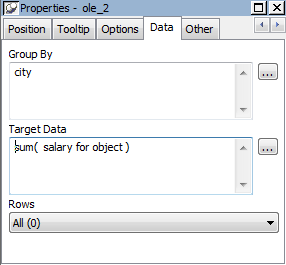
Example of a completed Data property page. This example of the Data property page specifies two columns
to transfer to Microsoft Graph: city and salary. Graph expects the
first column to be the categories and the second column to be the
data values. The second column is an aggregate so that the graph
will show the sum of all salaries in each city:
Specifying a value for
Rows
The last setting on the Data property page specifies how the OLE
object is associated with rows in the DataWindow object. The selection
(all rows, current row, or page) usually corresponds with the band
where you placed the OLE object, as explained in this table. If you
used the OLE presentation style to create the DataWindow object, this
setting does not display on the property page: the OLE object is
always associated with all the rows in the DataWindow object.
|
Range of rows |
When to use it |
|---|---|
|
All |
When the OLE object is in the summary, header, or Rows must be All and Layer must be Foreground or Target data for all rows is transferred |
|
Current Row |
When the OLE object is in the detail band. There is an instance of the OLE object for every row. Because ActiveX controls must be in the |
|
Page |
When the OLE object is in the group header or Target data |
Range of rows and activating the object
When the range of rows is Current Row or Page, the user cannot
activate the OLE object. The user can see contents of the object in
the form of an image presented by the server but cannot activate
it.
If you want the user to activate the object, Rows must be set
to All and Layer on the Position property page must be Foreground or
Background.
Additional settings in the Properties
view
The Options property page in the OLE object’s Properties view
has some additional settings. They are similar to the settings you can
make for the OLE control in a window. These settings display on the
General property page for OLE DataWindow objects. The following table
describes the settings you can make.
|
Property |
Effect |
|---|---|
|
Client Name |
A name for the OLE object that some server Corresponds to the ClientName DataWindow |
|
Activation |
How the OLE object is activated. Choices Double click When the user double-clicks on the object, the Manual The object can only be activated The object can always be |
|
Contents |
Whether the object in the OLE container is linked |
|
Display Type |
What the OLE container displays. You can Manual Display a representation of the object, Icon Display the icon associated with the data. |
|
Link Update |
When the object in the OLE container is linked, Automatic If the link is broken and PowerBuilder cannot Manual If the link is broken, the object cannot be You can let the user re-establish the |