Specifying criteria to relate a nested report to its base
report
If you do not have arguments defined for the nested report and
if database efficiency is not an issue, you can place a nested report
in another report and specify criteria to pass values to the related
nested report.
How the DBMS processes SQL if you use the
specify criteria technique
If you use the specify criteria technique, the DBMS repeatedly
recompiles the SELECT statement and then executes it. The
recompilation is necessary for each possible variation of the WHERE
clause.
To specify criteria to relate a nested report to its base
report
-
Select the nested report and then select the Criteria page
in the Properties view.The Criteria property page provides a way for you to specify
how information from the base report will supply the retrieval
criteria to the nested report. -
Click the button next to the criteria box.
The Specify Retrieval Criteria dialog box displays.
-
Enter the retrieval criteria and click OK.
The rules for specifying criteria are the same as for
specifying criteria in the Quick Select data source. Multiple
criteria in one line are ANDed together. Criteria entered on
separate lines are ORed together.In this example, the customer ID (the id column) is the
retrieval criterion being supplied to the nested report.Notice that the id column is preceded by a colon (:), which
is required: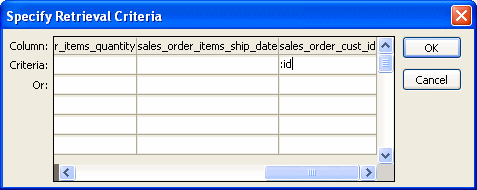
When you run the report now, PowerBuilder retrieves rows in
the nested report based on the criteria you have specified. In the
example, the customer ID column in the base report determines
which rows from the sales_order table are included for each
customer.