Setting Use Extended Attributes or Read Only to control
access
To control system table access by setting Use Extended
Attributes or Read Only:
-
Select Design>Options from the menu bar to display the
Database Preferences dialog box.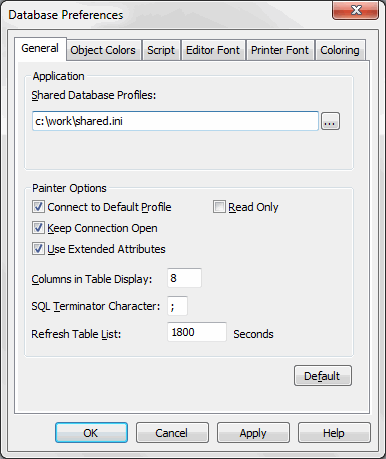
-
On the General page, set values for Use Extended Attributes
or Read Only as follows:Preference
What you do
Effect
Use Extended Attributes
Clear the check box
Does not create the PowerBuilder system
tables if they do not exist. Instead, the painter uses the
appropriate default values for extended attributes (such
as headers, labels, and text color).If the
PowerBuilder system tables already exist,
PowerBuilder does not use them when you create a new
DataWindow object.Read Only
Select the check box
If the PowerBuilder system tables already
exist, PowerBuilder uses them when you create a new
DataWindow object, but does not update
them.You cannot modify (update) information
in the system tables or any other database tables in the
DataWindow painter when the Read Only check box is
selected. -
Click OK.
PowerBuilder applies the preference settings to the current
connection and all future connections and saves them in the
registry.