Setting General properties for menu items
This section describes the properties you can set when you
select a menu item and then select the General tab page in the
Properties view.
Creating MicroHelp and
tags
MicroHelp is a brief text description of the menu item that
displays on the status bar at the bottom of a Multiple Document
Interface (MDI) application window. Type the text you want to display
in the MicroHelp box. For examples of MicroHelp text, select an item
from a menu in PowerBuilder and look at the text that displays in the
status bar.
A tag is a text string that you can associate with an object and
use in any way you want.
For information about defining MicroHelp text and tag
properties, see the section called “Building an MDI Application” in Application Techniques.
Setting the appearance of a menu
item
On the General tab page in the Properties view, you can also
specify how a menu item appears at runtime.
|
Property |
Meaning |
|---|---|
|
Visible |
Whether the menu item is visible. An invisible |
|
Enabled |
Whether the menu item can be |
|
Checked |
Whether the menu item displays with a check mark |
|
Default |
Whether the menu item text is bold. In a pop-up |
|
ShiftToRight |
Whether the menu item shifts to the right (or For more information, see Inserting menu items in a descendant |
|
MergeOption |
The way menus are modified when an OLE object is For more information, see the section called “Using OLE in an Application” in Application Techniques. |
|
MenuItemType |
Whether the menu item you are creating is Normal, |
The settings you specify here determine how the menu items
display by default. You can change the values of the properties in
scripts at runtime.
Assigning accelerator and shortcut
keys
Every menu item should have an accelerator key, also called a
mnemonic access key, which allows users to select the item from the
keyboard by pressing Alt+key when the menu is displayed. Accelerator
keys display with an underline in the menu item text.
You can also define shortcut keys, which are combinations of
keys that a user can press to select a menu item whether or not the
menu is displayed.
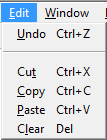
For example, in the following menu all menu items have
accelerator keys: the accelerator key is U for Undo, T for Cut, and so
on. New, Undo, Cut, Copy, Paste, and Clear each have shortcut keys:
the Ctrl key in combination with another key or keys.
You should adopt conventions for using accelerator and shortcut
keys in your applications. All menu items should have accelerator
keys, and commonly used menu items should have shortcut keys.
If you specify the same shortcut for more than one MenuItem, the
command that occurs later in the menu hierarchy is executed.
Some shortcut key combinations, such as Ctrl+C, Ctrl+V, and
Ctrl+X, are commonly used by many applications. Avoid using these
combinations when you assign shortcut keys for your
application.
To assign an accelerator key
-
Type an ampersand (&) before the letter in the menu item
text that you want to designate as the accelerator key.For example, &File designates the F in File as an
accelerator key and Ma&ximize designates the x in Maximize as
an accelerator key.
Displaying an ampersand in the text
If you want an ampersand to display in the menu text, type two
ampersands. For example, Fish&&Chips displays as
Fish&Chips with no accelerator key. To display Fish&Chips as
the menu text with the C underlined as the accelerator, type
Fish&&&Chips.
To assign a shortcut key
-
Select the menu item to which you want to assign a shortcut
key. -
Select the General tab in the Properties view.
-
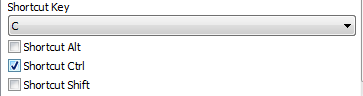
Select a key from the Shortcut Key drop-down list.
-
Select Shortcut Alt, Shortcut Ctrl, and/or Shortcut Shift to
create a key combination.PowerBuilder displays the shortcut key next to the menu item
name.