Set a
watch and a conditional breakpoint
Where you are
Add breakpoints in
application scripts
> Set a watch and
a conditional breakpoint
Next you set a watch on a variable whose value changes when the user
selects a row in the Customer window. You then change one of the simple
breakpoints you have set into a conditional breakpoint that is triggered
only when a variable has a specific value.
-
Click the Watch tab in the lower-right stack.
Click the Local tab in the lower-left stack.
Select the ll_itemnum variable in the Local view and drag it to
the Watch view.The ll_itemnum variable is set to 101, the ID of the first
customer retrieved. Displaying it in the Watch view makes it easier to
observe when its value changes. You can also drag Global, Instance,
and Parent variables to the Watch view so that you can easily keep
track of several variables of different types. -
Click the Continue button (
 ).
). The application resumes execution. The Customer window displays
and shows the list of customers retrieved from the database. The
detail DataWindow shows information about customer 101. -
Select a different row in the master DataWindow of the Customer
window.You return to the Debug window. The new value of ll_itemnum
displays in both the Local Variables view and the Watch view. -
Click the Breakpoints tab in the lower-right stack.
Double-click the rowfocuschanged breakpoint.
The Edit Breakpoints dialog box opens with the breakpoint in the
RowFocusChanged event selected. -
Type the following line in the Condition text box and click
OK:1ll_itemnum = 107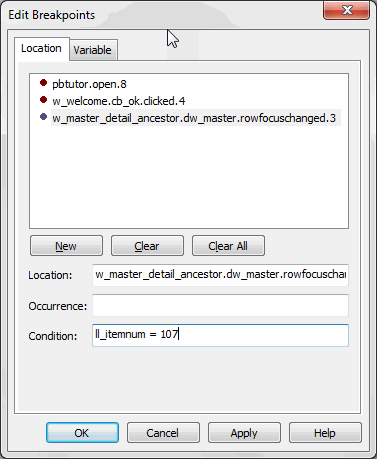
The breakpoint in the RowFocusChanged event script is now a
conditional breakpoint. PowerBuilder suspends execution only when it
reaches this statement and the value of ll_itemnum is 107. -
Click OK to close the dialog box.
Click the Continue button.
The application resumes execution. Now you can select different
rows in the Customer window, and the Debug window opens at the
breakpoint only if you select the customer whose ID is 107.If you select customer 107, click the Continue button again to
return to the application. -
Select File>Exit from the application’s menu bar.
The application terminates and you return to the Debug
window. -
Select File>Close from the menu bar.
You return to the PowerBuilder development environment.