Selecting tables and views
After you have chosen SQL Select, the Select Tables dialog box
displays in front of the Table Layout view of the SQL Select
painter.What tables and views display in the dialog box depends on the
DBMS. For some DBMSs, all tables and views display, whether or not you
have authorization. Then, if you select a table or view you are not
authorized to access, the DBMS issues a message.
For ODBC databases, the tables and views that display depend on
the driver for the data source. SQL Anywhere does not restrict the
display, so all tables and views display, whether or not you have
authorization.
To select the tables and views
-
Do one of the following:
-
Click the name of each table or view you want to
open.Each table you select is highlighted. (To deselect a
table, click it again.) Click the Open button to close the
Select Tables dialog box. -
Double-click the name of each table or view you want to
open.Each object opens immediately behind the Select Tables
dialog box. Click the Cancel button to close the Select Tables
dialog box.
Representations of the selected tables and views display.
You can move or size each table to fit the space as needed.Below the Table Layout view, several tabbed views also
display by default. You use the views (for example, Compute,
Having, Group) to specify the SQL SELECT statement in more detail.
You can turn the views on and off from the View menu on the menu
bar.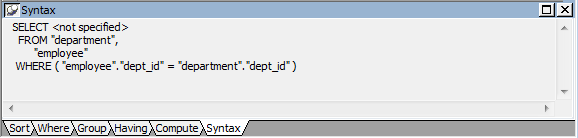
-
Specifying what is
displayed
You can display the label and datatype of each column in the
tables (the label information comes from the extended attribute system
tables). If you need more space, you can choose to hide this
information.
To hide or display comments, datatypes, and labels
-
Position the pointer on any unused area of the Table Layout
view and select Show from the pop-up menu.A cascading menu displays.
-
Select or clear Datatypes, Labels, or Comments as
needed.
Colors in the SQL Select
painter
The colors used by the SQL Select painter to display the Table
Layout view background and table information are specified in the
Database painter. You can also set colors for the text and background
components in the table header and detail areas.
For more information about specifying colors in the Database
painter, see Modifying
database preferences.
Adding and removing tables and
views
You can add tables and views to your Table Layout view at any
time.
|
To do this |
Do this |
|---|---|
|
Add tables or views |
Click the Tables button in the PainterBar and |
|
Remove a table or view |
Display its pop-up menu and select |
|
Remove all tables and views |
Select Design>Undo All from the menu |
You can also remove individual tables and views from the Table
Layout view, or clear them all at once and begin selecting a new set
of tables.
How PowerBuilder joins
tables
If you select more than one table in the SQL Select painter,
PowerBuilder joins columns based on their key relationship.
For information about joins, see Joining
tables.