Saving as PDF using NativePDF! method with PDFlib
For new DataWindows, if you want to save to PDF using PDFlib,
you do not need to change any properties. The PDFlib method is used
by default when you select Save Rows As from the File menu in the
DataWindow painter and select PDF as the file type, or when you use
the SaveAs method with PDF! as the file type.
But for existing DataWindows which are kept the same as before
to use the Distill! method with Ghostscript as the default method,
if you want to save to PDF using NativePDF! with PDFlib, you must
set one or more properties. There are several ways to set the
property. #1 can set all DataWindows in the current application at
one time; #2 or #3 requires you to set each individual DataWindow
one by one. These ways are listed in the order of precedence from
highest to lowest: #1 > #2 > #3.
Note: the PDF export settings in PB.INI file (added in version
2019) have been removed.
#1: In the Application properties dialog
box
This way can set NativePDF! as the default method for all
DataWindows in the current application; instead of setting the
DataWindows one by one. It has the highest priority over the other
ways.
To save PDF output using PDFlib in the Application
properties dialog box
-
In the Application painter, select the General tab
page. -
On the General tab page, click the Additional Properties
button to display the Application properties dialog box. -
In the Application properties dialog box, select the PDF
Export tab, and then select “Always use NativePDF! method for
PDF export”. It is not selected by default.The following two options are applicable to the NativePDF!
method only.Packaging custom fonts in the generated PDF files — If
your DataWindow objects use many custom fonts, and these custom
fonts are not supported well by the operating system and Adobe
Reader, you can consider packaging these custom fonts with your
application. Note that 1) using custom fonts will increase the
generated PDF file size; by default, these custom fonts are not
packaged with the application; 2) the Font embeddability
property of custom fonts must be set to non-restricted; if it is
set to restricted, then custom fonts cannot be embedded to the
PDF file.Specify the Application property of the generated PDF file
— Specify a value (normally the application name) as the
Application property of the generated PDF file.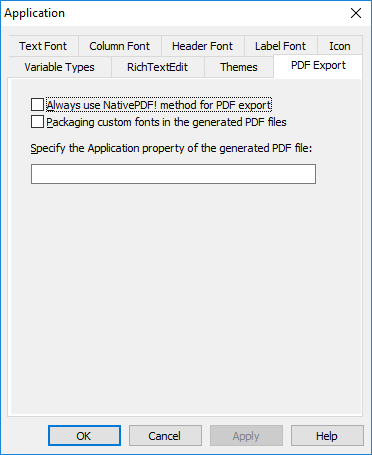
-
Click OK to save the settings.
#2: In a script
This way sets NativePDF! as the default method for an
individual DataWindow.
In a script, set the Export.PDF.Method property to NativePDF!
before saving the DataWindow object as PDF using the SaveAs method
with the SaveAsType PDF!.
There are two methods to set the orientation mode and the
paper size.
Method 1: set the Export.PDF.NativePDF.UsePrintSpec property
to true, and then set the Print.Orientation and Print.Paper.Size
properties. For example, to print the PDF file in the landscape
mode, set the Print.Orientation property to 1, and to print the file
size to Letter, set the Print.Paper.Size property to 1:
|
1 2 3 4 5 |
dw_1.Object.DataWindow.Export.PDF.NativePDF.UsePrintSpec = 'Yes' dw_1.Object.DataWindow.Export.PDF.Method = NativePDF! dw_1.Object.DataWindow.Export.PDF.NativePDF.PDFStandard = 1 //PDF/A-1a dw_1.Object.DataWindow.Print.Orientation = 1 //Landscape! dw_1.Object.DataWindow.Print.Paper.Size = 1 //1 – Letter 8 1/2 x 11 in |
Method 2: set the Export.PDF.NativePDF.UsePrintSpec property
to false, and then set the Export.PDF.NativePDF.CustomOrientation
and Export.PDF.NativePDF.CustomSize properties. For example, to
print the PDF file in the portrait mode, set the
Export.PDF.NativePDF.CustomOrientation property to 2 and to print
the file size to A4, set the Export.PDF.NativePDF.CustomSize
property to 4:
|
1 2 3 4 5 |
dw_1.Modify ("DataWindow.Export.PDF.NativePDF.UsePrintSpec = No") dw_1.Modify ("DataWindow.Export.PDF.Method = NativePDF!") dw_1.Modify ("DataWindow.Export.PDF.NativePDF.PDFStandard = 1") dw_1.Modify ("DataWindow.Export.PDF.NativePDF.CustomOrientation = 2") dw_1.Modify ("DataWindow.Export.PDF.NativePDF.CustomSize = 4") |
#3: In the DataWindow
painter
This way sets NativePDF! as the default method for an
individual DataWindow.
To save PDF output using PDFlib in the DataWindow
painter
-
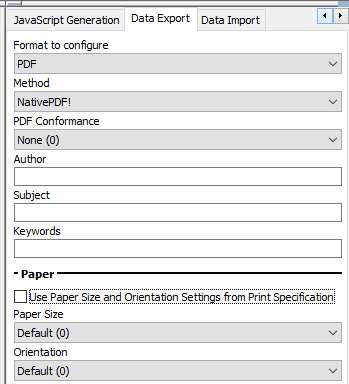
Select the Data Export tab in the Properties view for the
DataWindow object. -
Select PDF from the Format to Configure list and select
NativePDF! from the Method list.For new DataWindows, PDF and NativePDF! will be selected
as by default. -
Select a standard from the PDF Conformance list.
-
Specify the Author, Subject, and/or Keywords (if needed)
which will be used as the property for the generated PDF
file.These properties (including the application name property)
will not take effect when RichText DataWindows are saved as
PDF. -
Select the paper size and orientation in two
methods:-
method 1: select the “Use Paper Size and Orientation
Settings from Print Specification” check box, so it uses the
paper size and orientation settings in the Print
Specification page; -
method 2: keep the “Use Paper Size and Orientation
Settings from Print Specification” check box unselected, and
select from the Paper Size list and the Orientation list in
the current Data Export page;
-
-
Save the DataWindow object, then select File>Save Rows
As, select PDF as the Save As Type, specify a file name, and
click Save.
See also
See the section called “Using the PDFlib generator” in Application Techniques for how to package the required
files.
the section called “Export.PDF.Method” in DataWindow Reference
the section called “Export.PDF.NativePDF.Author” in DataWindow Reference
the section called “Export.PDF.NativePDF.CustomOrientation” in DataWindow Reference
the section called “Export.PDF.NativePDF.CustomSize” in DataWindow Reference
the section called “Export.PDF.NativePDF.Keywords” in DataWindow Reference
the section called “Export.PDF.NativePDF.ImageFormat” in DataWindow Reference
the section called “Export.PDF.NativePDF.PDFStandard” in DataWindow Reference
the section called “Export.PDF.NativePDF.Subject” in DataWindow Reference
the section called “Export.PDF.NativePDF.UsePrintSpec” in DataWindow Reference