Running the PowerClient project
To run the PowerClient
project:
Note: IE and Edge Legacy
(EdgeHTML-based) browsers should not be used to run the app deployed
with PowerClient, as Microsoft will end support for IE and Edge Legacy
soon. You can use one of the following supported browsers: Chrome,
Firefox, and the new Edge browser (Chromium-based).
-
(For developers) Run the application by right-clicking the
PowerClient project in the System Tree and then select Run PowerClient Project.Or click the Run PowerClient
Project button in the PowerBar. The Run PowerClient Project button will be
available in the PowerBar when the Project painter for PowerClient
is opened; if more than one Project painter for PowerClient is
opened, then the settings in the currently active painter will be
used to run the application. And the application will be run in
the Web browser or in the Cloud App Launcher according to the
configurations in the Run Options
tab in the painter. However, if Cloud App Launcher is not
installed, then the default Web Browser will be run to install the
Cloud App Launcher and run the application. -
(For developers and end users) Run the application in a Web
browser for the first time.The user can input
http://IPAddress/AppName
in a Web browser to access the application. This URL can run the
application with or without background process, depending on which
startup mode the developer has selected as the default. The end
user may also be able to input
http://IPAddress/AppName/manual.html
to run the application without background service, and input
http://IPAddress/AppName/auto.html
to run the application with background service, depending on
whether the developer has selected to deploy the app entry page.
For more details, refer to “App entry page settings” in Defining a PowerClient
project.
The cloud app launcher and the application must be installed
through the Web browser for the first time. After that, users can
directly double click the application icon on the desktop or the
application shortcut on the Windows Start menu to run the application
(the shortcut icon and menu are created by default unless the
developer has changed the default settings in the Project painter for
PowerClient).
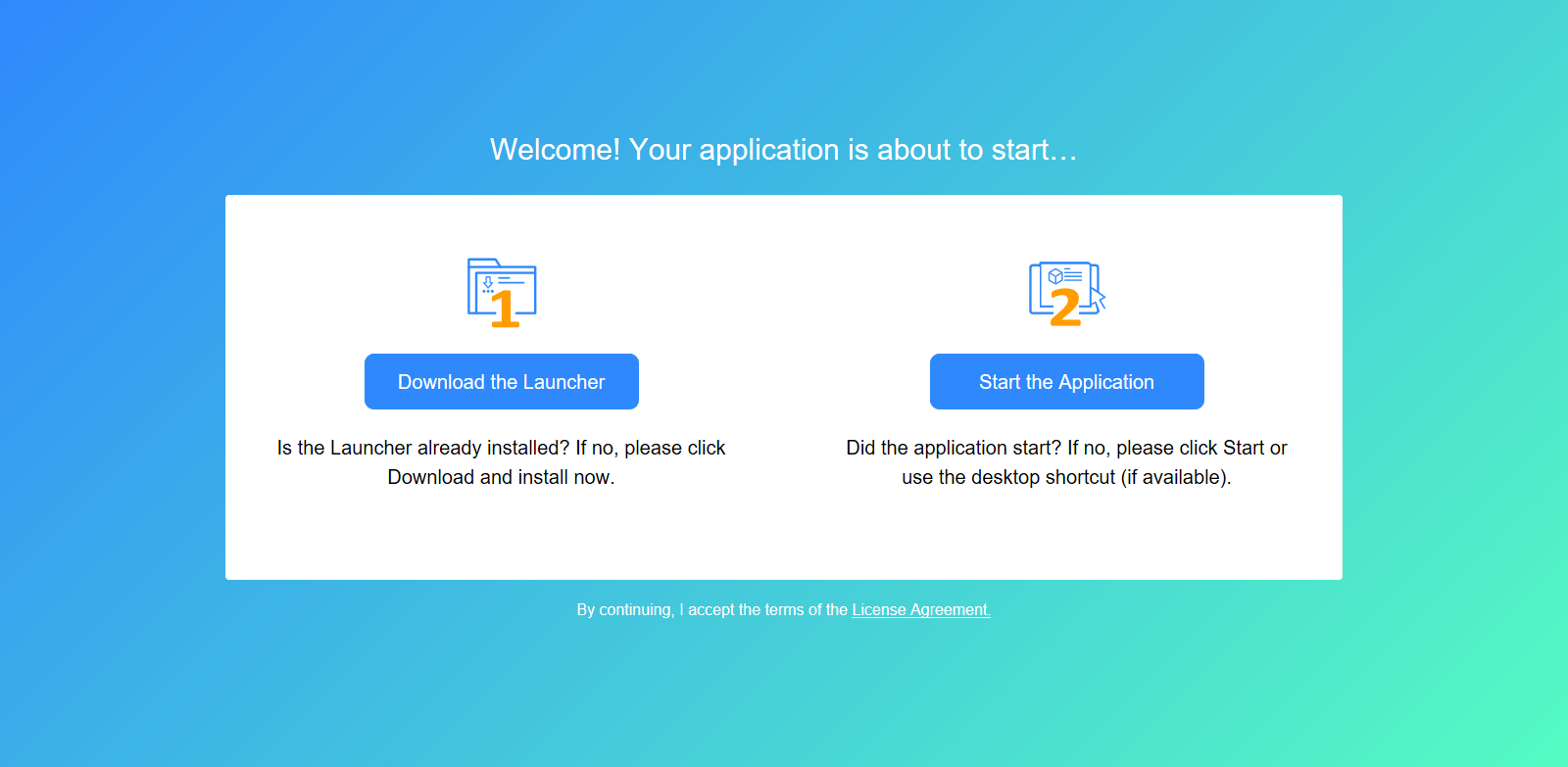
If the application is started without the background service,
the user will be asked by the Web browser whether to run the app
launcher. This is a browser behavior. Select Allow. Then the following app entry page
displays. If the download does not start automatically, click
Download the Launcher to download and
install the cloud app launcher first, and then click Start the Application to download, install, and
start the application.
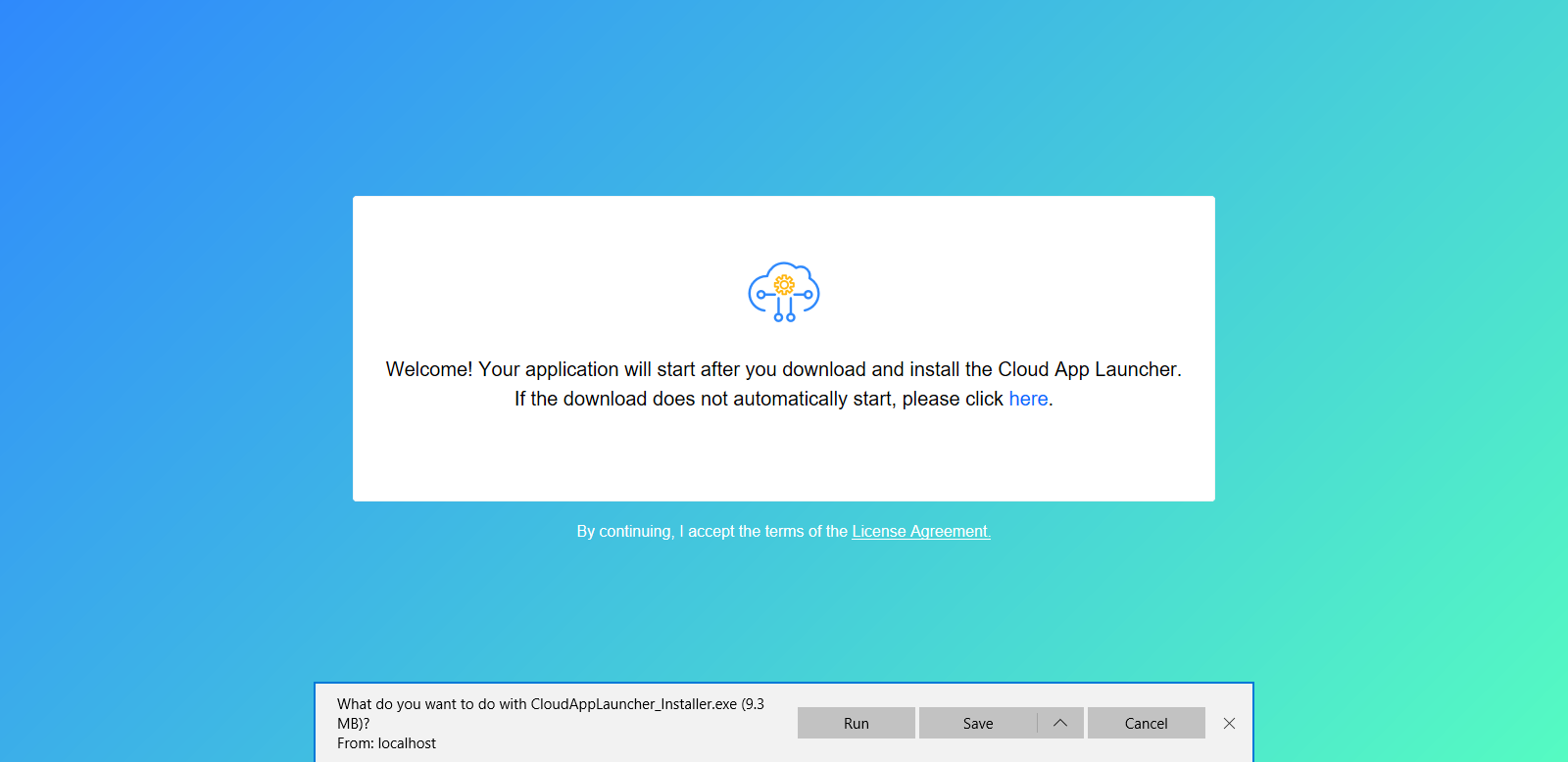
If the application is started with the background service, the
following app entry displays. If the download does not start
automatically, click to download and install the cloud app
launcher.
If you want to customize the license agreement and the visual
displays (such as color, icon, text etc.) in the above app entry page,
you can make changes to the files under the
%AppeonInstallPath%PowerBuilder [version]HTML folder, and then
deploy the application again. The changes will apply to all deployed
applications. Or you can directly make changes to the files under the
application folder on the server, if you want to change that
particular application only.
-
license.html is the template for license agreement.
-
auto.html, autoconnect.html, autodownload.html,
autoinit.html, and index.html are templates for applications
started with background service. -
manual.html, manualconnect.html, manualdownload.html, and
index.html are templates for applications started without
background service.
Note
The virus-detection software McAfee WebAdvisor may block the
CloudAppLauncher.exe file during the installation process. You can
try adding the domain as a trusted site. To add the domain as a
trusted site in McAfee WebAdvisor:
1. Right click the WebAdvisor add-on and select Options.
2. Under Manage your trusted
sites, add the domain and click the + symbol.
3. Close and re-open the browser and run the installation
again.
Note
If there is no response or progress when running the
application, the CloudAppLauncher.exe file might be blocked by the
Windows SmartScreen. You can try to turn off Windows SmartScreen in
Control Panel > System and Security > Security and Maintenance
> Change SmartScreen settings.
Note
Every time when the application launches, it needs to connect
with the Web server to check updates, therefore, please make sure
Web server is running and can be connected all the time.