Running tests and viewing results
It is recommended that you save the Test Plan to a file
before running it.
To save the Test Plan, select Save or Save Test
Plan As… from the File
menu. The test scripts will be saved in a JMX file. You can then
add this file to your project repository, and other members of
your team can load it on their own JMeter tools as well.
Now you can start the test by clicking the Start button on the toolbar. This will
start the thread group and the results will be captured by the
listener.
To run the test again, clean up the previous result by
clicking the Clear All button on
the toolbar.
Use the various listeners to check the test results.
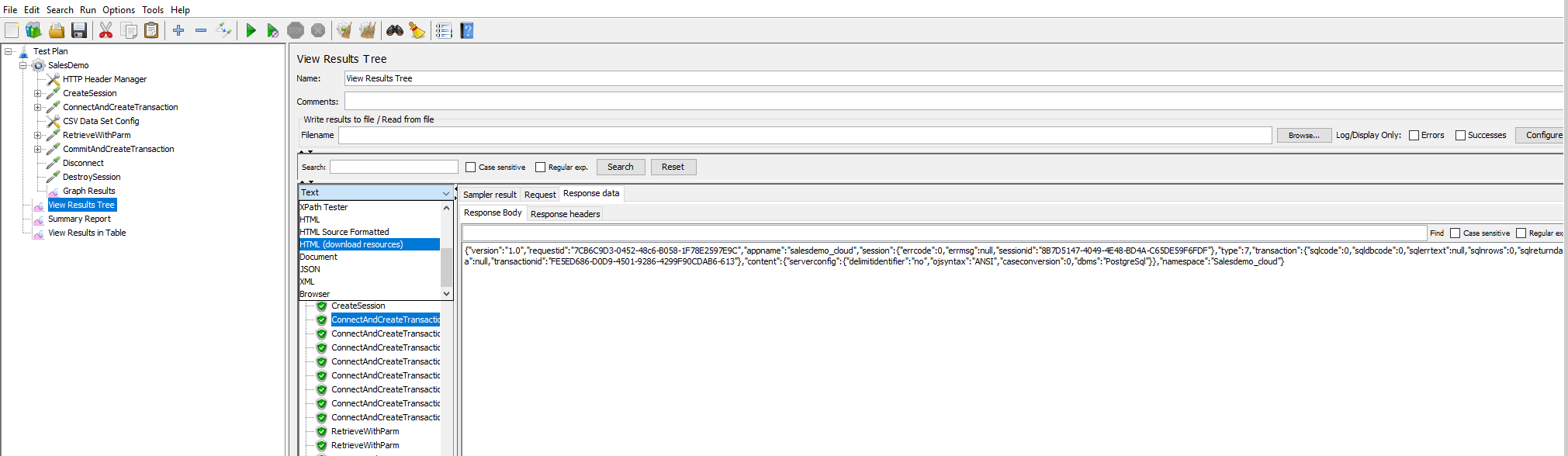
For example, the View Result
Tree is the most commonly used listener which shows all
the details related to the request, HTTP headers, body size,
response code etc.
You can check if the session ID and the transaction ID are
dynamic values in the request body, and use the code returned in
the response data to check if the execution is successful or
diagnose the error (if any).
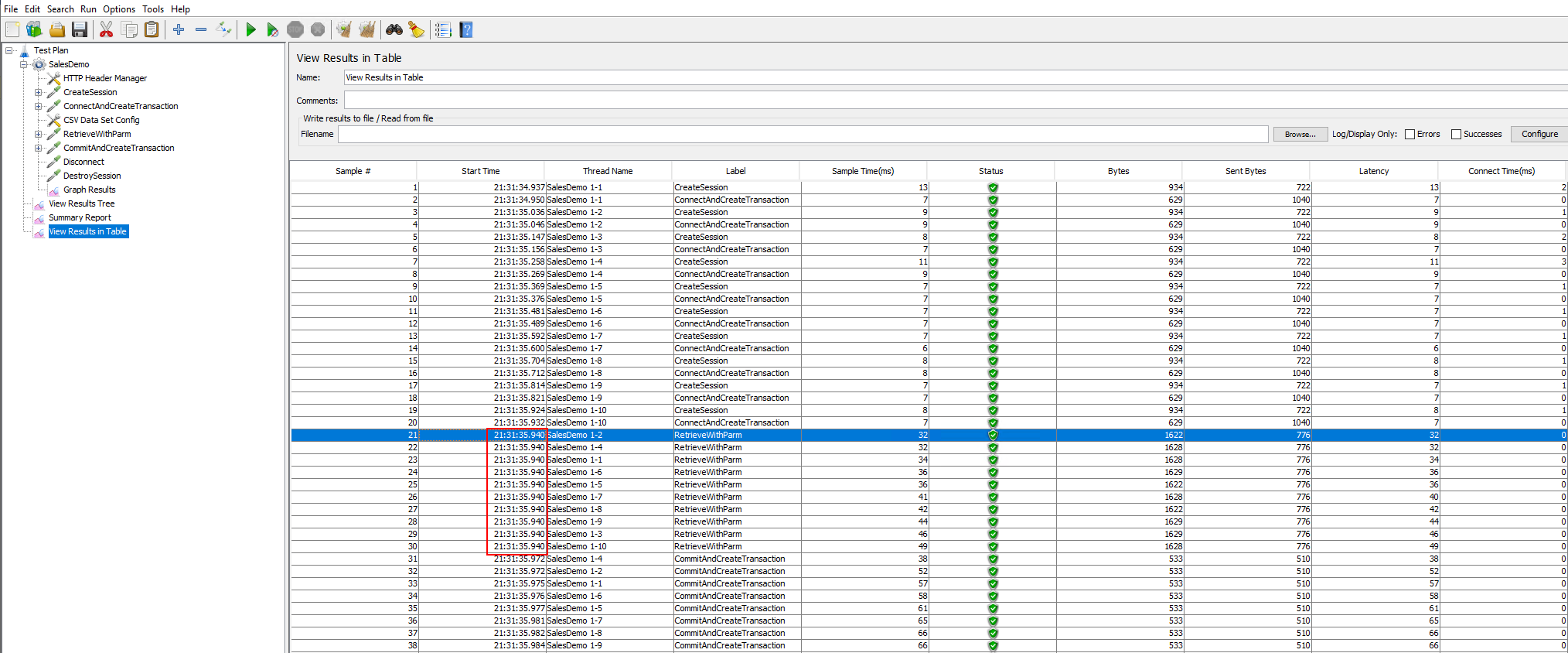
The View Result Tree in
Table listener displays the information of the request
in the form of a table, and in the order of time each request is
made.
You can easily find out whether the requests are made
simultaneously at the same point of time (for example, when
Synchronizing Timer is
added).
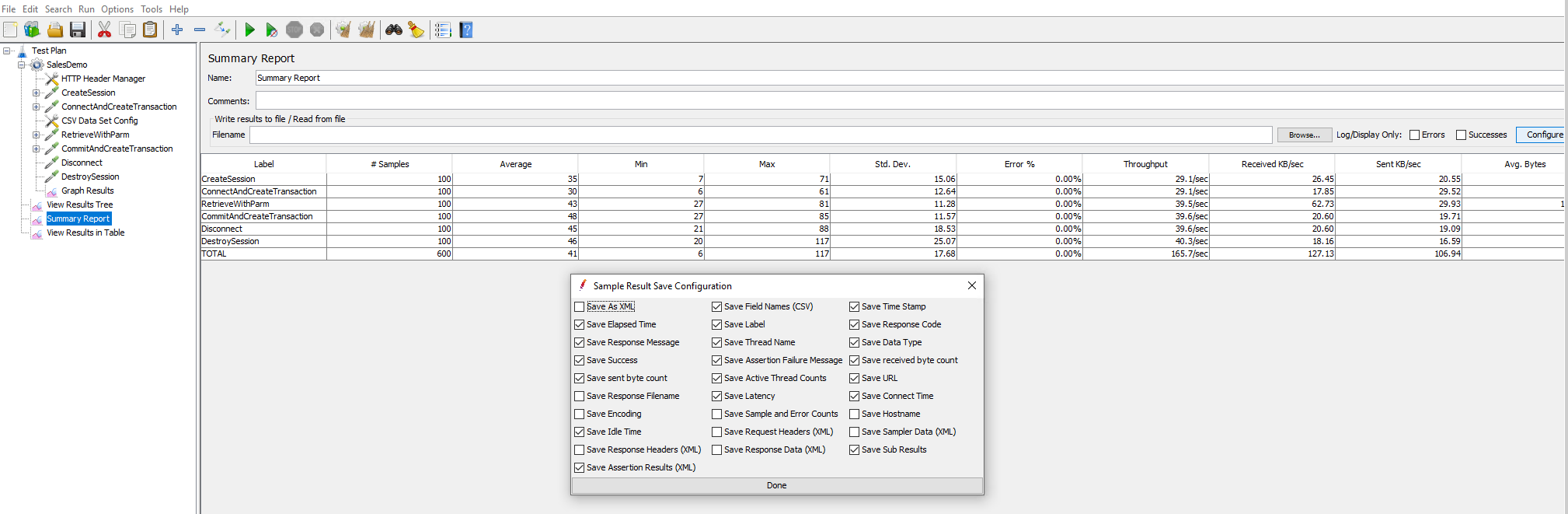
The Summary Report listener
displays the performance matrices of each request, such as the
number of samples processed, the average response time,
throughput, error rate etc.