Running and examining examples
Once you have located an example that performs some processing you
want to learn about, you can run it to examine how it works and look at
the code (and copy it if you want to).
Running an example
To run the highlighted example, double-click it or click Run!. You
can get Help on how to use the example and what it does by clicking the
Help button on the example’s main window.
Examining the code
To see all the objects used in an example, click the Related
Objects tab on the right pane and click the plus signs to expand
items:
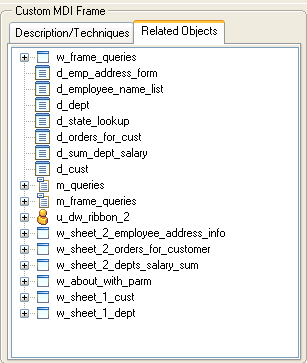
Double-click the icon for a script or function to examine
it.
Using examples in the development
environment
Running the Code Examples application and looking at the code for
an example gives you a lot of information, but if you open objects in
the examples in the development environment, you can examine them in
more depth.
For example, you can open any object in a painter, examine the
inheritance hierarchy in the Browser, and step through an example in the
Debugger. You can even copy objects to your own application in the
Library painter or copy code fragments to the Script view.
The libraries in the Code Examples application are organized by
object type. For example, pbexamd1.pbl and pbexamd2.pbl contain
DataWindow objects. This makes it easy to find the objects that are
referenced as examples later in this book. If you expand the sample
libraries in the List view in the Library painter, the comments tell you
what each object is used for.