Run
the Connection Object wizard
Where you are
> Run the
Connection Object wizard
Modify the connection
information
Complete the login
and logout scripts
Now you run the Connection Object wizard to create a connection
service manager, which you use to establish the runtime database
connection.
The connection service manager is a nonvisual user object. It is
nonvisual because it does not have a graphic representation in the runtime
application; it is a user object because it is a customized object. You
use it to perform database connection processing in a PowerBuilder
application.
Why you run a second wizard
If you had specified connection information in the Template
Application wizard, you would have created the connection service
manager when you generated the application. You can use multiple wizards
in building your application.
-
Click the To-Do List button (
 ) in the PowerBar.
 The To-Do List was generated by the Template Application
wizard.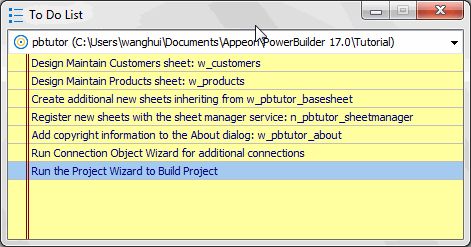
-
Double-click the Run Connection Object Wizard item in the
listor
Right-click the Run Connection Object Wizard item.
Select Go To Link from the pop-up menu.
This is the next-to-last item in the list. The To-Do List lists
what you need to do to complete the application. You can also use the
list to make comments to yourself or other developers working on the
application.You can also run the Connection Object wizard from the PB Object
page of the New dialog box. You used the New dialog box to run the
Template Application wizard in Starting PowerBuilderThe first page of the wizard tells you what it can do.
-
Click Next until the Choose Database Profile page
displays.You accept the wizard’s default selections for the destination
library (pbtutor.pbl) and the database connectivity options (SQL). The
Choose Database Connection Profile page lists all the database
profiles stored in the registry. -
Choose the PB Demo DB V2019R3 in the Database Profiles list box if
it is not already selected. -
Click Next until the Ready To Create Connection Object page
displays.You accept the default settings for the following items:
Wizard page
Option
Default selection
Specify Connectivity Source Info
Source of Connection Information
Application INI File
Connection Service Object
n_pbtutor_connectservice
Name Application INI File
Application INI File
pbtutor.ini
The wizard creates the n_pbtutor_connectservice user object to
manage your database connections. If you change an instance variable
in this connection service object, you can change the source of
connection information to the registry or to a script file. Otherwise,
the pbtutor.ini file — created by the wizard — is used for
application connection information.The last wizard page contains a summary of your choices,
including the default selections.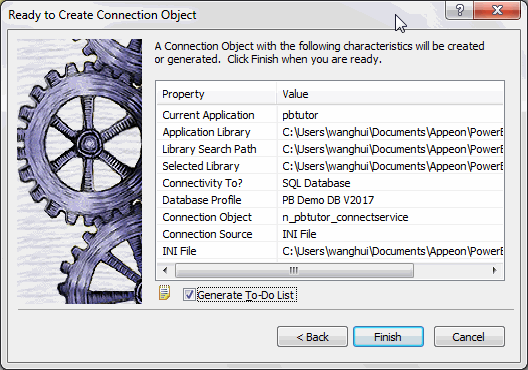
-
Click Finish.
The wizard creates the connection service object and opens it in
the User Object painter. You can see n_pbtutor_connectservice in the
System Tree. The wizard also creates the application INI file. The
To-Do List is still open. -
Close the To-Do List.