Regenerating library entries
Occasionally you may need to update library entries by
regenerating, rebuilding, or upgrading them. For example:
-
When you modify an ancestor object, you can regenerate
descendants so they pick up the revisions to their ancestor. -
When you make extensive changes to a target, you can rebuild
entire libraries so objects are regenerated sequentially based on
interdependence. -
When you upgrade to a new version of PowerBuilder, you need to
upgrade your targets. -
When you regenerate an entry, PowerBuilder recompiles the
source form stored in the library and replaces the existing compiled
form with the recompiled form. You can regenerate entries in the
Library painter or by selecting regenerate from the object’s pop-up
menu in the System Tree.
You can also regenerate and rebuild from a command line. For more
information, see Appendix B, The OrcaScript
Language.
To regenerate library entries in the Library painter:
-
Select the entries you want to regenerate.
-
Click the Regenerate button or select Entry>Library
Item>Regenerate from the menu bar.PowerBuilder uses the source to regenerate the library entry
and replaces the current compiled object with the regenerated
object. The compilation date and size are updated.
Regenerating descendants
You can use the Browser to easily regenerate all descendants of a
changed ancestor object.
To regenerate descendants:
-
Click the Browser button in the PowerBar.
The Browser displays.
-
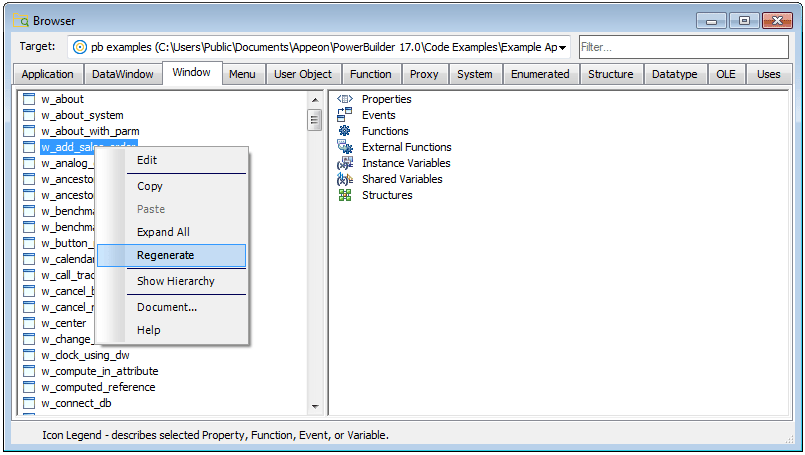
Select the tab for the object type you want to
regenerate.For example, if you want to regenerate all descendants of
window w_frame, click the Window tab. -
Select the ancestor object and choose Show Hierarchy from its
pop-up menu.The Regenerate item displays on the pop-up menu.
-
Click the Regenerate item.
PowerBuilder regenerates all descendants of the selected
ancestor.
For more about the Browser, see Browsing the class
hierarchy.
Regenerate limitations
If you regenerate a group of objects, PowerBuilder will
regenerate them in the order in which they appear in the library,
which might cause an error if an object is generated before its
ancestor. For this reason, you should use a full or incremental build
to update more than one object at a time.