Provide access to the sheet
window from the main application frame
You must register the new sheet with the sheet manager.
-
Double-click w_pbtutor_frame in the System Tree.
-
If the ue_postopen event is not visible in the Script view,
click the Event List tab and double-click ue_postopen.The ue_postopen event script displays in the Script
view. -
Edit the list of sheets to add your new window. The following
entry should be a single line:1string ls_sheets[] = { "w_customers", "w_products", "w_cust_pct" } -
Edit the display list to add a label for your new window. The
following entry should be a single line:1string ls_display[] = { "Maintain Customers", "Maintain Products", "Customer Location" }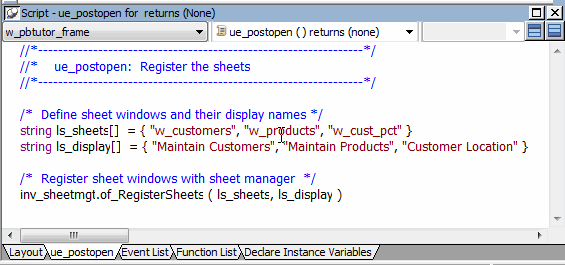
-
Select File>Save and close the w_pbtutor_frame
window.The next time you run the pbtutor application, you should be
able to open the new sheet window from the File menu of the main
frame window. Although you can now run the new sheet window from the
development environment, you must make sure that you can run it from
a compiled application as well.For this purpose, you reference the sheet windows as window
objects in the sheet manager of_registersheet script. The reference
is necessary for the compiler to know that this object is used in
the application so that it will include it in the executable.You create a compiled application in Preparing the Application
for Deployment -
Double-click n_pbtutor_sheetmanager in the System Tree.
-
Click the Function List tab and double-click
of_registersheet.The script for the of_registersheet function displays in the
Script view. -
Enter the following after the lines declaring sheet window
variables for the w_customers and w_products windows:1w_cust_pct lw_sheet3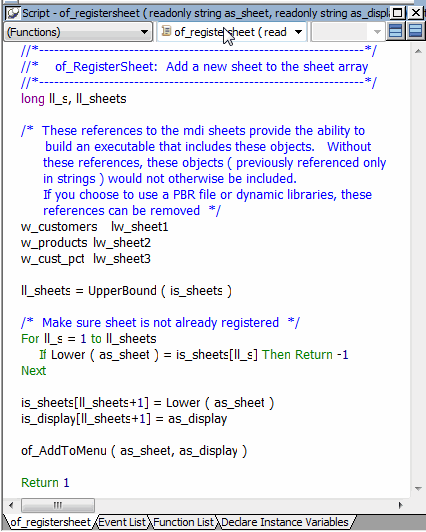
-
Save and close the n_pbtutor_sheetmanager user object.