Printing with newspaper-style columns
When you define a DataWindow object, you can specify that it
print in multiple columns across the page, like a newspaper. A
typical use of newspaper-style columns is a phone list, where you
want to have more than one column of names on a printed page.
Use Print Preview to see the printed output
Newspaper-style columns are used only when the DataWindow
object is printed. They do not appear when a DataWindow object
runs (or in Preview). Therefore, to see them in PowerBuilder, use
Print Preview in the DataWindow painter.
To define newspaper-style columns for a DataWindow
object
-
Build a tabular DataWindow object with the data you
want. -
Select Properties from the DataWindow object’s pop-up
menu. -
Select the Print Specifications tab.
-
Specify the number of columns across the page and the
width of columns in the Newspaper Columns Across and Newspaper
Columns Width properties.For each control in the DataWindow object that you do not
want to have appear multiple times on the page (such as
headers), select Properties from the control’s pop-up menu and
select the HideSnaked check box on the General page in the
Properties view.
Example
This example describes how to create a newspaper-style
DataWindow object using the Employee table in the PB Demo DB.
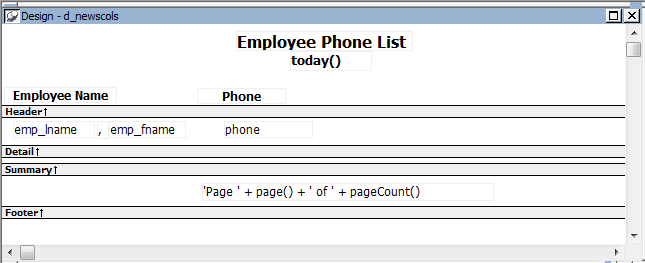
Create a tabular DataWindow object, selecting the last name,
first name, and phone number columns, and add a title, page number,
and date.
The Emp_Fname column and the text control holding a comma are
defined as Slide Left, so they display just to the right of the
Emp_Lname column.
On the Print Specifications page of the DataWindow object’s
Properties view, specify two columns across and a column width of
3.5 inches in the Newspaper Columns boxes. (Make sure that Units is
set to inches on the General property page.)
To view the DataWindow object as it will be printed, place the
pointer in the Preview view and select File>Print Preview.
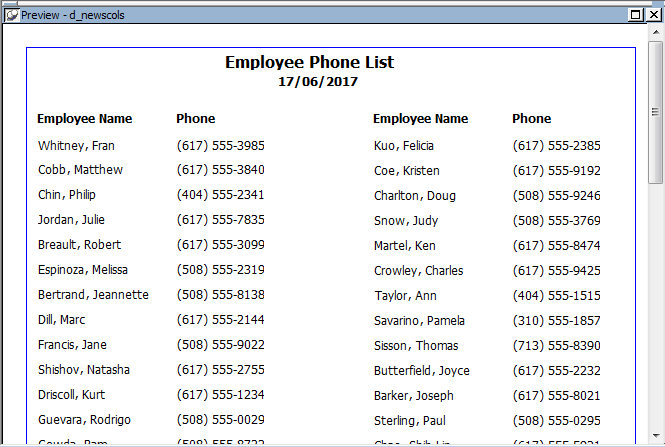
The DataWindow object displays the result set in two columns.
Everything above the column headers (which includes page number,
title, and date) also shows twice because of the 2-column
specification. This information should appear only once per
page.
To specify that page number, title, and date appear only once
on the page, you need to suppress printing after the first column.
For each of these controls, select Properties from the control’s
pop-up menu. Then set the HideSnaked property.
The finished DataWindow object has one set of page heading
information and two columns of column header and detail
information.