Preview and printing
The user can preview the layout and print the contents of the
RichTextEdit control. In print preview mode, users see a view of the
document reduced so that it fits inside the control. However, you must
set the print margins and page size before you display the control in
print preview mode.
There are two ways to enter print preview mode:
-
The user can press CTRL+F2 to switch between editing and print
preview mode -
You can call the Preview function in a script:
1rte_1.Preview(TRUE)
Users can page through the control contents in print preview mode
by using the up arrow and down arrow keys or the Page Up and Page Down
keys.
Adjusting the print
margins
If you set page margins at design time, or enable headers and
footers for a rich text control, application users can adjust the
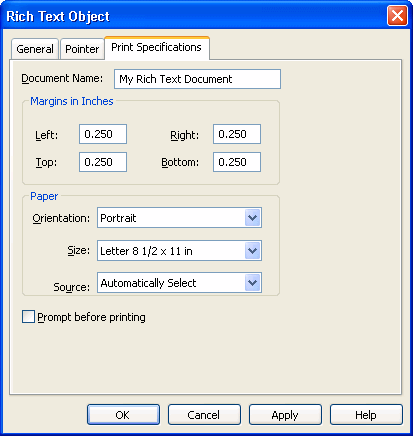
margins of the control at runtime. Users can do this by opening the
property sheet for the RichTextEdit control to the Print Specifications
tab and modifying the left, right, top, or bottom margins, or by
triggering an event that changes the margins in PowerScript code.
Adjusting the margins in the Rich Text Object dialog box also affects
the display of the RichTextEdit control content in print preview
mode.
If you do not set page margins at design time or leave them at 0,
any changes the user makes to the margins at runtime are visible in
print preview mode only.
Setting page size and orientation
You cannot set the default page size and page orientation at
design time. However, users can set these properties at runtime from
the Print Specifications tab of the Rich Text Object dialog box. This
dialog box is available from the standard view only. You must also
enable the pop-up menu on a RichTextEdit control to enable application
users to display this dialog box.
Printing
If the RichTextEdit is using DataWindow object data, you can limit
the number of rows printed by setting the Print.Page.Range property for
the DataWindow control. Its value is a string that lists the page
numbers that you want to print. A dash indicates a range.
Example of a page range
Suppose your RichTextEdit control has a data source in the control
dw_source. Your rich text document is three pages and you want to print
the information for rows 2 and 5. You can set the page range property
before you print:
|
1 2 |
dw_source.Object.DataWindow.Print.Page.Range = & "4-6,13-15" |
You can also filter or discard rows so that they are not
printed.
For more information, see the SetFilter, Filter, RowsMove, and
RowsDiscard functions in PowerScript Reference and
the Print DataWindow object property in the section called “Print.property” in DataWindow Reference.
Inserting footer text programmatically
This sample code sets the insertion point in the footer and
inserts two blank lines, text, and two input fields:
|
1 2 3 4 5 6 |
rte_1.SelectText(1, 1, 0, 0, Footer!) rte_1.ReplaceText("~r~n~r~nRow ") rte_1.InputFieldInsert("row") rte_1.ReplaceText(" Page ") rte_1.InputFieldInsert("page") rte_1.SetAlignment(Center!) |